Microsoft Entra PIM: Active vs Eligible Assignment Activation Logic
Short answer
User1 (Group1) does not need to activate the role because the assignment is Active. User2 (Group2) must activate the role; the 5-hour setting defines the session duration after activation, not the time allowed to initiate the request.
Question
You have a Microsoft Entra tenant that contains the users shown in the following table.
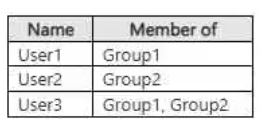
From Microsoft Entra Privileged Identity Management (PIM), you configure the settings for the Security Administrator role as shown in the following exhibit.
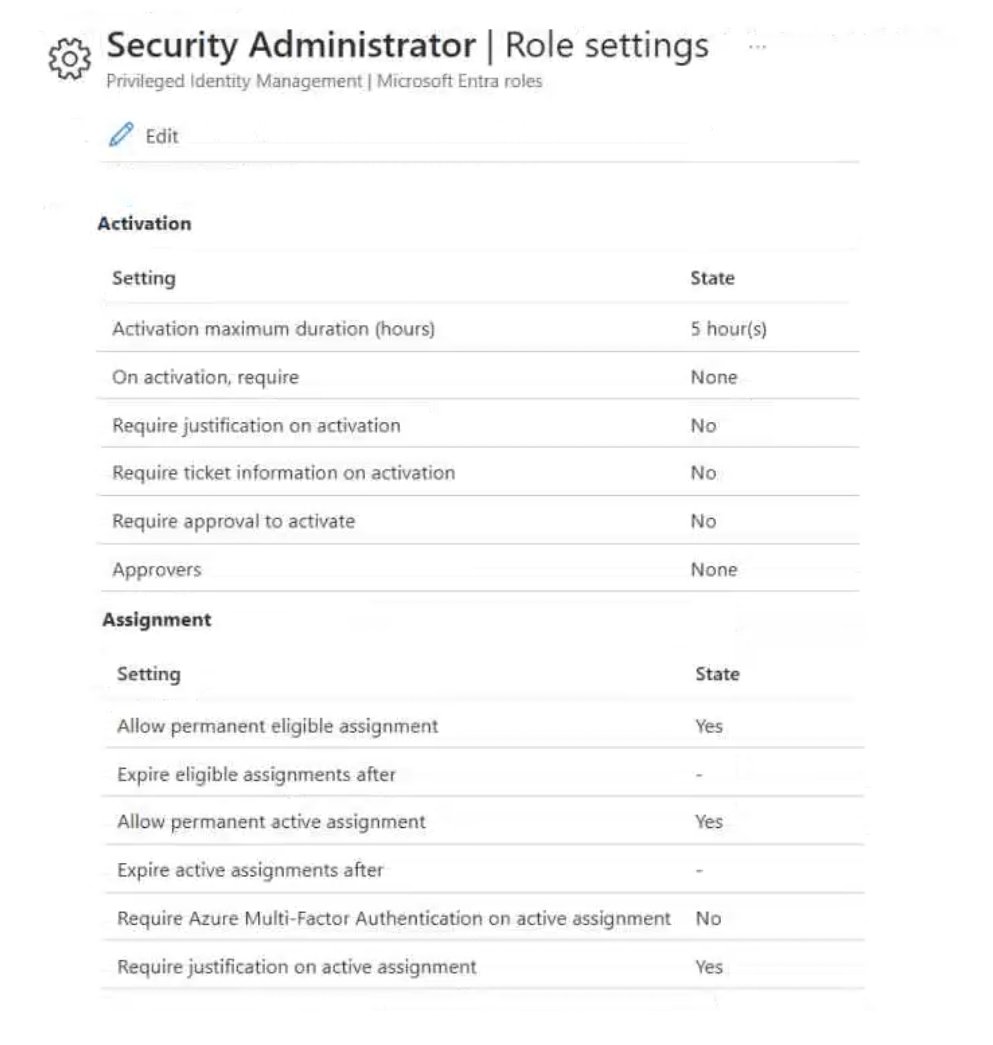
From PIM, you assign the Security Administrator role to the following groups:
Group1: Active assignment type, permanently assigned
Group2: Eligible assignment type, permanently eligible
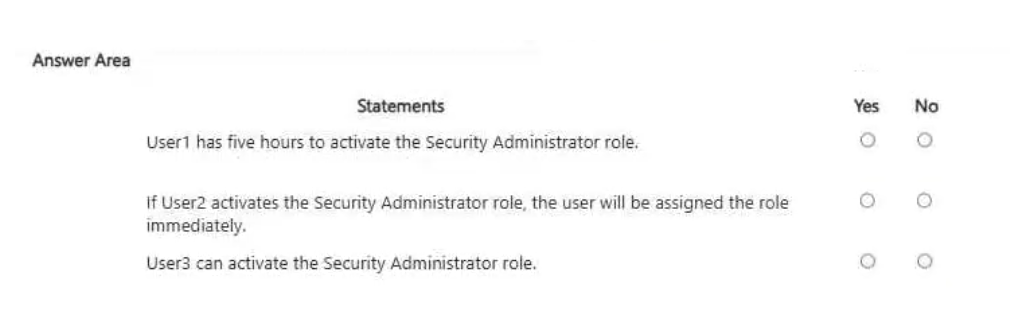
For each of the following statements, select Yes if the statement is true. Otherwise, select No.
NOTE: Each correct selection is worth one point.
Key Takeaways
The primary trap is confusing 'Activation Duration' (how long the role stays on) with 'Activation Window' (time to start the process), especially for Eligible groups.
Learn how Microsoft Entra PIM handles Active versus Eligible role assignments. Understand that Active users never activate, while Eligible users face distinct duration and window timers.
Common mistake: Learners often assume the 5-hour duration applies to the time allowed to click 'Activate', leading them to mark eligibility statements incorrectly. They also mistakenly think Active users can have activation restrictions.
Expert Analysis
The core concept tested here is the distinction between Activation Duration and Activation Window within Microsoft Entra Privileged Identity Management (PIM). The scenario configures a Security Administrator role with specific settings that directly impact how Group1 (Active) and Group2 (Eligible) users interact with the role.
First, consider User1 in Group1. This group has an Active assignment. Active assignments are permanent; the user always holds the role without needing to request it. The PIM settings for activation duration or window do not apply because there is no activation process required. Therefore, any statement suggesting User1 needs to activate the role or has time limits for activation is false.
Next, consider User2 in Group2. This group has an Eligible assignment. Eligible users must actively request and activate the role to use its permissions. The exhibit shows two critical settings: Activation maximum duration (hours) = 5 hours and Activation window (minutes/hours) (typically defined as the time after which a request expires if not approved/activated, though the prompt implies a specific configuration). The comment clarifies a common trap: the "5 hours" setting refers to how long the role remains active after it is turned on, not the window of time allowed to start the activation. If the question asks about the time limit to initiate activation, one must look at the "Activation window" setting, not the duration. If the statement claims User2 has 5 hours to activate (initiate), this is likely false if the window is different, or true only if misinterpreting the term 'duration'. However, standard PIM logic dictates:
- User1 (Group1): Never activates. Role is always on. Statements about activation timing are No.
- User2 (Group2): Must activate. The "5 hours" is the session length. The "window" is the request validity period. If the statement says "User2 has 5 hours to activate," this conflates duration with window. Typically, the window is shorter (e.g., 1 hour) or distinct. Without the exact text of the statements, we rely on the principle: Active = No activation needed; Eligible = Activation needed, governed by separate duration and window timers.
The key insight is recognizing that Active assignments bypass activation controls entirely, while Eligible assignments are subject to strict temporal constraints defined separately for start-time windows and post-activation duration.
Exam Strategy
When analyzing PIM scenarios, first identify the assignment type. If 'Active', immediately rule out any activation-related constraints. If 'Eligible', strictly separate the 'Duration' (session length) from the 'Window' (request expiry) when evaluating time-based statements.
Frequently Asked Questions
What happens if an Active user tries to deactivate their role?
Can an Eligible user extend their activation beyond the max duration?
Discussion 1 contributions
Compiled from public community threads and reader submissions, lightly edited for clarity. Handles and vote tallies are shown as recorded, and comments reflect the views of individual contributors.
From public community threads 1
-
azuretrainer1 👍 1Incorrect answer: User1 has five hours to activate the Security Administrator role: No — Because the image explicitly shows the Activation maximum duration (hours) is 5 hour(s), which defines the length of time the role remains active once turned on, not the window of time allowed to initiate the activation request. If User2 activates the Security Administrator role, the user will be assigned the role immediately: Yes — Because the policy settings for Require approval to activate and On activation, require are both set to None, allowing immediate assignment upon activation. User3 can activate the Security Administrator role: Yes — Because User3 is a member of both groups (Group1 and Group2), qualifying them for role activation under the PIM policy configuration.
Reader comments & corrections
No reader corrections yet — spotted an error or have a note? Share it below.
Related Analysis
Practice All SC-500 Questions
Access 100 questions with complete answers and detailed explanations.
View Full SC-500 Practice Test →