Minimizing effort when reducing a Power Query Date column to just the year
Short answer
D Transform the column to Date > Year changes it to year values in one built-in step.
Question
Key Takeaways
Transform > Date > Year replaces the column in one built-in step — extraction-based options produce text and require extra cleanup, so the single built-in transform is the minimal-effort path.
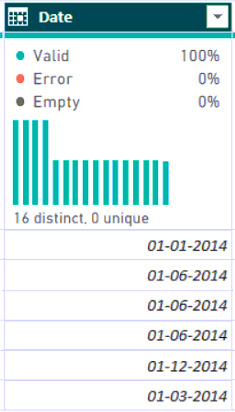
A Date column previewed in Power Query Editor must be reduced to contain only the year, with the least administrative effort, so the question hinges on which transform accomplishes it in the fewest steps.
Common mistake: Splitting or extracting parts of the column — those work but yield text values that need additional steps (and possibly type conversion), violating the minimize-effort constraint even though the end result can look the same.
Expert Analysis
Why the Answer Is Correct
Option D applies the built-in Date transform (Transform > Date > Year > Year), which converts the column to year values in a single step with no follow-up work. Power Query implements it with the Date.Year function, and because it is a transform rather than an extraction, the column's type is handled automatically. That single-click path is the definition of minimizing administrative effort in this scenario.
Why the Other Options Are Wrong
Splitting the column by delimiter (A) only works if the display format guarantees a separator around the year, and it produces text fragments that then require selecting and typing the right piece plus a type change. Splitting by number of characters (B) hard-codes positional assumptions that break when date formats vary. Extracting text after the delimiter (C) is also format-dependent and leaves a text value needing conversion. All three achieve a year-looking result but through multiple steps, failing the minimize-effort bar that D clears in one.
Community Comment Notes
A commenter observes that all four options can technically lead to the desired result but A, B, and C require additional steps, which is exactly why D wins under the minimize-effort requirement. Another comment walks through the Select > Transform > Date > Year menu path confirming the one-step nature of D.
Official Reference
https://learn.microsoft.com/en-us/powerquery-m/date-year
This link opens the official vendor documentation in a new tab.
Exam Strategy
Look for 'minimize administrative effort' or 'single step' requirements. Always choose the dedicated semantic transform (like Date > Year) over text manipulation methods like Split or Extract, which require extra steps and type conversions.
Frequently Asked Questions
How to extract year from date in Power Query?
Why not split column by delimiter for year?
Community Votes
84% of anonymous learners picked answer D. Votes are pick records left by other test-takers — they are not the verified answer.
Discussion 8 contributions
Compiled from public community threads and reader submissions, lightly edited for clarity. Handles and vote tallies are shown as recorded, and comments reflect the views of individual contributors.
From public community threads 8
-
b92fc92 👍 4 Answered DWhy A? the column is Date type, so D is possible, D in my opinion
-
Davery 👍 3 Answered DD is the correct answer - Transform the column to contain only the year. This approach directly modifies the column to display only the year, without the need for additional steps like splitting or extracting text.
-
a5de5a2 👍 3 Answered AOption A If we need to minimize administrative efforts , we ideally should use built in delimeter in power query
-
Fatima300 👍 2 Answered DD. Transform the column to contain only the year. You can do this by selecting the "Date" column, then choosing Transform > Date > Year in Power Query Editor, which will automatically convert the column to show only the year.
-
Ricky_lm 👍 2 Answered DSelect Column - Transform - Date - Year - Year
Show 3 more comments
-
ee0625a 👍 1 Answered DD. Transform the column to contain only the year is the fastest and most efficient method in Power Query.
-
BhavnishM 👍 1 Answered Dall 4 solutions will lead to the desired result. But A,B,C will require additional steps.
-
ChopChop007 👍 3 Answered DD it is.
Reader comments & corrections
No reader corrections yet — spotted an error or have a note? Share it below.
Related Analysis
Practice All PL-300 Questions
Access 116 questions with complete answers and detailed explanations.
View Full PL-300 Practice Test →