Power BI Azure SQL Connection Settings: Timeouts and Hierarchy Navigation
Short answer
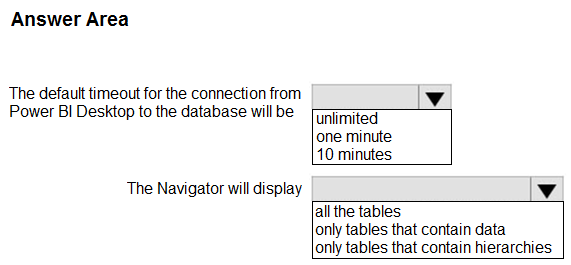
The Command timeout in minutes is 10. When Navigate using full hierarchy is cleared, the Navigator displays only tables with data.
Question
You are using Power BI Desktop to connect to an Azure SQL database.
The connection is configured as shown in the following exhibit.
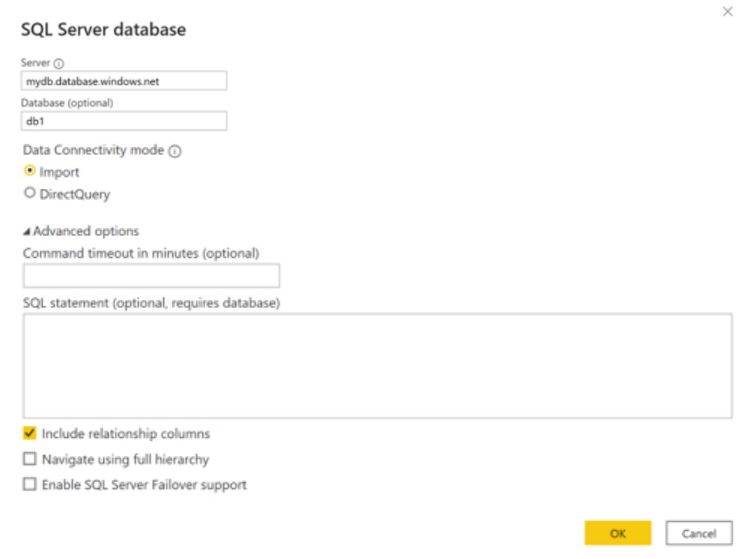
Use the drop-down menus to select the answer choice that completes each statement based on the information presented in the graphic.
NOTE: Each correct solution is worth one point.
Key Takeaways
Tests knowledge of the default 10-minute command timeout and the specific filtering behavior of the Navigator window when hierarchy navigation is disabled.
The default command timeout for Azure SQL connections in Power BI is 10 minutes. Disabling 'Navigate using full hierarchy' filters the Navigator to show only tables containing data.
Common mistake: Learners often assume the timeout is infinite or much longer, leading to incorrect assumptions about query limits. Others confuse the hierarchy toggle, believing it hides tables without data even when checked, or fails to realize it filters out empty tables when unchecked.
Expert Analysis
Command Timeout Configuration The Power BI Desktop connection settings for Azure SQL Database include a specific parameter for command execution duration. The default value for the Command timeout in minutes setting is 10. This timeout applies when executing queries against the data source; if a query exceeds this duration, the connection is terminated to prevent resource exhaustion. While users can increase this value for complex reports, the baseline configuration remains at ten minutes.
Navigator Display Logic The behavior of the Navigator window is governed by the Navigate using full hierarchy toggle. When this option is enabled (checked), the interface displays the complete structure of the database schema, including all tables regardless of their content status. Conversely, when the option is disabled (cleared), the Navigator filters the view dynamically. It displays only tables with data, hiding any empty tables or views that contain no rows. This feature helps reduce visual clutter when working with large schemas where many objects are unused or empty.
Operational Consequences and Adjacent Decisions Understanding these settings is critical because they directly impact both performance and usability. If a user encounters timeouts during heavy data transformations, increasing the command timeout beyond the default 10 minutes may be necessary, though it risks hanging sessions indefinitely if not managed properly. On the other hand, disabling the full hierarchy navigation simplifies the data model selection process but carries the risk of inadvertently ignoring empty tables that might become relevant later or indicate structural issues in the source database. Getting this wrong leads to either failed imports due to strict timeouts or confused report builders who cannot locate expected empty structures.
Scenario Variations If the scenario involved SQL Server instead of Azure SQL, the underlying principles remain similar regarding timeouts, but the specific connector documentation should always be verified as defaults can occasionally shift between versions or cloud vs. on-premises implementations. Furthermore, if the goal was to force the display of all tables regardless of content, the candidate must ensure the hierarchy checkbox is explicitly checked.
Official Reference
https://learn.microsoft.com/en-us/power-query/connectors/azure-sql-database
This link opens the official vendor documentation in a new tab.
Exam Strategy
Memorize default values for critical connection parameters like timeouts and refresh schedules. For UI-based questions, visualize the exact state of the dialog box: checkmarks enable full visibility, while unchecks often trigger filtering or simplified views. Always verify the specific connector type, as behaviors can vary slightly between Azure SQL, SQL Server, and other sources.
Frequently Asked Questions
What happens if I set the command timeout to 0?
Does 'Navigate using full hierarchy' affect data loading?
Why would I clear 'Navigate using full hierarchy'?
Discussion 46 contributions
Compiled from public community threads and reader submissions, lightly edited for clarity. Handles and vote tallies are shown as recorded, and comments reflect the views of individual contributors.
From public community threads 30 of 46
-
Sushvij 👍 8310min Only tables with data If navigate using full hierarchy is unchecked you can see only tables(rows n columns) with data. Otherwise you can see all tables
-
GuerreiroJunior 👍 35The defaut time out is 10 minutes, but if it takes more than it you can enter another value in minutes to keep the connection open longer. 1. 10 minutes 2. All the tables Reference: https://learn.microsoft.com/en-us/power-query/connectors/azuresqldatabase
-
ppt_powerbi 👍 30Only tables with data. From your reference link, under Connect using advanced options, it clearly shows that "Navigate using full hierarchy If checked, the navigator displays the complete hierarchy of tables in the database you're connecting to. If cleared, the navigator displays only the tables whose columns and rows contain data."
-
Hansen_G 👍 16Navigate using full hierarchy is unchecked. Only table with data will be displayed.
-
CookieMingkee 👍 11If you only follow the documentation from Microsoft, it is open to interpretation unless you stepped through the process. I cannot add a screenshot in this post but use the this link to use as a reference on how exactly the Navigator would look like using with the "Navigate using full hierarchy" is checked and unchecked. I connected to an Azure SQL Database with tables containing data and others are blank. Marking the "Navigate using full hierarchy" will list the Schemas first and the hierarchy for each object under each schema (e.g. dbo, db_onwer, etc.). Unmarking the "Navigate using full hierarchy" will show all the tables whether with data or without data.
Show 25 more comments
-
Bamlaku 👍 6Answer is correct: 10 minutes (default) Only tables with Data Navigate using full hierarchy: If checked, the navigator displays the complete hierarchy of tables in the database you're connecting to. If cleared, the navigator displays only the tables whose columns and rows contain data. https://learn.microsoft.com/en-us/power-query/connectors/azure-sql-database
-
RedRoss 👍 6it says in your reference link for "Navigate using full hierarchy" : If checked, the navigator displays the complete hierarchy of tables in the database you're connecting to. If cleared, the navigator displays only the tables whose columns and rows contain data. Which means, it'll only show the tables with data and not all tables.
-
Mo2011 👍 6Wrong, as per Microsoft-> If cleared, the navigator displays only the tables whose columns and rows contain data (copied from MS)
-
Danylessoucis 👍 6My bad, only tables with data for that reason
-
SanaCanada 👍 5Please ignore my first answer, after reviewing in detail Correct answer is 10 Minutes and Only Table with Data If "Navigate using full hierarchy" is unchecked in the Fields pane in Power BI Desktop, then only the tables and fields that contain data will be displayed in the report view. Any tables or fields that do not have data will be hidden from view. However, it's important to note that this option controls the behavior of the Fields pane in the report view, and does not affect the data that is loaded into the report. Even if the option is unchecked, all tables and fields in the data model will still be available for use in the report. They just won't be visible in the Fields pane unless they contain data. So, if you want to ensure that only the tables and fields with data are shown in the report view, you can uncheck "Navigate using full hierarchy" in the Fields pane. But if you want to include all tables and fields in the data model, even if they don't currently contain data, you should leave the option checked.
-
Ashishsingh07 👍 51. 10 Minutes 2. All the tables (I just tried this out)
-
Unzi_ 👍 4Correct!: Command timeout in minutes: If your connection lasts longer than 10 minutes (the default timeout), you can enter another value in minutes to keep the connection open longer. This option is only available in Power Query Desktop. Navigate using full hierarchy: If checked, the navigator displays the complete hierarchy of tables in the database you're connecting to. If cleared, the navigator displays only the tables whose columns and rows contain data. Include relationship columns: If checked, includes columns that might have relationships to other tables. If this box is cleared, you won’t see those columns. https://learn.microsoft.com/en-us/power-query/connectors/azure-sql-database
-
semauni 👍 4I think the real confusion is, should you answer what the documentation tells you or should you answer based on experience (because some have apparently tested it and agree with you) :)
-
ahhida 👍 4Yes answer is 10 min , only tables with data as this is azure sql server not on premises sql server https://learn.microsoft.com/en-us/power-query/connectors/azure-sql-database
-
SilentAnalyst 👍 4The solution is correct. 10 minutes default timeout Only tables that contain data reference to https://learn.microsoft.com/en-us/power-query/connectors/azure-sql-database
-
627628c 👍 310 Minutes Only tables with data Per Microsoft Learn: "Navigate using full hierarchy - If checked, the navigator displays the complete hierarchy of tables in the database you're connecting to. If cleared, the navigator displays only the tables whose columns and rows contain data." https://learn.microsoft.com/en-us/power-query/connectors/azure-sql-database
-
omath 👍 3* Answer: - Default timeout for the connection: 10 minutes (Power BI Desktop uses a default command timeout of 10 minutes when the field is left blank.) - Navigator will display: All the tables (Because “Include relationship columns” is checked, but hierarchy navigation is not enabled, Navigator still shows all tables in the database.)
-
Igetmyrole 👍 3The correct answers are: 10 minutes . The default timeout for the connection from Power BI Desktop to Azure SQL database is 10 minutes. All the tables : the navigator will display all the tables available in the specified database, regardless of whether they contain data or hierarchies.
-
Vikash14 👍 3Sorry my bad as Navigate is not checked : it would show tables with data
-
Throneroom 👍 3True, I have seen it
-
semauni 👍 2I would say there is a need to further discuss it. The documentation about Azure SQL database states that if full hierarchies is unchecked, 'the navigator displays only the tables whose columns and rows contain data', as others have already stated and linked to. What you describe is my experience with Microsoft SQL Server as well, but Azure SQL database appears to be an exception.
-
Vikash14 👍 210 mins All the tables If checked, the navigator displays the complete hierarchy of tables in the database you're connecting to. If cleared, the navigator displays only the tables whose columns and rows contain data. Reference : https://learn.microsoft.com/en-us/power-query/connectors/azuresqldatabase
-
Danylessoucis 👍 2Right.10mn and All the tables because ‘’Navigate using full hierarchy : If checked, the navigator displays the complete hierarchy of tables in the database you're connecting to. If cleared, the navigator displays only the tables whose columns and rows contain data’’.
-
JoaoTrade 👍 2I agree with 10 min, but not sure on the only tables that contain data.. i would say all the tables
-
Makaroni 👍 2Is the answer ALL Tables or Only tables that contain data? I think the real confusing is there?
-
WRTopics 👍 210 Min. All Tables. I work with DirectQuery in my job.
-
jijita 👍 21. 10 MINUTES 2. ALL TABLES (I TRIED THIS )
-
rcaliandro 👍 210 minutes, only tables that contain data
-
Ibritics 👍 2and what does fialeover do?
-
DUVANES 👍 21. 10 Minutos 2. All Tables
Reader comments & corrections
No reader corrections yet — spotted an error or have a note? Share it below.
Related Analysis
Practice All PL-300 Questions
Access 116 questions with complete answers and detailed explanations.
View Full PL-300 Practice Test →