Identifying Correct Administrative Tasks in Microsoft Teams Admin Center
Short answer
Manage a Teams Rooms device
Question
Select the answer that correctly completes the sentence.
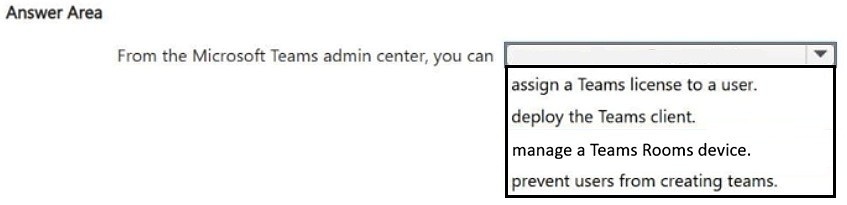
Key Takeaways
The main trap is confusing the Teams admin center with the general M365 admin center or Intune; remember that Teams admin center manages Teams services and devices, not user licenses or endpoint client installations.
This page explains which administrative tasks are performed in the Microsoft Teams admin center, specifically identifying that managing Teams Rooms devices is the correct action, while licensing and client deployment belong elsewhere.
Common mistake: Selecting 'Assign a Teams license' or 'Deploy the Teams client' because these are related to Teams, but they are actually managed in the Microsoft 365 admin center/Entra ID and Intune respectively, not the Teams admin center.
Expert Analysis
The question asks to identify the correct administrative action within the Microsoft Teams admin center. The key constraint is recognizing the specific scope of this management plane compared to other Microsoft 365 administrative tools.
Why 'Manage a Teams Rooms device' is correct: The Microsoft Teams admin center (admin.teams.microsoft.com) is the primary hub for managing Teams-specific configurations, including policies, apps, and Teams Rooms devices. Administrators can view device health, update firmware, and configure settings for Teams Rooms hardware directly from this interface. This aligns with the core function of the Teams admin center as described in Microsoft documentation.
Why other common approaches are incorrect: Learners often confuse the Teams admin center with the broader Microsoft 365 admin center or Endpoint Manager (Intune). For instance, assigning a Teams license to a user is handled in the M365 admin center or Entra ID, not the Teams admin center. Similarly, deploying the Teams client software to endpoints is typically managed via Intune or Group Policy, not through the Teams admin center. These distinctions are critical: the Teams admin center focuses on service and device management for Teams itself, not identity licensing or OS-level client deployment.
The provided comments correctly highlight that managing Teams Rooms devices is the only valid action among typical distractors. This requires knowing that Teams Rooms are treated as first-class citizens in the Teams admin center's device management section.
Exam Strategy
When asked about administrative actions, always map the resource to its primary management plane: Identity/Licensing -> M365 Admin Center/Entra ID; Endpoint/Device Management -> Intune; Service/Device Specifics -> Service Admin Centers (like Teams). If a task involves configuring a specific service's behavior or its dedicated devices, look for that service's admin center.
Frequently Asked Questions
Where do I assign a Teams license?
Can I deploy the Teams client via the Teams admin center?
Discussion 2 contributions
Compiled from public community threads and reader submissions, lightly edited for clarity. Handles and vote tallies are shown as recorded, and comments reflect the views of individual contributors.
From public community threads 2
-
omath 👍 6Answer: manage a Teams Rooms device Explanation: - Assign a Teams license to a user → This is done in the Microsoft 365 admin center or Entra admin center, not in Teams admin. - Deploy the Teams client → Deployment is done via Intune, Endpoint Manager, or manual installation, not the Teams admin center. - Manage a Teams Rooms device → ✔ The Teams admin center includes Teams Rooms management, device health, configuration, and monitoring. - Prevent users from creating teams → This is controlled through Microsoft 365 Groups settings in Entra or PowerShell, not in the Teams admin center.
-
dcxmscommunity 👍 1✅ Correct answer: manage a Teams Rooms device. Explanation The Microsoft Teams admin center is used to manage Teams services, devices, policies, and settings, including: Teams Rooms devices Teams meetings and calling Teams apps Teams policies
Reader comments & corrections
No reader corrections yet — spotted an error or have a note? Share it below.