Sequencing the Standard Excel Import Process in Dynamics 365 Sales
Short answer
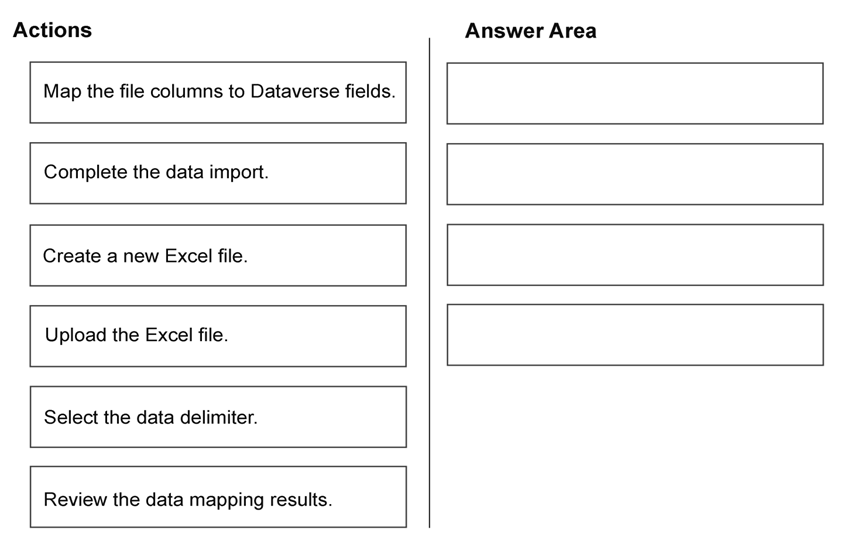
The correct sequence is: 1. Upload the Excel file, 2. Map the file columns to Dataverse fields, 3. Review the data mapping results, 4. Complete the data import.
Question
A company is migrating legacy customer data into Dynamics 365 Sales.
Data administrators prepare an Excel file and plan to use the standard Excel import experience.
You need to complete the import.
Which four actions should you perform in sequence? To answer, move the appropriate actions from the list of actions to the answer area and arrange them in the correct order.
Key Takeaways
The question tests knowledge of the rigid procedural order of the Dataverse import wizard, where mapping must precede validation and completion.
Learn the correct four-step sequence for importing legacy customer data into Dynamics 365 Sales using the standard Excel import tool: Upload, Map, Review, and Complete.
Common mistake: Learners often confuse the order of 'Map' and 'Review', or attempt to 'Complete' the import before verifying the mappings, leading to data misalignment errors.
Expert Analysis
The scenario involves migrating legacy customer data into Dynamics 365 Sales using the standard Excel import experience. This process follows a strict sequential workflow within the Dataverse data import framework to ensure data integrity and proper mapping.
First, the administrator must initiate the upload by selecting the prepared Excel workbook. This action transfers the raw data file from the local environment to the system for processing. Without this initial step, no further configuration is possible.
Second, once the file is uploaded, the system requires explicit instructions on how to interpret that data. The administrator must map the Excel columns to the corresponding Dynamics 365 (Dataverse) fields. While some mappings may be automatic based on header names, critical or custom fields require manual alignment to ensure data lands in the correct entities.
Third, before finalizing the migration, it is essential to validate the configuration. The administrator must review the data mapping results. This step allows for verification that the column-to-field associations are correct and that any potential errors or warnings are identified prior to committing the data to the database.
Finally, after successful validation, the administrator completes the data import. This action executes the actual write operation, inserting the legacy records into the Dynamics 365 Sales environment.
As noted in community explanations, this four-step sequence—Upload, Map, Review, Complete—is the standard procedure for Excel imports in this context. Skipping the review step risks importing misaligned data, while attempting to complete the import without mapping leaves the data unassociated with target fields.
Official Reference
https://learn.microsoft.com/en-us/power-apps/maker/data-platform/import-data
This link opens the official vendor documentation in a new tab.
Exam Strategy
When facing drag-and-drop sequencing questions about administrative workflows, visualize the lifecycle of the object being processed. For data imports, always follow the logical path: Ingest (Upload) -> Configure (Map) -> Validate (Review) -> Execute (Complete). Eliminate options that place execution before validation.
Frequently Asked Questions
Can I skip the 'Review' step if mappings look correct?
Does the order matter if I am only importing one record?
Discussion 1 contributions
Compiled from public community threads and reader submissions, lightly edited for clarity. Handles and vote tallies are shown as recorded, and comments reflect the views of individual contributors.
From public community threads 1
-
Evincible 👍 11:Upload the Excel file. 2:Map the file columns to Dataverse fields. 3: Review the data mapping results. 4: Complete the data import. Explanation 1. Upload the Excel file: Select the prepared Excel workbook containing the customer data. 2. Map the file columns to Dataverse fields: Match Excel columns to the corresponding Dynamics 365 Sales fields. Some mappings may be automatic. 3. Review the data mapping results: Verify that required fields are mapped correctly and resolve any errors. 4. Complete the data import: Finish the import to load customer records into Dataverse.
Reader comments & corrections
No reader corrections yet — spotted an error or have a note? Share it below.
Related Analysis
Practice All AB-210 Questions
Access 100 questions with complete answers and detailed explanations.
View Full AB-210 Practice Test →