Sales Accelerator Workspace Company Industry Configuration
HOTSPOT
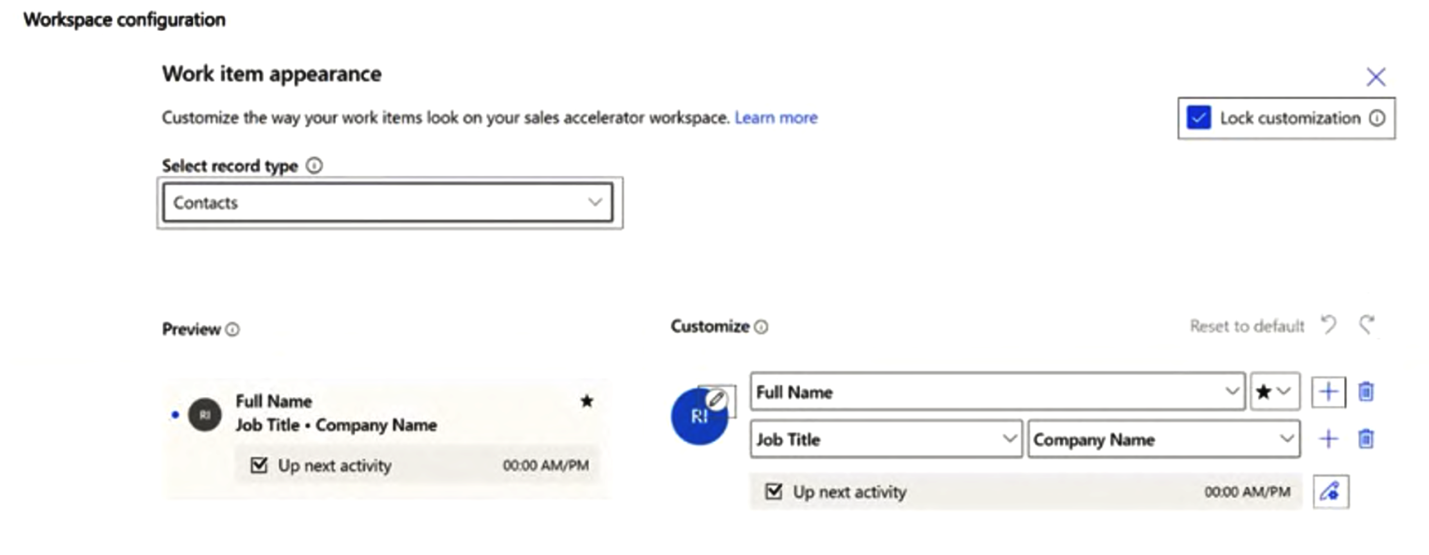
You are customizing a workspace in the sales accelerator.
The workspace must display the industry of a company.
You need to configure the work item appearance for a company.
Which two settings should you modify? To answer, select the appropriate UI element in the answer area.
NOTE: Each correct selection is worth one point.
Community Insight
The question tests knowledge of workspace customization in Dynamics 365 Sales Accelerator, specifically focusing on mapping visual elements to the correct entity (Account) and field (Industry).
This guide explains how to customize a Sales Accelerator workspace to display the industry of a company by modifying work item appearance settings. It details the necessary adjustments to record types and secondary fields.
Candidates often select the 'Contacts' record type or fail to change the secondary field from a default like 'Company Name' to 'Industry', leading to incorrect data display.
Community Discussion (2 comments)
Comments & Corrections
No comments yet — spotted an error or have a note? Share it below.
Expert Analysis
Why the Answer Is Correct
To display the industry of a company, you must ensure the workspace is configured for the correct entity. The primary setting involves selecting the Accounts record type instead of Contacts, as companies are represented as Accounts in the system. Additionally, within the Customize section, you need to modify one of the secondary field drop-downs to map to the Industry field rather than leaving it on a generic field like Company Name.Why Other Candidate Answers Are Wrong
Selecting the 'Contacts' record type would configure the view for individuals rather than companies, which is irrelevant for displaying company industry. Failing to change the secondary field means the workspace will continue to display whatever default information was previously assigned, likely not the specific 'Industry' data required.Community Comment Notes
As RominaT noted, the solution involves two key steps: changing the record type from Contacts to Accounts and replacing an existing secondary field with Industry. Another user, seoyeon_01, expressed confusion but confirmed that selecting the Account-related options was the correct path.Exam Strategy
When configuring workspaces, always verify the underlying entity type first. Ensure that the fields selected in the UI correspond directly to the attributes of that entity available in the data model.
Frequently Asked Questions
Why must I change the record type to Accounts?
Companies are stored as Accounts in Dynamics 365. To display company-specific data like Industry, the workspace must be bound to the Account entity.
What if Industry is not in the secondary field dropdown?
If Industry is not immediately visible, check if it has been added to the form layout for Accounts. You may need to add it to the form before it appears in the workspace customization options.
Related Analysis
Practice All AB-210 Questions
Access 100 questions with complete answers and detailed explanations.
View Full AB-210 Practice Test →