Configuring Dynamics 365 Sales AI Agent Billing and Capacity
Short answer
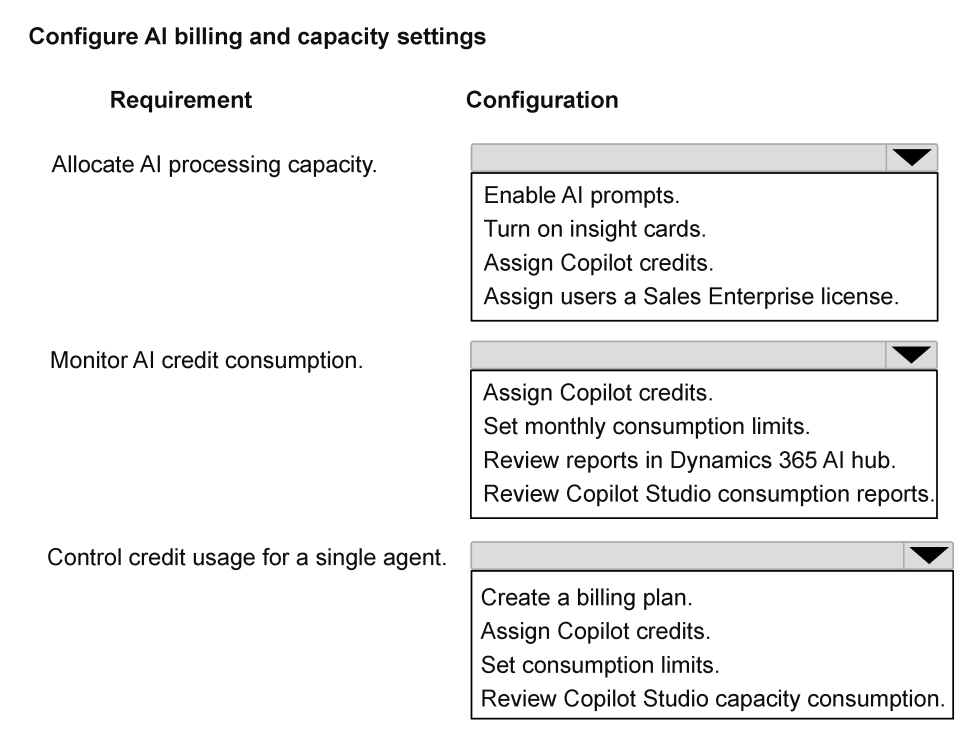
1. Allocate AI processing capacity: Assign Copilot credits. 2. Monitor AI credit consumption: Review Copilot Studio consumption reports. 3. Control credit usage for a single agent: Set consumption limits.
Question
A company plans to deploy AI agents in Dynamics 365 Sales to assist sellers with opportunity research and account insights.
The company has the following requirements:
Must allocate AI processing capacity.
Must monitor AI credit consumption.
Must control credit usage for a single agent.
Administrators must configure billing and capacity settings before agents can operate.
You need to configure the appropriate billing or capacity setting for each requirement.
Which configuration should you apply for each requirement? To answer, select the appropriate options in the answer area.
NOTE: Each correct selection is worth one point.
Key Takeaways
Distinguish between global credit assignment (capacity), report review (monitoring), and limit setting (control) to correctly map administrative actions to AI agent requirements.
Learn how to configure Dynamics 365 Sales AI agents by assigning Copilot credits for capacity, using consumption reports for monitoring, and setting limits for control.
Common mistake: Confusing global credit assignment with per-agent limits, or attempting to monitor consumption via direct agent settings rather than dedicated consumption reports.
Expert Analysis
This question tests the administrator's ability to manage Dynamics 365 Sales AI agent resources through three distinct configuration layers: capacity allocation, consumption monitoring, and usage control. The scenario requires mapping specific administrative actions to these requirements.
First, to allocate AI processing capacity, the administrator must assign Copilot credits to the environment. Without this allocation, agents lack the necessary computational budget to execute tasks. This is a foundational prerequisite; if credits are not assigned, the agents cannot operate regardless of other settings.
Second, to monitor AI credit consumption, administrators should utilize Copilot Studio consumption reports. These reports provide visibility into how credits are being spent across different agents and activities. This step is crucial for auditing and ensuring that resource usage aligns with organizational expectations and budget constraints.
Third, to control credit usage for a single agent, the correct action is to set consumption limits. This allows administrators to cap the amount of credits a specific agent can consume, preventing runaway costs or excessive resource drain by individual agents. This granular control ensures that critical business processes remain funded even if non-essential agents over-consume.
The common trap in this area is confusing global capacity assignment with per-agent limits. Assigning credits is an environmental setting that enables all agents, whereas setting limits is a specific constraint applied to individual agents. Additionally, monitoring is passive reporting, while limiting is active enforcement. Understanding this distinction is vital for correctly configuring the billing and capacity settings as required.
Official Reference
https://learn.microsoft.com/en-us/dynamics365/sales-admin/configure-sales-ai
This link opens the official vendor documentation in a new tab.
Exam Strategy
When faced with AI agent configuration questions, first identify if the requirement is about enabling functionality (credits), observing behavior (reports), or restricting behavior (limits). Map 'allocate' to credits, 'monitor' to reports, and 'control/limit' to consumption caps. Always check if the scope is environmental (all agents) or agent-specific before selecting the final answer.
Frequently Asked Questions
What happens if I don't assign Copilot credits to the environment?
How can I see which agents are consuming the most credits?
Can I set a credit limit for all agents at once?
Discussion 1 contributions
Compiled from public community threads and reader submissions, lightly edited for clarity. Handles and vote tallies are shown as recorded, and comments reflect the views of individual contributors.
From public community threads 1
-
Evincible 👍 11. Allocate AI processing capacity. Assign Copilot credits. 2. Monitor AI credit consumption. Review Copilot Studio consumption reports. 3. Control credit usage for a single agent. Set consumption limits. 1. Assign Copilot credits: Allocates AI processing capacity to the environment so Copilot Studio agents can operate. 2. Review Copilot Studio consumption reports: Allows administrators to monitor Copilot credit usage, identify consumption trends, and track credits consumed by individual agents or environments. 3. Set consumption limits: Allows administrators to configure monthly credit limits for individual agents, helping control costs and prevent excessive usage.
Reader comments & corrections
No reader corrections yet — spotted an error or have a note? Share it below.
Related Analysis
Practice All AB-210 Questions
Access 100 questions with complete answers and detailed explanations.
View Full AB-210 Practice Test →