Configure Timeline Control Requirements for Account Form
Short answer
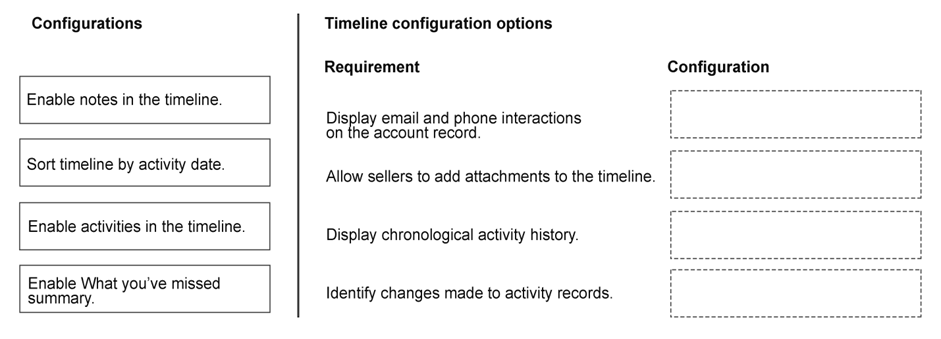
For email and phone interactions, enable Activities in the timeline. For adding attachments, enable Notes in the timeline. For chronological history, set Sort by Activity Date. For identifying changes, enable What You've Missed summary.
Question
A company uses Dynamics 365 Sales to manage customer engagement.
The company wants sellers to access all customer interactions within a single location on the account form. The company has the following requirements for the form:
Must display the email and phone interactions on the account record.
Must allow sellers to add attachments to the timeline.
Must display the activity history in chronological order.
Must identify changes that are made to the activity records.
You need to configure the timeline control.
Which configuration should you use for each requirement? To answer, move the appropriate configurations to the correct requirements. You may use each configuration once, more than once, or not at all. You may need to move the split bar between panes or scroll to view content.
NOTE: Each correct selection is worth one point.
Key Takeaways
The main trap is confusing the source of attachments (Notes) with general activities, and missing that 'What You've Missed' is the specific toggle for identifying record changes rather than just viewing them.
Learn how to configure the Dynamics 365 Sales timeline control to meet specific account form requirements including activity display, note attachments, chronological sorting, and change tracking.
Common mistake: Learners often try to use 'Enable Email Integration' for attachments or assume chronological order requires a custom view instead of the native sort setting. They may also overlook 'What You've Missed', thinking manual review identifies changes.
Expert Analysis
This drag-and-drop question tests the specific configuration settings for the Timeline control on a Dynamics 365 Account form. The goal is to map four functional requirements to their corresponding UI/behavioral toggles within the timeline's property pane.
- Display email and phone interactions: To surface these standard activities, you must enable Activities in the timeline settings. This ensures that emails, phone calls, and other activity types are rendered in the chronological feed.
- Allow sellers to add attachments: Attachments in Dynamics 365 are stored as Notes. To allow users to attach files directly to the timeline view, you must enable Notes in the timeline configuration. Without this, the attachment button may not appear or function as expected in that context.
- Display activity history in chronological order: By default, timelines are sorted by date. However, explicitly ensuring this behavior involves setting the sort order to Sort by Activity Date. This guarantees the sequence matches user expectations for a linear history.
- Identify changes made to activity records: To highlight updates, edits, or new items since the user last viewed the record, you must enable the What You’ve Missed summary. This feature aggregates recent changes into a digestible notification area within the timeline.
The key insight is distinguishing between data types (Activities vs. Notes) and view behaviors (Sorting vs. Notifications). Confusing 'Notes' with 'Attachments' generally is common, but in D365 Sales, attachments are technically notes. Similarly, 'What You've Missed' is the specific mechanism for change identification, not just general sorting.
Official Reference
https://learn.microsoft.com/en-us/dynamics365/sales-enabler/customer-insights/timeline-control
This link opens the official vendor documentation in a new tab.
Exam Strategy
When facing drag-and-drop questions about UI controls, always map the business requirement to the underlying data entity first. For example, 'attachments' map to 'Notes'. Then, identify if the requirement is about displaying data (enable feature) or organizing/notifying about data (sort/notification setting). Visualize the timeline pane properties to recall exact toggle names.
Frequently Asked Questions
Why do I need to enable Notes to allow attachments?
How does 'What You've Missed' differ from just viewing the timeline?
Discussion 1 contributions
Compiled from public community threads and reader submissions, lightly edited for clarity. Handles and vote tallies are shown as recorded, and comments reflect the views of individual contributors.
From public community threads 1
-
Evincible 👍 11. Display email and phone interactions on the account record. Enable activities in the timeline. 2. Allow sellers to add attachments to the timeline. Enable notes in the timeline. 3. Display chronological activity history. Sort timeline by activity date. 4. Identify changes made to activity records. Enable What you've missed summary. Explanation 1. Enable activities in the timeline: Displays customer interactions such as emails, phone calls, appointments, and tasks. 2. Enable notes in the timeline: Allows sellers to create notes and attach files such as documents and images. 3. Sort timeline by activity date: Displays activities in chronological order, making it easier to review customer interaction history. 4. Enable What you've missed summary: Highlights recent updates and changes to timeline records so sellers can identify activities they haven't reviewed.
Reader comments & corrections
No reader corrections yet — spotted an error or have a note? Share it below.
Related Analysis
Practice All AB-210 Questions
Access 100 questions with complete answers and detailed explanations.
View Full AB-210 Practice Test →