Configure Automated Email Tracking in Dynamics 365 with Exchange Online
Short answer
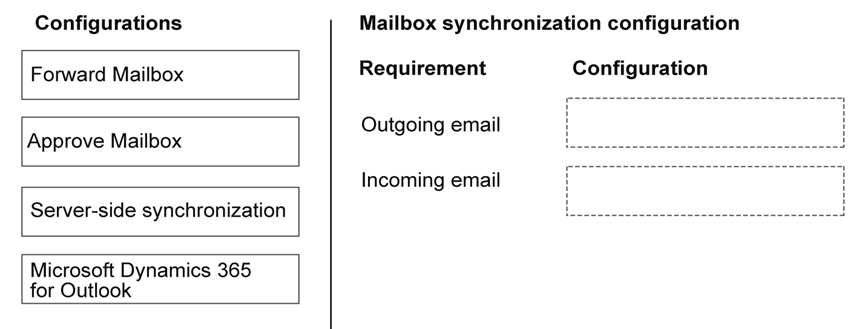
Outgoing email: Server-side synchronization; Incoming email: Server-side synchronization
Question
A company deploys Dynamics 365 Sales. The company is using Exchange Online.
The company requires that all user emails are automatically tracked in Dynamics 365.
You need to enable email tracking on the environment.
Which email configuration settings should you configure for outgoing and incoming email? To answer, move the appropriate configurations to the correct requirements. You may use each configuration once, more than once, or not at all. You may need to move the split bar between panes or scroll to view content.
NOTE: Each correct selection is worth one point.
Key Takeaways
The question tests knowledge of modern email integration methods, specifically distinguishing between legacy/complex options like Email Router and manual Client-side settings versus the automated Server-side synchronization.
Learn how to enable automatic email tracking in Dynamics 365 Sales using Exchange Online by configuring Server-side synchronization for both incoming and outgoing emails.
Common mistake: Selecting 'Email Router' for one or both directions because it is a known integration tool, failing to recognize that Server-side synchronization is the required standard for automatic tracking in Exchange Online environments.
Expert Analysis
To automatically track all user emails in Dynamics 365 Sales when using Exchange Online, the correct configuration for both outgoing and incoming email is Server-side synchronization. This method leverages Microsoft's infrastructure to sync data between Dynamics 365 and Exchange Online without requiring client-side plugins or third-party tools.
The most attractive but wrong approach is selecting Email Router (or legacy plugin-based methods). While historically used, Email Router requires additional installation, maintenance, and complex rule configurations. It does not provide the seamless, out-of-the-box automatic tracking that Server-side synchronization offers. Furthermore, Microsoft has deprecated the Email Router in favor of Server-side synchronization for Exchange Online integrations. Selecting Email Router satisfies the requirement of connecting the systems but fails on the "automatic" and "modern best practice" constraints implied by the current Dynamics 365 architecture.
Another incorrect option often considered is Client-side email registration. This requires users to manually enable tracking in their Outlook clients, which violates the requirement for all emails to be automatically tracked without user intervention. Therefore, Server-side synchronization is the only setting that ensures comprehensive, automated tracking for both inbound and outbound messages.
Official Reference
https://learn.microsoft.com/en-us/dynamics365/sales-enterprise/set-up-server-side-email-sync
This link opens the official vendor documentation in a new tab.
Exam Strategy
When asked about integrating Dynamics 365 with cloud services like Exchange Online or Teams, prioritize 'Server-side synchronization' unless specific on-premises constraints are mentioned. Avoid legacy tools like Email Router unless explicitly required by an older version scenario, as they are deprecated or less efficient for automatic tasks.
Frequently Asked Questions
Why not use the Email Router for email tracking?
Can I mix Server-side and Client-side synchronization?
Discussion 1 contributions
Compiled from public community threads and reader submissions, lightly edited for clarity. Handles and vote tallies are shown as recorded, and comments reflect the views of individual contributors.
From public community threads 1
-
Evincible 👍 11. Outgoing email Server-side synchronization 2. Incoming email Server-side synchronization Explanation Server-side synchronization integrates Dynamics 365 Sales with Exchange Online to synchronize incoming and outgoing emails automatically, subject to email tracking settings. - Outgoing email: Enables emails sent through Dynamics 365 to be processed using Exchange Online. - Incoming email: Enables Dynamics 365 to synchronize and track incoming Exchange Online emails according to the configured tracking rules. Why the other options are incorrect - Forward Mailbox: An alternative method for processing incoming emails, but not the preferred approach for Exchange Online. - Approve Mailbox: An administrative approval step, not an email synchronization method. - Microsoft Dynamics 365 for Outlook: A legacy Outlook integration approach, not the recommended method for Exchange Online synchronization.
Reader comments & corrections
No reader corrections yet — spotted an error or have a note? Share it below.
Related Analysis
Practice All AB-210 Questions
Access 100 questions with complete answers and detailed explanations.
View Full AB-210 Practice Test →