Business Process Flow Branching Stage Requirements
Short answer
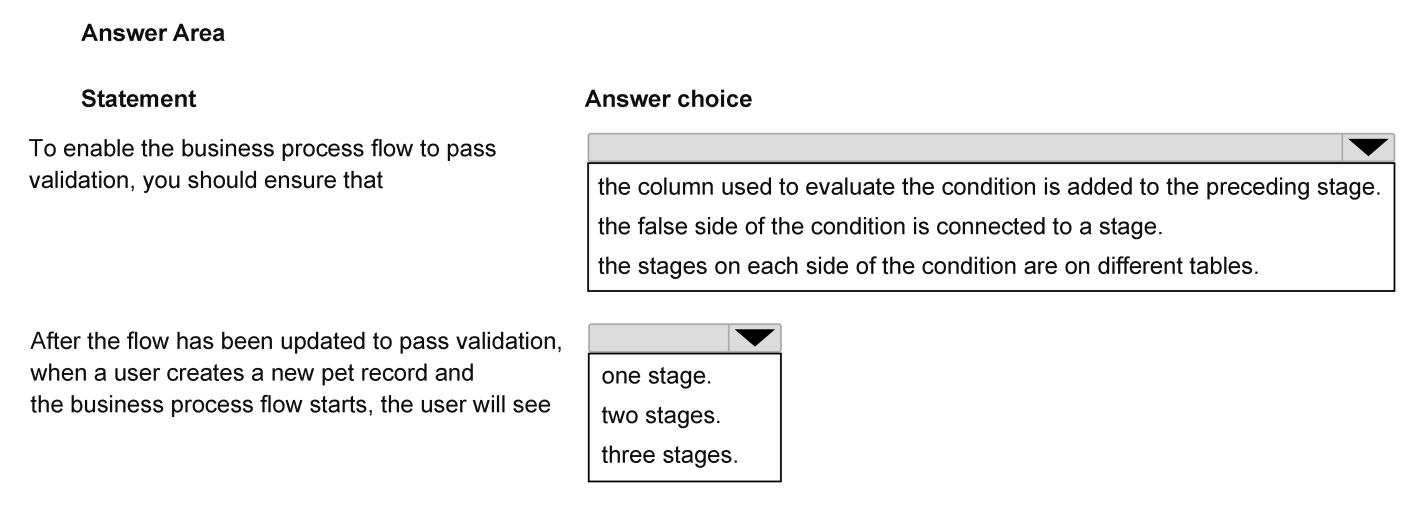
Add the Type column to the preceding stage (Pet – Basic Details) so the branching condition evaluating Type has access to the required data context.
Question
You are creating a business process flow named “Onboard new pet” to support onboarding of new clients for a pet care business.
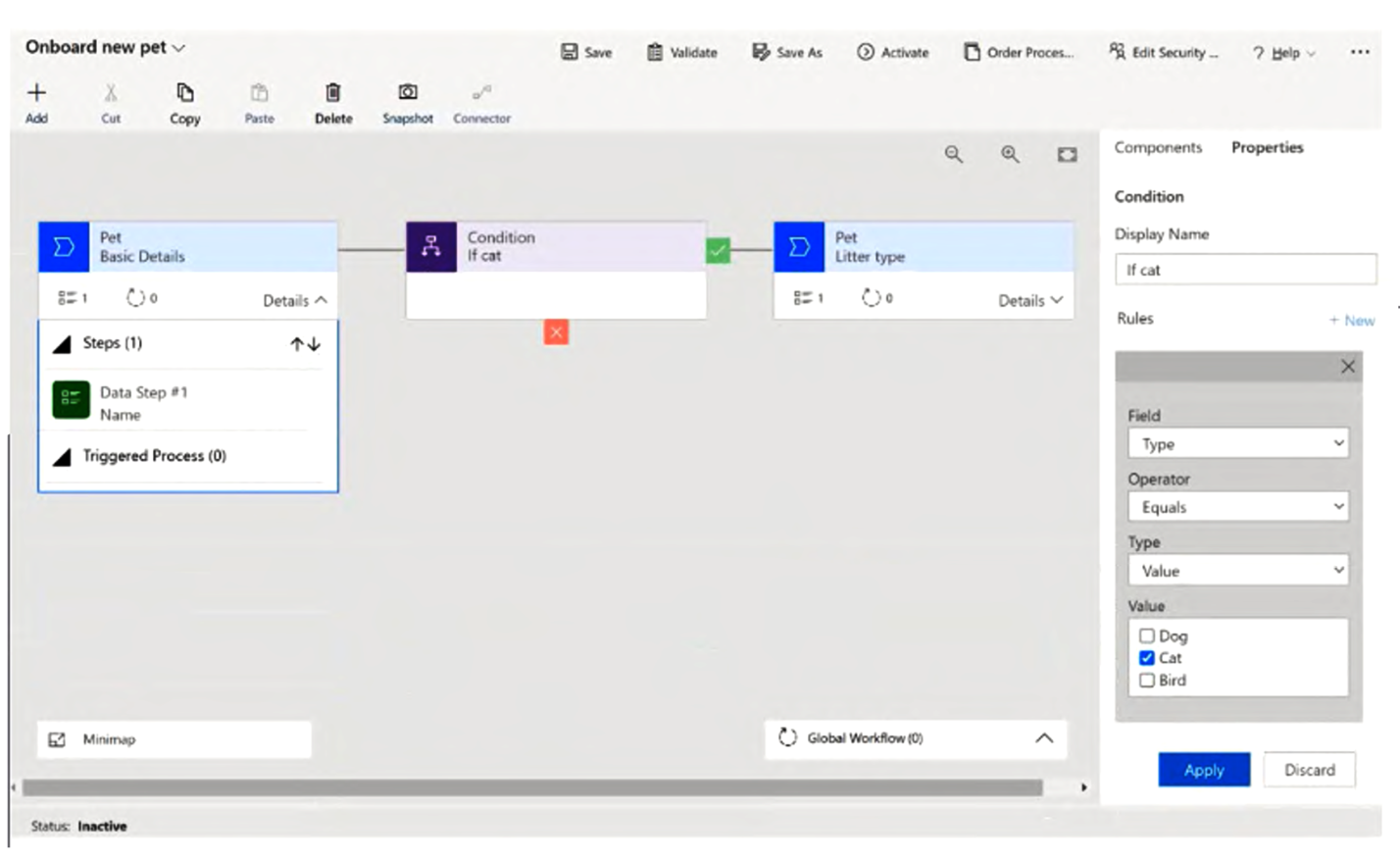
A partially completed business process flow is shown in the following exhibit.
Use the drop-down menus to select the answer choice that completes each statement based on the information presented in the exhibit.
NOTE: Each correct selection is worth one point.
Key Takeaways
Branching conditions in BPFs are strictly bound by stage scope; the column being tested must be captured in the stage immediately prior to the branch point.
Learn why Business Process Flow branches require the evaluated column to exist in the immediately preceding stage. The solution involves adding the Type column to the Pet – Basic Details stage.
Common mistake: Learners often think they can reference any column in the entity regardless of its stage placement, failing to realize that BPF stages create localized contexts for variables.
Expert Analysis
This Hotspot question tests the structural requirements of Business Process Flows (BPF) in Microsoft Power Apps, specifically how branching logic interacts with stage definitions. The scenario involves a pet onboarding flow where a condition checks if the 'Type' is 'Cat'. The critical constraint here is that for a BPF branch to be valid, the column used in the branching condition must be present in the immediately preceding stage.
The most attractive but wrong approach is to assume that because 'Type' is part of the overall business process, it can be referenced from any point or added later. Learners might incorrectly select options suggesting the condition can stand alone or reference columns not yet collected. However, the exhibit shows the preceding stage ('Pet – Basic Details') only contains the 'Name' field. Since 'Type' is missing from this stage, the system cannot evaluate the 'If cat' condition at this transition point.
To resolve this, the correct action is to add the 'Type' column to the preceding stage so it becomes available for evaluation before the branch occurs. This ensures data integrity and logical flow: the system must first capture the 'Type' during the basic details phase before deciding which subsequent path (e.g., Cat-specific vs. Dog-specific steps) to take. Without 'Type' in the previous stage, the branching rule fails validation because the context variable is undefined at the decision node.
Official Reference
https://learn.microsoft.com/en-us/power-apps/maker/data-platform/create-edit-business-process-flow
This link opens the official vendor documentation in a new tab.
Exam Strategy
When analyzing BPF diagrams, always trace the data dependency backward from each branch condition. If a condition references Field X, verify that Field X appears in the step list of the stage directly before the branch icon. If it does not, the correct configuration change is to move or add that field to the preceding stage.
Frequently Asked Questions
Why can't I use a column from a future stage in a branch condition?
What happens if I try to save a BPF with a missing column in a branch?
Discussion 1 contributions
Compiled from public community threads and reader submissions, lightly edited for clarity. Handles and vote tallies are shown as recorded, and comments reflect the views of individual contributors.
From public community threads 1
-
Evincible 👍 11. To enable the business process flow to pass validation: The column used to evaluate the condition is added to the preceding stage. Explanation: The condition If cat evaluates the Type column, but the preceding stage (Pet – Basic Details) contains only the Name step. Microsoft requires business process flow branching conditions to reference columns included in the immediately preceding stage. 2. After validation, when a user creates a new pet record and the business process flow starts: One stage. Explanation: Initially, the user sees only Pet – Basic Details. The Pet – Litter type stage is conditional and becomes visible only when the Type = Cat condition is satisfied.
Reader comments & corrections
No reader corrections yet — spotted an error or have a note? Share it below.
Related Analysis
Practice All AB-210 Questions
Access 100 questions with complete answers and detailed explanations.
View Full AB-210 Practice Test →