Managing Microsoft 365 DLP Alert Status Lifecycle
You have a Microsoft 365 alert named Alert2 as shown in the following exhibit.
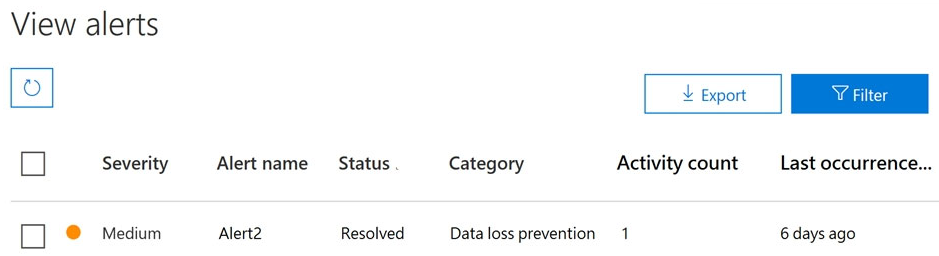 You need to manage the status of Alert2.
To which status can you change Alert2?
You need to manage the status of Alert2.
To which status can you change Alert2?
Community Insight
The core concept tested is the flexibility of the alert workflow in Microsoft 365 Defender, where a 'Resolved' status is not final and can be reverted to Active, Investigating, or Dismissed.
This question addresses the lifecycle management of Microsoft Purview DLP alerts, specifically focusing on the ability to modify an alert's status from 'Resolved' back to other states. It establishes that users can reopen or dismiss resolved alerts based on new information.
Many candidates incorrectly assume that once an alert is marked as 'Resolved', its status is locked and cannot be changed (Option A), failing to recognize the need for re-investigation or false positive correction.
Community Discussion (8 comments)
Comments & Corrections
No comments yet — spotted an error or have a note? Share it below.
Expert Analysis
Why the Answer Is Correct
In Microsoft Purview (formerly Compliance Manager) and Microsoft 365 Defender, the lifecycle of a Data Loss Prevention (DLP) alert allows for dynamic status updates. While an alert typically moves through states like Active -> Investigating -> Resolved, the system permits users to change the status of a Resolved alert if necessary. Specifically, you can change a resolved alert to Active (to reopen it for further investigation), Investigating (if it requires immediate attention again), or Dismissed (if it was a false positive or irrelevant). Therefore, all three statuses are valid targets for modification.Why the Other Options Are Wrong
Option A is incorrect because the UI explicitly provides buttons or dropdowns to change the status of a resolved alert. Options B and C are incomplete; while you can dismiss or investigate, you are not limited to only one of those actions. Option D excludes 'Dismissed', which is a common action for resolved false positives, making it an incorrect constraint.Community Comment Notes
Community consensus strongly supports Option E. As user f2b34cb noted, "You can change a resolved alert in 365 DLP to the Dismissed or Active status." User Alcpt confirmed this by stating, "Yes, you can change a Resolved alert's status back to Active, Investigating (or In Progress), or Dismissed within the Microsoft 365 portals." This aligns with official Microsoft documentation describing the alert workflow stages.Official Reference
Exam Strategy
When dealing with Microsoft Purview alert questions, remember that 'Resolved' is a state that can be reversed. Do not assume 'Resolved' means 'Final'. Look for options that allow reopening (Active/Investigating) or dismissing, as these are standard operational needs in security incident response.
Frequently Asked Questions
Why can't I change a Resolved alert to anything else?
You can actually change it. Microsoft Purview allows reverting a Resolved alert to Active or Investigating if new evidence emerges, or to Dismissed if it was a false positive.
What is the difference between Dismissed and Resolved?
Resolved means the issue is handled but might still be relevant. Dismissed means the alert is irrelevant or a false positive. Both are terminal states, but Resolved can be reopened.