Creating a Custom Promptbook in Microsoft Security Copilot
Short answer
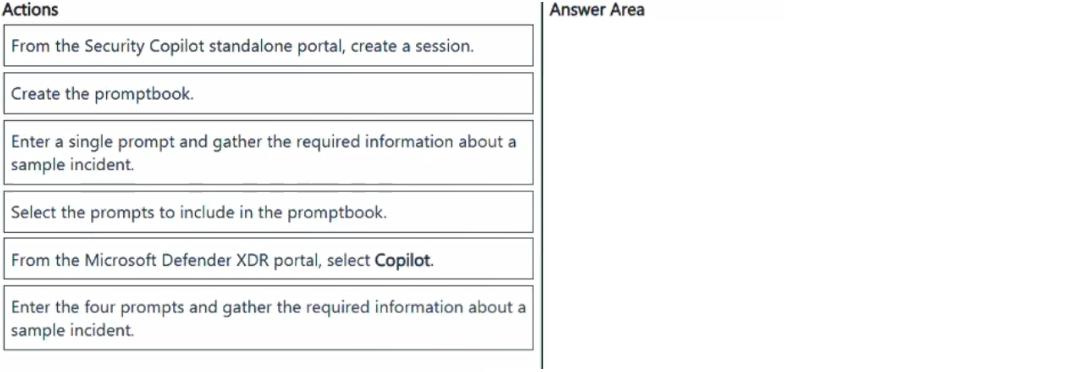
From the Security Copilot standalone portal, create a session. Enter the four prompts and gather the required information about a sample incident. Select the prompts to include in the promptbook. Create the promptbook.
Question
You have a Microsoft 365 subscription that uses Microsoft Defender XDR.
You have an Azure subscription that uses Microsoft Security Copilot.
You need to create a custom promptbook in Security Copilot that will gather the following information about an incident ID:
• An incident summary
• Threat intelligence on the identified threat actors
• A detailed analysis of the users affected by the incident
• A detailed analysis of the devices affected by the incident
Which four actions should you perform in sequence? To answer, move the appropriate actions from the list of actions to the answer area and arrange them in the correct order.
Key Takeaways
The main trap is attempting to build the promptbook directly in XDR or skipping the testing phase; you must first run the prompts in a standalone session to establish context before saving them.
Learn the correct sequence for creating a custom promptbook in Microsoft Security Copilot by starting in the standalone portal, testing prompts on a sample incident, selecting them, and finally creating the book.
Common mistake: Users often try to create the promptbook immediately after opening the portal without first entering and testing the prompts. This fails because Copilot needs the interaction history to validate and store the prompts as reusable steps.
Expert Analysis
The correct sequence for creating a custom promptbook in Microsoft Security Copilot begins with initiating a session in the Security Copilot standalone portal. This is because promptbooks are managed and built within the standalone interface, not the embedded XDR panel. Once the session is active, the user must enter the four specific prompts to gather information from a sample incident. This step is critical as it allows Copilot to generate the necessary context and history required to save the interactions.
After testing the prompts and verifying that they produce the desired output (incident summary, threat intelligence, user analysis, device analysis), the next action is to select the prompts to include in the promptbook. This involves checking the boxes next to the successful prompts to designate them as reusable steps. Finally, the user must create the promptbook, which finalizes and saves the configuration for future use.
A common mistake, as noted in community discussions, is attempting to build the promptbook directly from the Microsoft Defender XDR portal or skipping the initial session creation and testing phase. Without running the logic first, Copilot lacks the 'history' needed to identify which prompts are valid for inclusion in the book. Another error is trying to create the promptbook before entering and validating the prompts, which would result in an empty or non-functional template.
Understanding this workflow highlights the operational consequence of getting it wrong: if you skip the testing phase, your promptbook will fail to execute correctly during real incidents, leading to delays in threat response. The adjacent decision point is choosing between using pre-built promptbooks versus custom ones; custom ones require this rigorous setup process but offer tailored automation for specific organizational needs.
Official Reference
https://learn.microsoft.com/en-us/copilot/security/build-promptbooks
This link opens the official vendor documentation in a new tab.
Exam Strategy
When facing drag-and-drop questions about tool workflows, always look for the logical dependency: you cannot save a configuration (promptbook) before generating the content (prompts) in the correct environment (standalone portal). Eliminate options that suggest creating the book before testing, or building it in the wrong portal (XDR vs. Standalone). Focus on the prerequisite actions that enable the subsequent steps.
Frequently Asked Questions
Where should I start when creating a custom promptbook?
Why do I need to enter prompts before creating the promptbook?
Discussion 3 contributions
Compiled from public community threads and reader submissions, lightly edited for clarity. Handles and vote tallies are shown as recorded, and comments reflect the views of individual contributors.
From public community threads 3
-
Earthlinghex 👍 5From the Security Copilot standalone portal, create a session. (Promptbooks are managed and built in the standalone portal, not the embedded XDR panel). Enter the four prompts and gather the required information about a sample incident. (You must run the logic first so Copilot has the "history" to save). Select the prompts to include in the promptbook. (You check the boxes next to the successful prompts in your session). Create the promptbook. (This is the final step where you name and save the selected chain as a template).
-
adfgdasgadgf 👍 2From the Microsoft Defender XDR portal, select Copilot. (This is where promptbooks are created.) Enter a single prompt and gather the required information about a sample incident. (You must test prompts first so Copilot can store them as steps.) Select the prompts to include in the promptbook. (Choose the prompts you tested that will become steps.) Create the promptbook. (Finalize the promptbook with the selected prompts.)
-
cbdfbaf 👍 1I could be wrong, but i'd go for: 1) From CoPilot standalone portal, create a session 2) Create a promptbook 3) Enter the 4 promts and gather info about a sample incident 4) Select the prompts to include in the promptbook https://learn.microsoft.com/en-us/copilot/security/build-promptbooks
Reader comments & corrections
No reader corrections yet — spotted an error or have a note? Share it below.
Related Analysis
Practice All SC-200 Questions
Access 80 questions with complete answers and detailed explanations.
View Full SC-200 Practice Test →