Which Power Automate Components Log High-Priority Emails to Excel?
Short answer
Drag Trigger to the incoming support email, Condition to the high-priority check, and Action (Excel Online 'Add a row into a table') to the logging step.
Question
A company uses Microsoft Power Platform to manage support tickets.
Customers submit support requests by sending an email to a support email address.
All high-priority emails must be logged into a Microsoft Excel sheet for historical purposes.
You need to identify the components that are required for logging the emails in Excel.
Which components should you use? To answer, drag the appropriate components to the correct requirements. Each component may be used once, more than once, or not at all. You may need to drag the split bar between panes or scroll to view content.
NOTE: Each correct selection is worth one point.
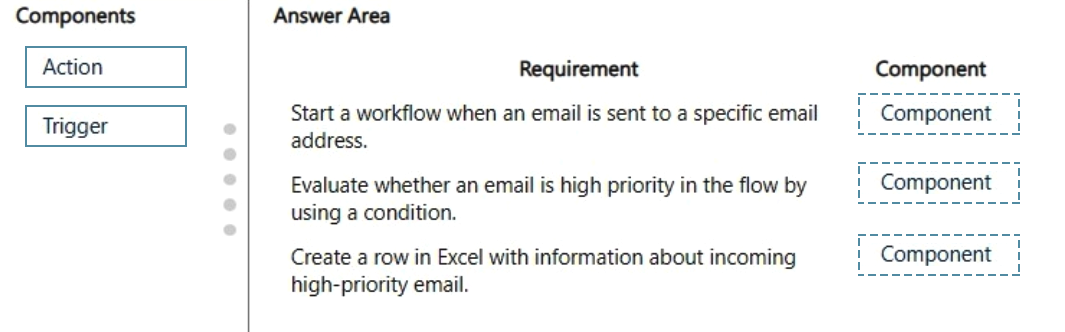
Key Takeaways
The exam checks whether you can separate the event that starts the flow (Trigger) from the evaluation logic (Condition) and the work performed (Action); the common trap is labelling the Excel write or the priority check as the trigger.
This PL-900 drag-and-drop item asks you to map Power Automate components to the requirement of logging high-priority support emails in a Microsoft Excel sheet. The working build uses the Outlook 'When a new email arrives' trigger, a priority decision, and the Excel Online 'Add a row into a table' action.
Common mistake: Candidates often drop 'Action' into the priority-check slot because the check happens after the email lands, or call the Excel write a trigger because it 'starts' the logging; the email arrival is the only trigger, the high-priority test is a Condition, and the row write is an Action.
Expert Analysis
Why the Answer Is Correct
The arrival of a support email in the shared mailbox is the event that starts the process, so it maps to a Trigger — specifically the Outlook 'When a new email arrives (V3)' trigger, whose Importance parameter can itself be set to High. Because the scenario says only high-priority messages must be logged, the flow needs an evaluation step that inspects each message, and in Power Automate that evaluation is a Condition (Priority is equal to High). Saving a qualifying message into the spreadsheet is work the flow performs after the trigger fires, which by definition is an Action — the Excel Online (Business) 'Add a row into a table' action. No Power Apps canvas app, Dataverse table, approval or scheduled recurrence is involved, because the requirement is purely event-driven logging.
Why Other Candidate Answers Are Wrong
Dropping Trigger onto the Excel step is wrong because an automated flow has exactly one trigger and it must be the inbound email event; an Excel write cannot start an email-driven flow. Dropping Action onto the priority test is also wrong, since a Condition is Power Automate's branching control and performs no create/update/send operation of its own. Choosing a scheduled cloud flow or an approval would fail the scenario, because nothing indicates a recurring time window or a human sign-off — the process must react instantly to each incoming email. Recording 'Action' twice (as some learner notes do) skips the decision logic that the 'high-priority only' requirement explicitly demands.
Community Comment Notes
The only learner note on this item, from captainspork, lists the answer as "Trigger > Action > Action" and observes that "creating a row is an action" — that second point is certainly right, because writing to Excel can never start an automated flow. The same note never separates the priority-evaluation step from the Excel write, so it under-counts the decision logic the scenario requires. Treat the comment as confirmation that the Excel row write is an Action, and pair it with the trigger-versus-condition distinction the exam is really scoring.
Official Reference
- https://learn.microsoft.com/en-us/power-automate/triggers-introduction
- https://learn.microsoft.com/en-us/connectors/excelonlinebusiness/
These links open the official vendor documentation in a new tab.
Exam Strategy
In PL-900 drag-and-drop items, first isolate the single event that starts the process — that is always the Trigger — then classify anything that evaluates data as a Condition and anything that creates, updates or sends something as an Action. The boilerplate 'may be used once, more than once' wording is a hint that one label can legitimately fill several slots, so do not force each label to be unique.
Frequently Asked Questions
Why is a Condition needed if the Outlook trigger can already filter high-priority email?
Can this high-priority email logging flow run without premium Power Automate licensing?
Discussion 1 contributions
Compiled from public community threads and reader submissions, lightly edited for clarity. Handles and vote tallies are shown as recorded, and comments reflect the views of individual contributors.
From public community threads 1
-
captainspork 👍 1Trigger > Action > Action Yes the third requires an email as a trigger, but creating a row is an action.
Reader comments & corrections
No reader corrections yet — spotted an error or have a note? Share it below.
Related Analysis
Practice All PL-900 Questions
Access 130 questions with complete answers and detailed explanations.
View Full PL-900 Practice Test →