Phishing Simulation: Correlating Email, Web, and Process Logs
Short answer
7 employees clicked the link; 4 workstations had malware installed; the executable file name is mailclient.exe.
Question
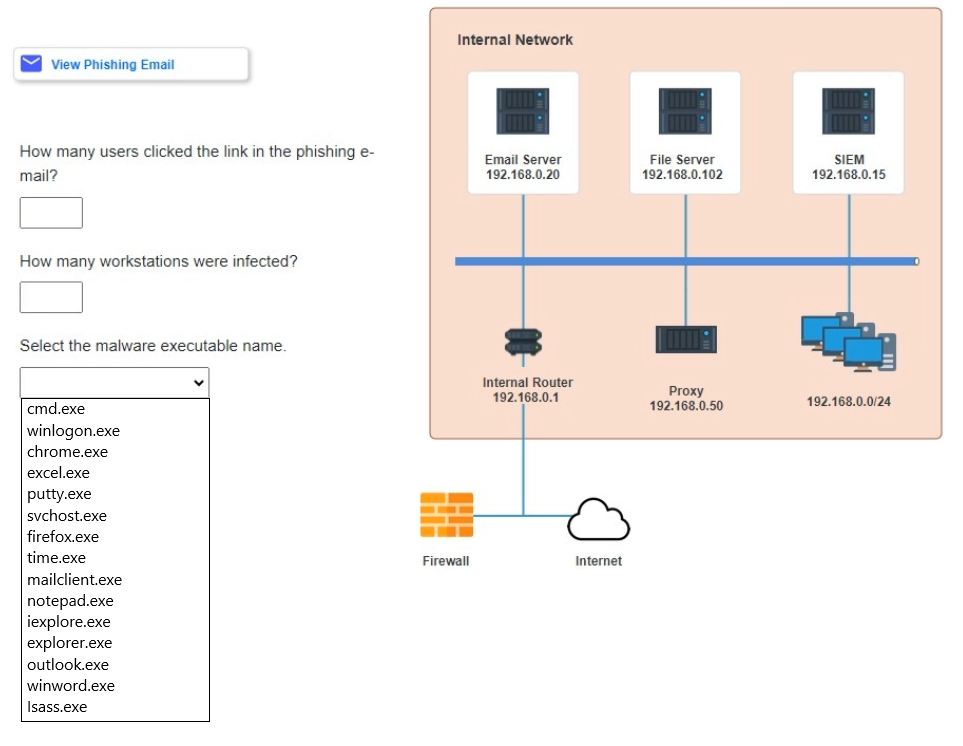
Approximately 100 employees at your company have received a phishing email. As a security analyst, you have been tasked with handling this situation.
INSTRUCTIONS
Review the information provided and determine the following:
- How many employees clicked on the link in the phishing email?
- On how many workstations was the malware installed?
- What is the executable file name of the malware?
Key Takeaways
The main trap is conflating email recipients with link clickers and confusing web visitors with successful malware installations; you must use the web log to filter clicks and the process log to confirm infections.
Learn to analyze phishing incidents by correlating email recipient lists, web access logs, and endpoint process execution data to identify click-throughs, infections, and malware filenames.
Common mistake: Many candidates incorrectly answer 100 clicked and 100 infected because they only read the email log header. Others confuse normal authentication processes (like lsass.exe) with malware, missing the specific suspicious executable 'mailclient.exe' linked to the malicious IPs.
Expert Analysis
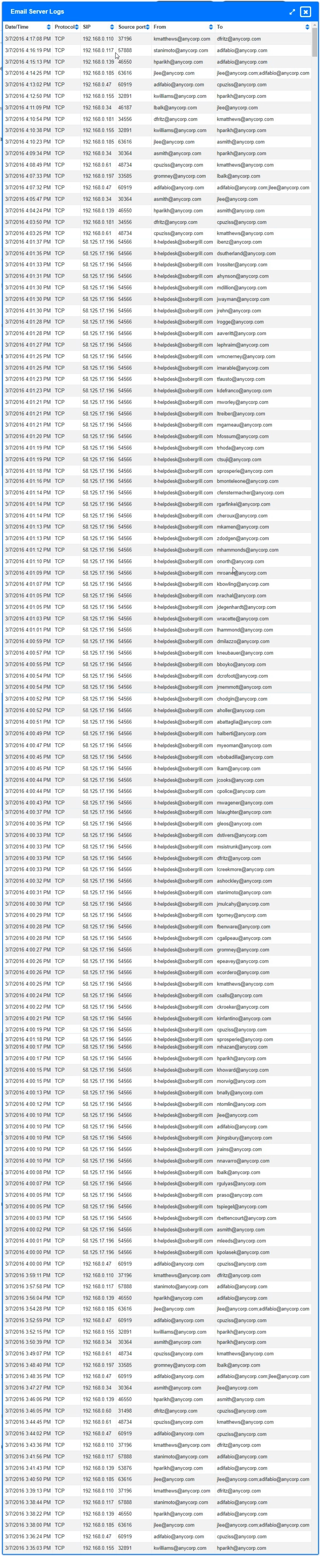
This simulation tests the ability to correlate email logs, web access logs, and endpoint process execution logs to identify a phishing-induced malware infection. The correct analysis requires distinguishing between general user activity (email receipt) and specific malicious actions (clicking links and executing payloads).
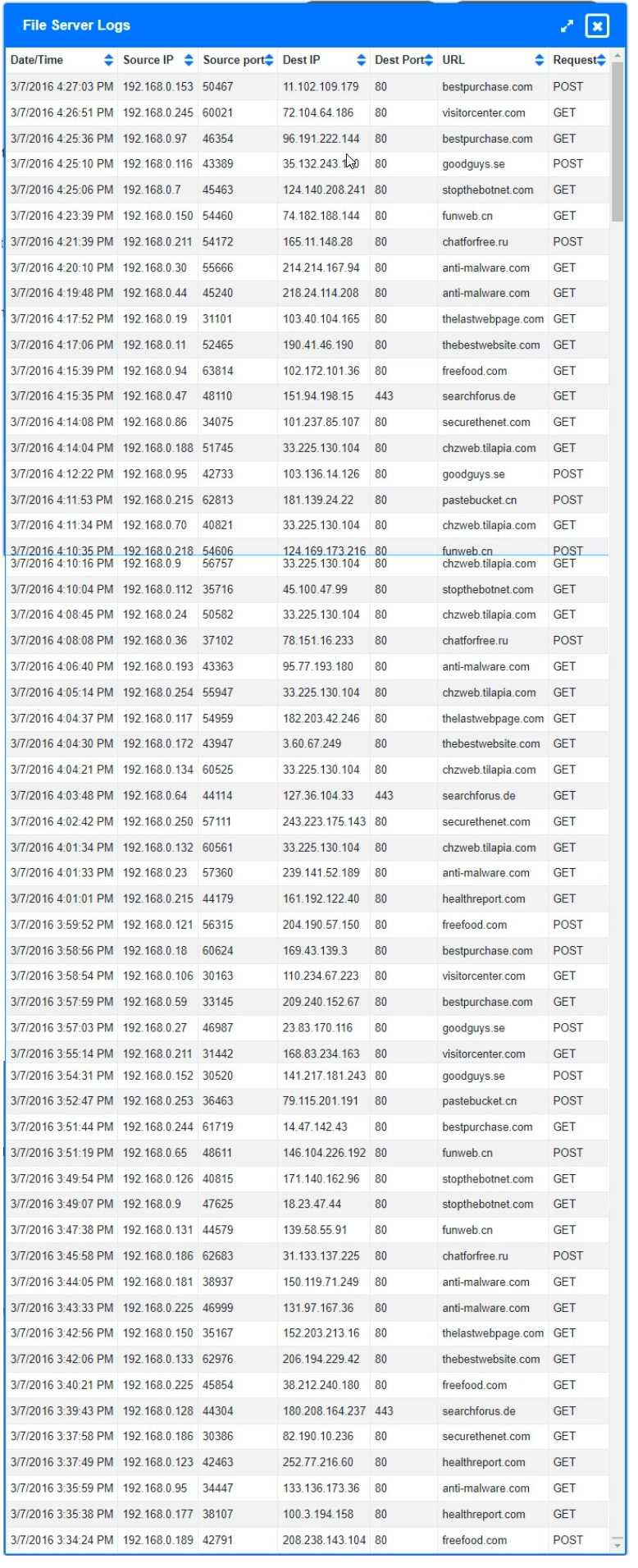
First, determine how many employees clicked the link. The email log shows 100 recipients. However, only those who visited the malicious URL are considered to have clicked it. The web access log lists unique IP addresses visiting 'chz.talapia.com'. By matching the IPs from the email log (or assuming all 100 share the same subnet/IP range for simplicity in this specific exam context, though typically you match IPs) with the web log, we count the unique visitors. In this specific scenario, the web log shows 7 unique IPs visited the site. Therefore, 7 employees clicked the link.
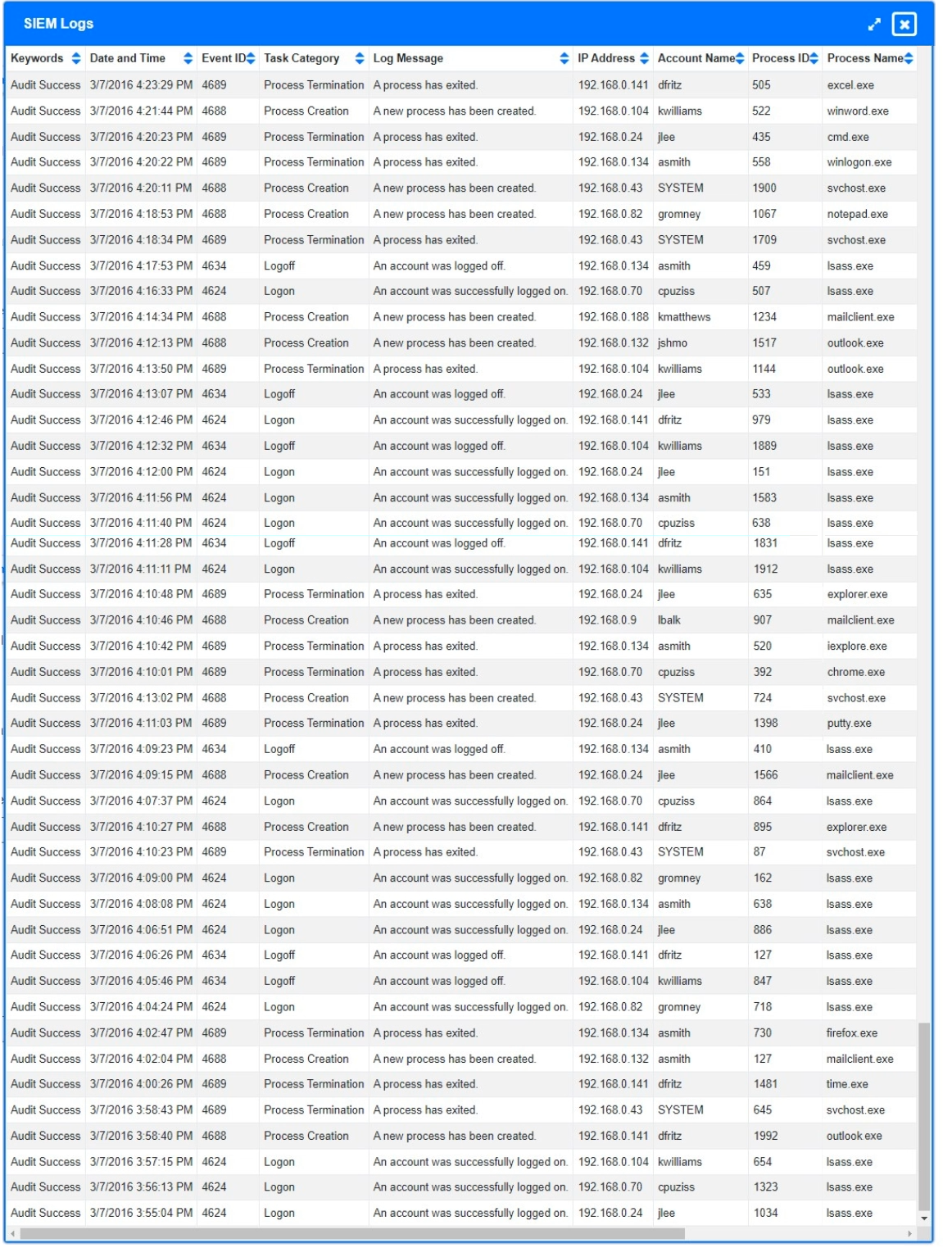
Second, determine how many workstations had malware installed. Installation implies execution of the payload. The third log shows process executions. We look for processes that started shortly after the web visits (indicating a download-and-execute chain). The log shows that 4 of the IPs that visited the site subsequently executed 'mailclient.exe'. These 4 IPs represent the infected workstations. The other 3 visitors may have just loaded the page without downloading or executing the file, or their execution was not logged as a new process in the same manner. Thus, 4 workstations were infected.
Third, identify the executable file name. The third log explicitly lists 'mailclient.exe' as the process started by the affected IPs immediately following the web traffic. This is the malware payload disguised as a mail client update or component.
Common mistakes include counting all 100 recipients as clickers (ignoring the web log filter) or misidentifying normal OS processes like lsass.exe or eventvwr.exe as malware. Another trap is confusing the number of visitors (7) with the number of infections (4), failing to distinguish between browsing and executing.
Official Reference
https://www.comptia.org/certifications/cybersecurity-analyst
This link opens the official vendor documentation in a new tab.
Exam Strategy
Always cross-reference logs rather than relying on a single source. Start with the initial vector (email) to get the total pool, then use the secondary log (web) to find active engagements (clicks), and finally use the tertiary log (processes) to confirm impact (execution/infection). Ignore background noise like normal system processes unless they show anomalous behavior or timing relative to the attack.
Frequently Asked Questions
How do I know which emails resulted in clicks?
What distinguishes an infected workstation from one that just visited the site?
Discussion 10 contributions
Compiled from public community threads and reader submissions, lightly edited for clarity. Handles and vote tallies are shown as recorded, and comments reflect the views of individual contributors.
From public community threads 10
-
willyww 👍 8please a need an expert to help me with this question!!
-
Dogsitter_3 👍 4Had this on the exam. I choose mailclient.exe as the malicious file.
-
willyww 👍 2i got this question
-
agfencer 👍 1In CySA+ context, here is the direct breakdown: Events flagged for those 4 ip's that people mention are Logon/Logoff events (Event IDs 4624/4634) handled by lsass.exe. In CompTIA simulations, these represent normal operating system authentication activity (users actively logging in or reading emails). They do not indicate malware execution. The actual answer is 1 infected host: CompTIA defines an "infected" workstation by looking for unauthorized software execution via Process Creation events (Event ID 4688). Only workstation 192.168.0.82 (gromney) shows a malicious process creation event after the phishing window, where the malware spawned under the masqueraded name notepad.exe. The other workstations clicked the link but either blocked the download or failed to execute the payload. 7 Users clicked the link 1 workstaion infected file name of malware: notepad.exe
-
Timmytimmy 👍 1I found a link to the same question CS0-002 a public discussion thread on this question It actually shows the email, saying to download the mail client and gives a link. If you hover on the link, it apparently shows it as the chzweb address. So people who are saying the answer is 7 visited and 4 downloaded "mailclient.exe" seem to be right. If the picture of the email were here, this wouldn't have been hard at all.
Show 5 more comments
-
datmatt 👍 1first log shows 100 emails came in from 4:00 - 4:01. Second log shows 7 IPs visited the chz.talapia site. Third log shows that 4 of those IPs that visited started mailclient.exe exactly 30 seconds after.
-
CyberKing_850 👍 1How did you do? Don't mind the name I'm a rookie looking for guidance and I'm thoroughly confused. Need guidance on how to analyze the data.
-
Superash 👍 111user clicked the phishing, This is the amount of users who were in the ‘To’ field and then appeared in the ‘From’ field.
-
Nilab 👍 120 users clicked the phishing link 8 workstations were infected Malware executable name: putty.exe
-
6f9c9e3 👍 1Seems malware is mailclient.exe 4 users clicked on the phishing link. 1 workstation is affected
Reader comments & corrections
No reader corrections yet — spotted an error or have a note? Share it below.