Creating a New Jupyter Kernel in Azure ML Compute Instance
Short answer
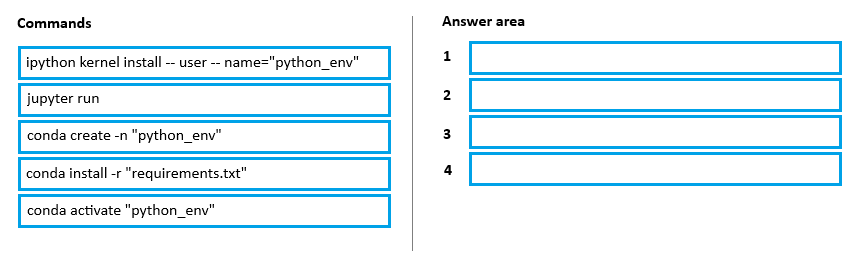
1. conda create -n "python_env"; 2. conda activate "python_env"; 3. conda install -r "requirements.txt"; 4. ipython kernel install --user --name="python_env"
Question
You manage an Azure Machine Learning workspace named workspace1 with a compute instance named compute1. You connect to compute1 by using a terminal window from workspace1.
You create a file named "requirements.txt" containing Python dependencies to include Jupyter.
You need to add a new Jupyter kernel to compute1.
Which four commands should you use? To answer, move the appropriate actions from the list of actions to the answer area and arrange them in the correct order.
Key Takeaways
The trap is skipping the activation step or registering the kernel before installing dependencies, which results in a non-functional or empty kernel.
This page explains how to add a new Jupyter kernel to an Azure ML compute instance by creating a Conda environment, activating it, installing requirements, and registering the IPython kernel.
Common mistake: Learners often attempt to install packages directly without activating the environment first, leading to packages being installed in the base environment instead of the new one. Others forget the final `ipython kernel install` step, leaving the environment unusable in Jupyter.
Expert Analysis
The scenario requires configuring a new Jupyter kernel within an Azure Machine Learning compute instance using the command line. This involves standard Conda environment management followed by kernel registration with IPython.
First, you must create an isolated Python environment to house the specific dependencies required for the model or notebook. The command conda create -n "python_env" establishes this new named environment. Without isolation, installing packages globally could conflict with existing workspace libraries.
Second, after creation, the environment is not active in the current shell session. You must switch context using conda activate "python_env". This ensures that subsequent package installations and executions occur within the newly created virtual environment rather than the base system environment.
Third, once the environment is active, the dependencies listed in the requirements.txt file (including Jupyter components) are installed into that specific environment via conda install -r "requirements.txt". This step populates the environment with the necessary tools but does not yet make them accessible as a selectable kernel in the Jupyter interface.
Finally, to allow Jupyter Notebook or JupyterLab to recognize and use this environment, it must be registered as a kernel. The command ipython kernel install --user --name="python_env" installs the kernel spec files into the user's directory, making the environment visible in the Jupyter UI under the specified name. The order is strictly sequential: create, activate, install dependencies, then register the kernel.
Official Reference
- https://learn.microsoft.com/en-us/azure/machine-learning/how-to-set-up-training-targets#add-jupyter-kernels
- https://docs.conda.io/projects/conda/en/latest/user-guide/tasks/manage-environments.html
These links open the official vendor documentation in a new tab.
Exam Strategy
When dealing with environment configuration tasks, always follow the logical lifecycle: Provision -> Activate -> Populate -> Register. Memorize the syntax for ipython kernel install as it is the critical bridge between a local Conda environment and the Jupyter service interface.
Frequently Asked Questions
Why can't I just install Jupyter in the base environment?
What happens if I skip 'conda activate'?
conda install will default to the base environment. Consequently, your new kernel will either fail to launch due to missing dependencies or lack the specific packages defined in requirements.txt.Discussion 2 contributions
Compiled from public community threads and reader submissions, lightly edited for clarity. Handles and vote tallies are shown as recorded, and comments reflect the views of individual contributors.
From public community threads 2
-
exam_upskill 👍 11. conda create -n "python_env" 2. conda activate "python_env" 3. conda install -r "requirements.txt" 4. ipython kernel install --user --name="python_env" conda create → conda activate → conda install -r → ipython kernel install
-
exam_upskill 👍 1conda create -n "python_env" conda activate "python_env" conda install -r "requirements.txt" ipython kernel install --user --name="python_env" conda create → conda activate → conda install -r → ipython kernel install
Reader comments & corrections
No reader corrections yet — spotted an error or have a note? Share it below.