Cloning GitHub Repositories to Azure ML Workspaces via SSH
Short answer
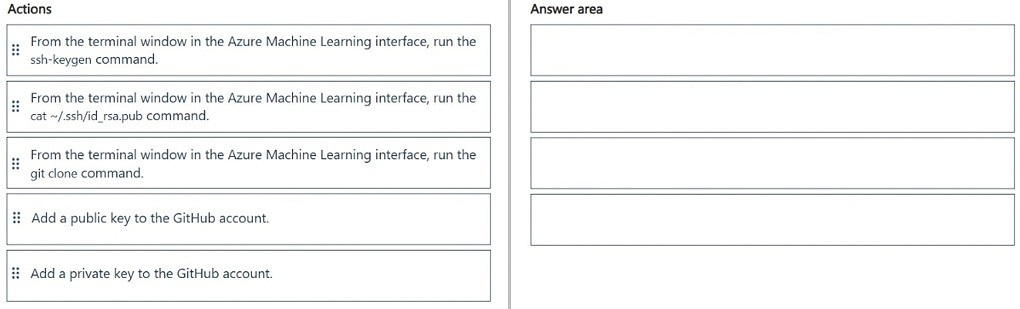
Run ssh-keygen, run cat ~/.ssh/id_rsa.pub, add the public key to the GitHub account, and run git clone.
Question
You have an existing GitHub repository containing Azure Machine Learning project files.
You need to clone the repository to your Azure Machine Learning shared workspace file system.
Which four actions should you perform in sequence? To answer, move the appropriate actions from the list of actions to the answer area and arrange them in the correct order.
NOTE: More than one order of answer choices is correct. You will receive credit for any of the correct orders you select.
Key Takeaways
The trap is attempting to clone before setting up SSH authentication; you must generate, copy, and register the key before cloning.
Learn the correct sequence to clone a GitHub repository into an Azure Machine Learning shared workspace using SSH key authentication and git commands.
Common mistake: Learners often try to clone first or skip adding the key to GitHub, resulting in permission denied errors because the remote server does not recognize the compute instance's identity.
Expert Analysis
To clone a GitHub repository into an Azure Machine Learning workspace, the system must establish a secure SSH connection to authenticate with GitHub. Since Azure ML compute instances do not have pre-configured SSH keys for external repositories, you must generate a new key pair locally on the compute instance.
The process begins by running ssh-keygen in the Azure ML terminal to create the private and public keys. Next, you retrieve the public key using cat ~/.ssh/id_rsa.pub so it can be copied. This public key must then be added to your GitHub account settings under 'SSH and GPG keys' to authorize the Azure ML instance.
Once the key is registered on GitHub, return to the Azure ML terminal and execute git clone <repository-url>. This command uses the newly configured SSH key to authenticate and download the repository files into the workspace file system. The critical constraint is that authentication (adding the key) must precede the clone operation, and key generation must precede key retrieval.
Official Reference
https://learn.microsoft.com/en-us/azure/machine-learning/how-to-clone-repositories
This link opens the official vendor documentation in a new tab.
Exam Strategy
When dealing with infrastructure setup questions involving external services, always look for the 'identity establishment' step first. If a service requires authentication, the sequence will almost certainly involve generating credentials, registering them with the provider, and then performing the action that consumes those credentials.
Frequently Asked Questions
Why do I need to use SSH instead of HTTPS?
Can I clone directly without generating a new key?
Discussion 2 contributions
Compiled from public community threads and reader submissions, lightly edited for clarity. Handles and vote tallies are shown as recorded, and comments reflect the views of individual contributors.
From public community threads 2
-
rveney 👍 1From the terminal window in the Azure Machine Learning interface, run the ssh-keygen command. From the terminal window in the Azure Machine Learning interface, run the cat ~/.ssh/id_rsa.pub command. Add a public key to the GitHub account. From the terminal window in the Azure Machine Learning interface, run the git clone command.
-
exam_upskill 👍 11. Run ssh-keygen in the Azure Machine Learning terminal. 2. Run cat ~/.ssh/id_rsa.pub to display/copy the public SSH key. 3. Add the public key to the GitHub account. 4. Run git clone from the Azure Machine Learning terminal. ssh-keygen → cat ~/.ssh/id_rsa.pub → Add public key to GitHub → git clone
Reader comments & corrections
No reader corrections yet — spotted an error or have a note? Share it below.