Ordering Power Platform Connector Actions in Copilot Studio
Short answer
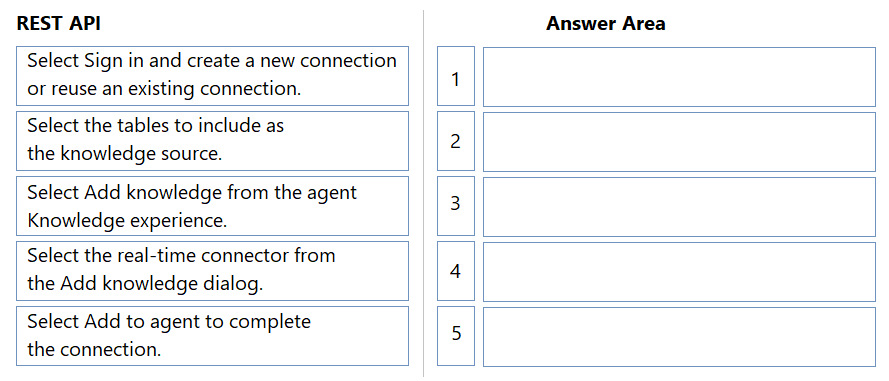
1. Select Add knowledge from the agent Knowledge experience. 2. Select the real-time connector from the Add knowledge dialog. 3. Select Sign in and create a new connection or reuse an existing connection. 4. Select the tables to include as the knowledge source. 5. Select Add to agent to complete the connection.
Question
A company needs to ground an agent in Copilot Studio answers using live enterprise data from a supported system via a Microsoft Power Platform connector.
To meet the business needs, the builder must meet the following requirements:
Authenticate using a valid connection.
Add the connector as a real-time knowledge source.
Select the tables for knowledge grounding.
You need to add a Power Platform connector as a real-time knowledge source for the agent.
In which order should you perform the actions? To answer, move all actions from the list of actions to the answer area and arrange them in the correct order.
Key Takeaways
The key is understanding that authentication must occur before table selection, and the connection must be explicitly added to the agent after configuration.
This question tests the correct sequence for connecting a Microsoft Power Platform connector as a real-time knowledge source to ground an agent's answers. The process involves navigating to the Knowledge experience, selecting the connector, authenticating, choosing tables, and finalizing the addition.
Common mistake: Learners often confuse the order of selecting tables versus authenticating, or they might try to add the connector before navigating to the Knowledge experience section.
Expert Analysis
Why the Answer Is Correct
The correct sequence begins by accessing the Add knowledge option within the agent's Knowledge experience. Next, the user selects the specific real-time connector from the available options. Following this, the user must Sign in to create a new connection or reuse an existing one to authenticate. Once authenticated, the user Selects the tables to include as the knowledge source. Finally, the user clicks Add to agent to complete the integration.
Why Other Candidate Answers Are Wrong
Incorrect orders typically involve selecting tables before establishing a valid connection, which is impossible without authentication. Others may attempt to add the agent before the knowledge source is fully configured, leading to incomplete grounding. Selecting the connector before navigating to the Knowledge experience is logically invalid as it bypasses the required UI context.
Community Comment Notes
As harshagracy noted, the sequence is: "Select Add knowledge... Select the real-time connector... Select Sign in... Select the tables... Select Add to agent." This aligns perfectly with the standard flow for integrating real-time data sources in Copilot Studio.
Exam Strategy
Focus on the logical dependency of actions: you cannot select data (tables) until you have accessed the source (connector) and verified access (authentication). Always end with the action that commits the change to the agent.
Frequently Asked Questions
Can I select tables before authenticating with a Power Platform connector?
Where do I find the option to add a real-time connector in Copilot Studio?
Discussion 1 contributions
Compiled from public community threads and reader submissions, lightly edited for clarity. Handles and vote tallies are shown as recorded, and comments reflect the views of individual contributors.
From public community threads 1
-
harshagracy 👍 1Select Add knowledge from the agent Knowledge experience. Select the real-time connector from the Add knowledge dialog. Select Sign in and create a new connection or reuse an existing connection. Select the tables to include as the knowledge source. Select Add to agent to complete the connection.
Reader comments & corrections
No reader corrections yet — spotted an error or have a note? Share it below.