Troubleshooting Remote Canvas Apps with Power Apps Monitor
Short answer
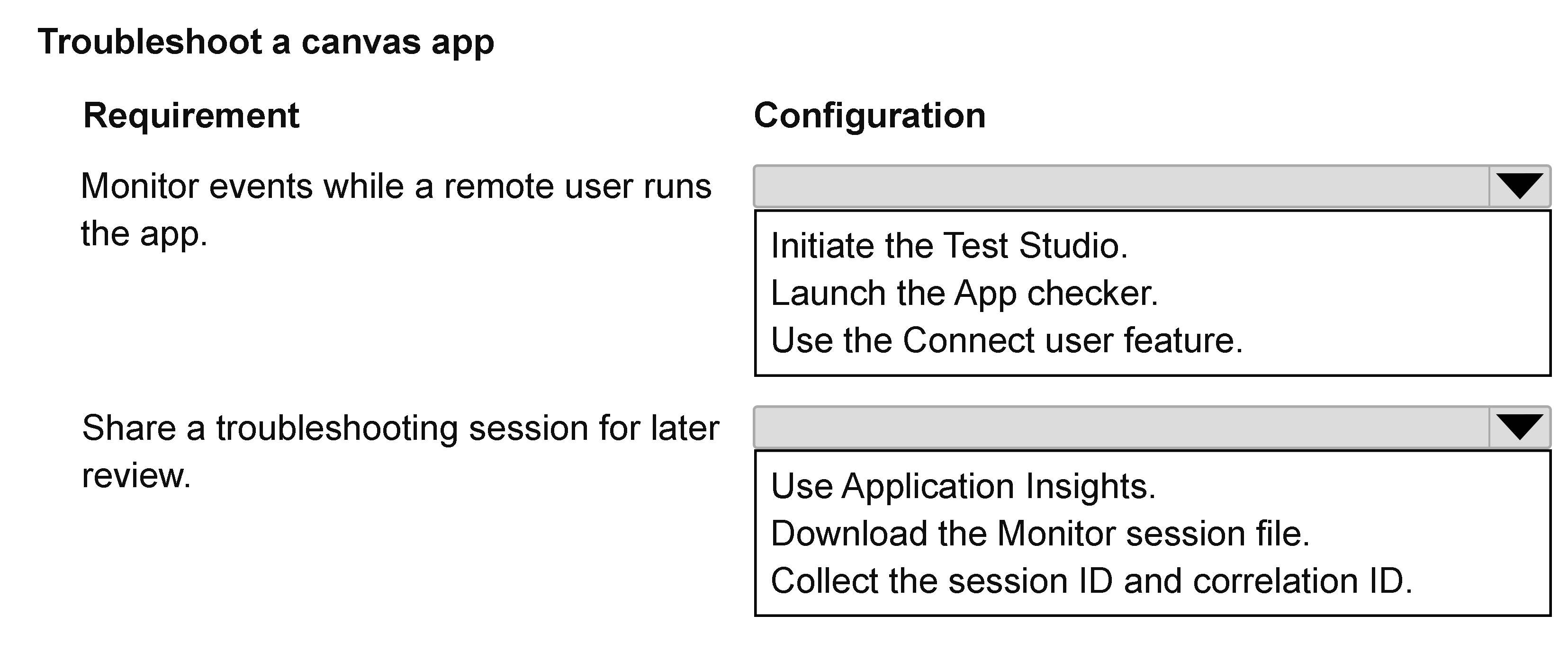
Select Connect user to establish a real-time monitoring link with the affected user, and select Download the Monitor session file to save the telemetry data for subsequent offline analysis.
Question
A remote Power Apps user experiences an issue with a canvas app. The issue cannot be reproduced locally.
You must analyze the issue in near real-time. Session data must be available for later review.
You need to troubleshoot the canvas app by using Monitor.
How should you troubleshoot the app? To answer, select the appropriate options in the answer area.
NOTE: Each correct selection is worth one point.
Key Takeaways
The question tests the specific workflow in Power Apps Monitor: you must actively connect to a user to capture their session data and then download that file to meet the 'later review' requirement.
Learn how to use Power Apps Monitor to troubleshoot remote canvas apps by connecting to a user's session and downloading session files for detailed post-event analysis.
Common mistake: Learners often forget to download the session file, focusing only on the real-time aspect. Without saving the file, the data is lost once the session ends, failing the requirement for later review.
Expert Analysis
To troubleshoot a remote Power Apps canvas app issue that cannot be reproduced locally, you must leverage the built-in Monitor tool within Power Apps Studio. This tool provides real-time telemetry and session data, allowing developers to see exactly what is happening inside the app during runtime.
The process involves two critical steps:
- Connect User: First, you need to initiate a monitoring session with the specific user experiencing the issue. In Power Apps Monitor, this is done by selecting the "Connect user" option. You then specify the user's email address (or sign-in name). This action establishes a live connection between your development environment and the user's active session, enabling you to view logs and performance metrics in near real-time as the user interacts with the app.
- Download Session File: Since the requirement states that "Session data must be available for later review," simply watching the live stream is insufficient. After connecting the user and capturing the relevant activity, you must save or download the session file. This creates a persistent record of the events, errors, and performance data, which can be analyzed offline after the troubleshooting session ends. This is crucial for diagnosing intermittent issues that may not occur again immediately.
Therefore, the correct configuration in the answer area should reflect these two actions: selecting the option to Connect user to begin the real-time analysis, and selecting the option to Download the Monitor session file to ensure data retention for future review.
Official Reference
https://learn.microsoft.com/en-us/power-apps/maker/canvas-apps/monitoring-power-apps
This link opens the official vendor documentation in a new tab.
Exam Strategy
When faced with requirements involving both immediate observation and future analysis, always look for tools that support both live streaming and data persistence. In Power Apps, distinguish between viewing logs live (which disappears) and exporting sessions (which remains). For any 'remote' or 'intermittent' issue scenario, prioritize methods that allow you to attach your diagnostic tools directly to the end-user's active session rather than trying to reproduce it in isolation.
Frequently Asked Questions
Can I monitor an app without being the developer?
What happens if I don't download the session file?
Discussion 1 contributions
Compiled from public community threads and reader submissions, lightly edited for clarity. Handles and vote tallies are shown as recorded, and comments reflect the views of individual contributors.
From public community threads 1
-
ah2006 👍 11: Use the Connect user feature 2: Download the Monitor session file
Reader comments & corrections
No reader corrections yet — spotted an error or have a note? Share it below.