Configuring Model-Driven App Table Icons
Short answer
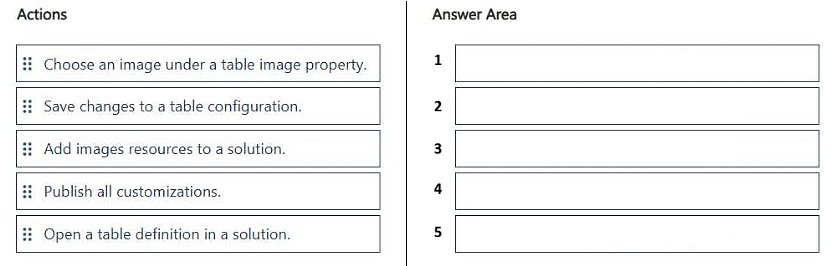
Add image resources to a solution, open a table definition in a solution, choose an image under a table image property, save changes to a table configuration, and publish all customizations.
Question
DRAG DROP
Employees have difficulty distinguishing custom tables used in a model-driven app.
You are updating the model-driven app to improve usability and user experience.
You have the following requirements:
• Display a distinct icon for each custom table.
• Ensure icons appear consistently for the related tables.
• Apply the configuration without causing missing resource references.
You need to configure each table.
In which order should you perform the actions? To answer, move all actions from the list of actions to the answer area and arrange them in the correct order.
NOTE: More than one order of answer choices is correct. You will receive credit for any of the correct orders you select.
Key Takeaways
The question tests the procedural order of adding image resources, assigning them via table definitions, and publishing changes while ensuring resource integrity.
This scenario tests the correct sequence for configuring distinct icons for custom tables in a Microsoft Power Platform model-driven app to enhance usability.
Common mistake: Learners often attempt to assign images before adding them as solution resources or skip the publish step, leading to missing references or non-displaying icons.
Expert Analysis
Why the Answer Is Correct
The correct sequence begins by adding the image resources to the solution to ensure they are managed properly. Next, you must open the specific table definition within that solution to configure its properties. You then select the desired image from the table's image property field. After setting the configuration, you save the changes to the table. Finally, publishing all customizations ensures the icons appear consistently in the live application without broken references.Why Other Candidate Answers Are Wrong
Any order that attempts to select an image before it has been added as a resource will result in a missing reference error. Similarly, skipping the final 'Publish all customizations' step means the changes remain in draft mode and are not visible to end-users. Configuring multiple tables out of sequence can also lead to confusion regarding which resource is being assigned.Community Comment Notes
As noted by user exam_upskill, the logical flow involves adding resources first, then opening the table definition to choose the image, saving, and finally publishing. This aligns with standard Power Platform deployment practices where assets must exist before assignment.Exam Strategy
When dealing with drag-and-drop questions involving configuration steps, always look for the dependency chain: create/add the asset before using it, and finalize with a publish action. Pay attention to whether the actions are per-table or global (like publishing).
Frequently Asked Questions
Why must I add images to the solution before assigning them?
Adding images to the solution ensures they are version-controlled and deployed correctly. Assigning them without this step can cause missing resource references.
Do I need to publish after saving each table?
You typically save individual table configurations and then perform a single 'Publish all customizations' action at the end to make all changes live simultaneously.
Discussion 1 contributions
Compiled from public community threads and reader submissions, lightly edited for clarity. Handles and vote tallies are shown as recorded.
From public community threads 1
-
exam_upskill 👍 11. Add images resources to a solution 2. Open a table definition in a solution 3. Choose an image under a table image property 4. Save changes to a table configuration 5. Publish all customizations
Reader comments & corrections
No reader corrections yet — spotted an error or have a note? Share it below.