Configuring access to public and personal views
Short answer
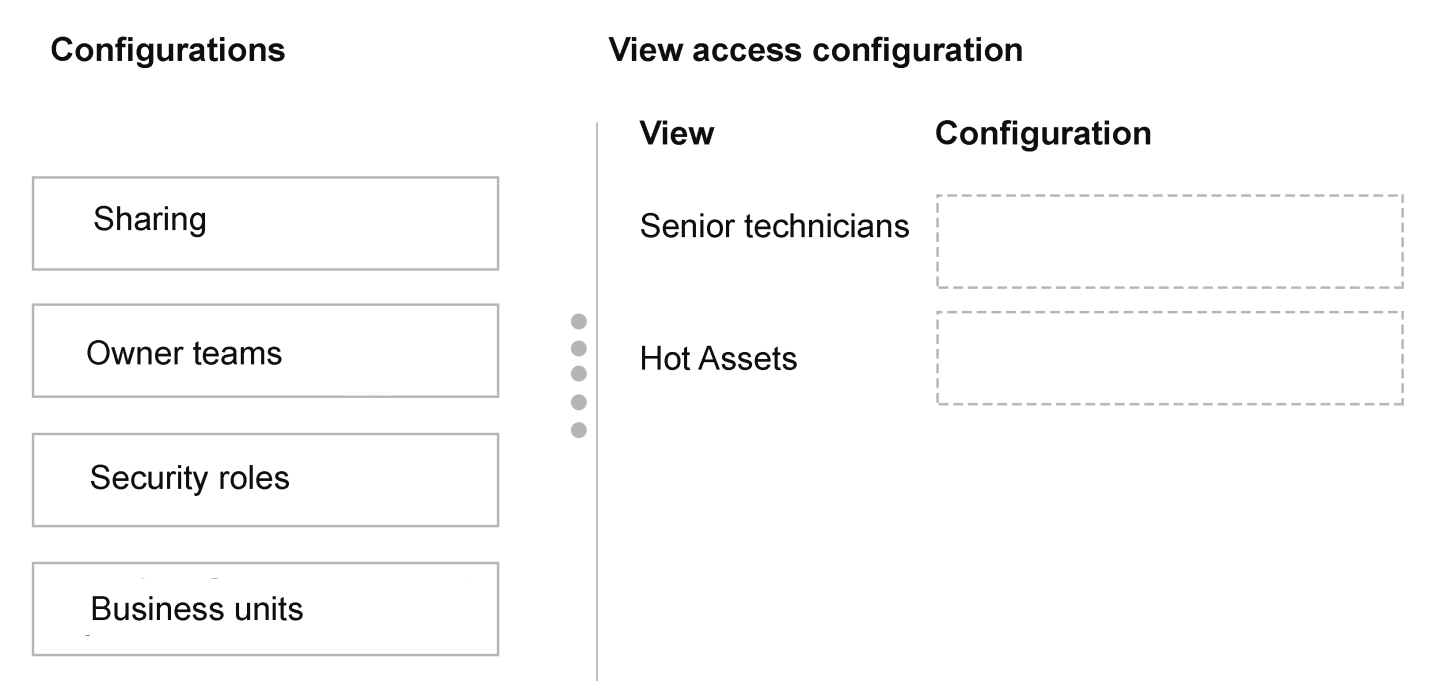
Senior Technicians (public view): assign the allowed security roles to the view in the model-driven app designer. Hot Assets (personal view): use Share to grant access to the testing team, ideally the Contoso Ltd. QA Entra group team.
Question
This is a case study. Case studies are not timed separately from other exam sections. You can use as much exam time as you would like to complete each case study. However, there might be additional case studies or other exam sections. Manage your time to ensure that you can complete all the exam sections in the time provided. Pay attention to the Exam Progress at the top of the screen so you have sufficient time to complete any exam sections that follow this case study.
To answer the case study questions, you will need to reference information that is provided in the case. Case studies and associated questions might contain exhibits or other resources that provide more information about the scenario described in the case. Information provided in an individual question does not apply to the other questions in the case study.
A Review Screen will appear at the end of this case study. From the Review Screen, you can review and change your answers before you move to the next exam section. After you leave this case study, you will NOT be able to return to it.
To start the case study
To display the first question in this case study, select the “Next” button. To the left of the question, a menu provides links to information such as business requirements, the existing environment, and problem statements. Please read through all this information before answering any questions. When you are ready to answer a question, select the “Question” button to return to the question.
Background
Contoso Ltd. is a global renewable energy provider that operates wind farms and solar installations. The company is modernizing its maintenance and operations platform. The company plans to implement a Microsoft Power Platform solution for the operations team. The implementation will include Microsoft Dataverse, a model-driven app, and Power Automate cloud flows.
The company is building and testing a new model-driven app named Operations. The solution will support operations managers, regional coordinators, and field technicians. The app must integrate with an external cloud-based system that manages onboarding of field technicians.
Contoso Ltd. plans to improve data quality and enforce consistent business logic across the app and automation processes.
Technical environment
Contoso Ltd. has an Identity and Access Management (IDAM) department that manages security. The company has one Power Platform environment named Production, where all building and configuration take place. Auditing is disabled.
The Production environment has the following security configurations:
IDAM has a Microsoft Entra security group named Contoso Ltd. QA. This security group will assign all members a Power Apps license.
IDAM created a Quality Assurance security role that grants read and write access to all custom tables.
IDAM also created a team named Testers in Dataverse, of a Microsoft Entra group team type. The team is configured for the Contoso Ltd. QA security group. The Testers team is assigned the Quality Assurance security role.
Microsoft 365 environment
All Contoso Ltd. managers are included in a Microsoft 365 group named Managers. The group is NOT enabled for email.
The company shares a SharePoint list with a key customer: Alpine Ski House. Alpine Ski House staff members can add new maintenance requests, which are then checked and marked as reviewed by Contoso Ltd.
Current issue:
A new QA tester joins Contoso Ltd. The IDAM department adds the new tester to the Contoso Ltd. QA security group. However, the new tester is not listed in the Testers team as a member.
Other applications:
A separate software-as a-service (SaaS) solution named TechCheck manages technician onboarding. The TechCheck solution is set up as follows:
TechCheck assigns a unique number named Ref to all technicians.
Users cannot make changes to the TechCheck data model.
Users cannot use the same TechCheck ref on more than one Technician row.
Automation requirements
Contoso plans to use Power Automate to develop a Maintenance Request Approval flow. The flow must meet the following requirements:
Create a Maintenance Request row in Dataverse when either of the following occurs:
An item is added to the SharePoint list by the customer with the Priority property set to High.
Any item is checked and marked as reviewed by a Contoso Ltd. representative.
Seek maintenance request approvals from managers through both email and a Microsoft Teams message after they have been reviewed:
Requests require approval from all managers.
If one manager rejects the request, approval must not be granted.
The result of the approval request must be sent to the initial reviewer in an email. The subject line must set the response as either Approve or Reject.
Contoso Ltd. requires the following table logic:
If a user tries to enter a price greater than the cost on a new Asset row, the row must display an inline error message.
If a user tries to save changes to a Technician row where the TechCheck ref column is empty, the action must be prevented and a message explaining the action must be displayed.
Any updates made to Technician profiles in TechCheck must be mirrored in Dataverse by using a custom integration. The developers building the integration require an index for performant searches on the Technician table.
Data model and app design
Contoso Ltd. plans to use Dataverse as its central data platform. Log storage must be minimized.
Tables
The following tables are required for data modeling and the app design:
Assets: Stores information about solar panels and wind turbines
Maintenance Requests: Tracks issues and maintenance activities. The table must include the following columns:
Request ID (auto-number)
External Request Code (text)
Assigned
Technician (lookup to Technicians)
Report (lookup to Maintenance Reports)
Technician updated (Yes/No)
Maintenance Reports: Tracks the results of maintenance reports
Technicians: Stores technician assignment data. The table must include the following columns:
Full Name (Text)
Mobile phone number (Text)
Email (Text)
Seniority (Choice)
TechCheck ref (Text)
Data modeling
The data model must provide the following functionality:
Maintenance Requests must:
be uniquely identifiable across systems.
have two inactive statuses, Cancelled and Duplicate.
If a new option is added to an existing set of options, it must be made available automatically for selection on all columns that use the set.
A new column named Priority must be added to multiple tables. Users must be able to select only one option from the following set per row:
Low
Medium
High
Critical
Changes to the Technician column on Maintenance Requests must be tracked for compliance purposes. Rows must include the names of previous and current technicians and the time of the change.
Relationship requirements
One asset can be related to many maintenance requests. A maintenance request can have many assets.
A maintenance request can have only zero or one maintenance report.
Only one Technician can be related to a Maintenance Request at a time.
When a Maintenance Request is deleted, any Maintenance Reports associated with it must also be deleted, but this action should be prevented if there is value in the Technician lookup.
When a Maintenance Request is assigned to a different owner, the Maintenance Report associated with it must be reassigned to the new owner as well, but the associated Technician should stay with the current owner.
App design
The Technicians table contains the following public views:
Senior Technicians
Junior Technicians
The Senior Technician view must be available through the table list view selector to a set of specific users only.
A tester creates a personal view named Hot Assets on the Assets table. The tester recognizes that the view is useful for the entire testing team. The view must be made accessible to the team.
You need to configure the access requirements to the views.
Which configurations should you use? To answer, move the appropriate configurations to the correct views. You may use each configuration once, more than once, or not at all. You may need to move the split bar between panes or scroll to view content.
NOTE: Each correct selection is worth one point.
Key Takeaways
It tests the split between security-role assignment for system views and Share for personal views — the trap is applying one mechanism to both.
This case study tests Dataverse view access control: restrict the public Senior Technicians view by assigning security roles in the app designer, and grant the team access to the personal Hot Assets view by sharing it to a group team.
Common mistake: Sharing the Senior Technicians public view (or applying security roles to Hot Assets) — system views are controlled by per-view security roles, while personal views can only be shared with users or teams.
Expert Analysis
Governing principle In the Power Platform security model, Dataverse views have two very different access mechanisms depending on who owns the view. A system (public) view is owned by the organization and its visibility in the model-driven app is controlled by assigning Dataverse security roles to that view — done in the app designer by selecting the view and adding the roles allowed to see it. A personal view, created by an individual user, is owned by that user and cannot be governed by system security settings at all; it must be shared to users or teams, and sharing with a group team (such as the Testers Entra group team) is the scalable choice rather than sharing with each tester individually.
Applying it to the Senior Technicians view The Senior Technicians view is one of the Technicians table's public views, listed in the table's list-view selector. The requirement is that it be visible only to a specific set of users. Since the view already exists system-wide, the correct control is to assign the authorized security roles to the view in the model-driven app designer (Operations). Users whose roles are not listed will not see Senior Technicians in the view selector. This is a per-view security-role assignment, not a sharing action, because a system view has no owner to share from.
Applying it to the Hot Assets view Hot Assets is a personal view created by a tester on the Assets table. Security roles cannot restrict or grant personal views, so the only supported route is the view's Share function, targeting the testing team. Sharing to a Dataverse team — ideally the Entra group team backed by the Contoso Ltd. QA security group, which already carries the Quality Assurance role — instantly covers the whole team, including the newly added tester.
Bottom line: Senior Technicians → assign security roles in the app designer; Hot Assets → share with the team.
Exam Strategy
For drag-drop view-access items, first classify each view as system (public) or personal by who created it. System view → move the security-role configuration to that view; personal view → move the Share/group-team configuration. Ignore configurations that don't fit — unused options are allowed.
Frequently Asked Questions
Can I restrict a public Dataverse view like Senior Technicians by sharing it?
Why can't security roles control the personal Hot Assets view?
How does sharing a view help a newly added QA tester?
Discussion 2 contributions
Compiled from public community threads and reader submissions, lightly edited for clarity. Handles and vote tallies are shown as recorded, and comments reflect the views of individual contributors.
From public community threads 2
-
aed747e 👍 2To restrict a Public View like Senior technicians to a specific group, assign authorized Security roles within the Model-driven App Designer. Conversely, a Personal View created by a user, such as Hot Assets, cannot be managed via system permissions; it explicitly requires using the Sharing feature to make it accessible to the team.
-
freshbt 👍 1System View - Senior Technician - restrict access to Security Role user Personal View - Hot asset - group team access via owner team To supplement, best practice is share Personal View Hot Assets to Owner Team (QA AAD Security group type assumed) effectively. Rather than share Personal view to each user individually.
Reader comments & corrections
No reader corrections yet — spotted an error or have a note? Share it below.