Configure a stacked column dashboard chart for opportunity pipeline
Short answer
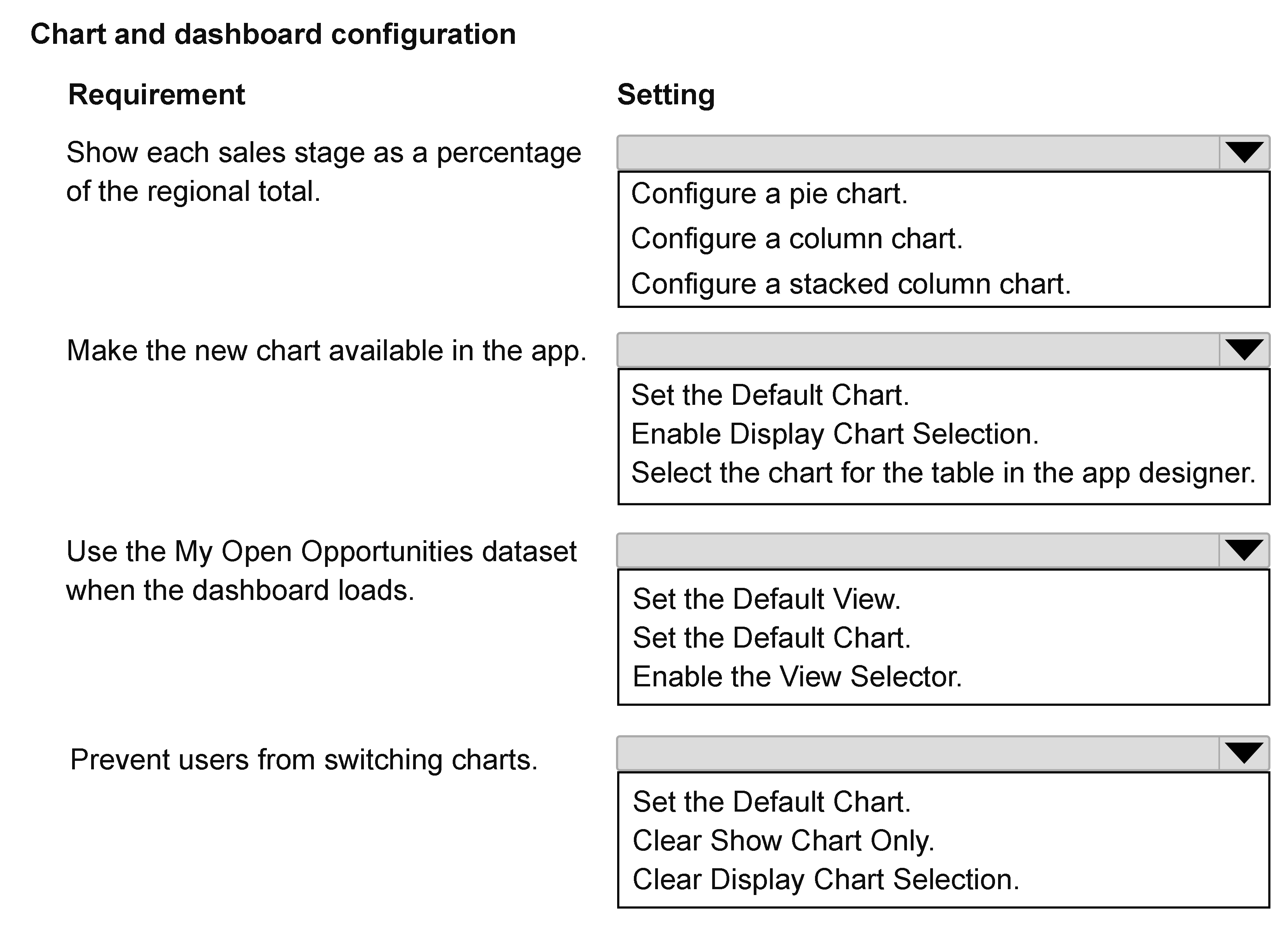
Configure a stacked column chart with sales region as the category and sales stage as the stacked series; select the chart for the Opportunities table in the app designer; set the dashboard component's default view to My Open Opportunities; and clear Display chart selection.
Question
You are configuring a dashboard in a model-driven app for sales managers. The dashboard displays opportunity pipeline data from the Opportunities table.
The company requires the following functionality:
Show how each sales stage contributes to the total pipeline for each sales region.
Ensure a newly created chart is available to users in the app.
Use the My Open Opportunities dataset when the dashboard component loads.
Prevent users from switching to a different chart at runtime.
You need to create and configure the chart and dashboard component.
How should you configure the requirements? To answer, select the appropriate options in the answer area.
NOTE: Each correct selection is worth one point.
Key Takeaways
It tests mapping each requirement to a separate layer: chart type, app-component availability, dashboard view, and runtime chart-selector behavior.
This AB-410 hotspot tests model-driven dashboard chart configuration for opportunity pipeline. The correct setup uses a stacked column chart, exposes it through the app designer, loads the My Open Opportunities view, and clears Display chart selection.
Common mistake: The common mistake is choosing a clustered or 100% stacked chart or assuming that saving the chart makes it available. The correct path also requires app-designer inclusion, the My Open Opportunities default view, and clearing Display chart selection.
Expert Analysis
Chart type: stack the stages by region Start with the visual comparison. The requirement asks how each sales stage contributes to the total pipeline for each sales region. A stacked column chart gives one column per sales region on the category axis, stacks the sales stages within each column, and sums the pipeline value represented by those segments. That shows both the region total and the stage contribution. A clustered column chart separates stages side by side and weakens the per-region total view; a 100% stacked chart normalizes each region to 100%, which is not the same as contribution to the actual pipeline total.
App availability: include the chart in the app Saving a chart on the Opportunities table does not automatically expose it in every model-driven app. After the chart is created, select the chart for the Opportunities table in the app designer so it is included as part of the app's components. That step is what makes the newly created chart available to users in the app.
Dataset: set the default View The dashboard component loads records from its configured view. Set the default View to My Open Opportunities so the chart is populated from that filtered dataset when the component loads. The chart's grouping and aggregation define the visual, but the view controls which opportunity records feed it.
Runtime lock: clear Display chart selection To prevent users from switching charts at runtime, clear Display chart selection on the dashboard component. This removes the chart picker from the runtime experience and leaves the configured chart fixed. It is a display authoring setting, not a security-role setting; users may still have access to the underlying Opportunities data, but they cannot repoint the component to another chart. A supplied learner note proposes the same settings: a stacked column chart, selecting the chart for the table in the app designer, setting the default View, and clearing Display chart selection.
Official Reference
- https://learn.microsoft.com/en-us/power-apps/maker/model-driven-apps/create-edit-charts
- https://learn.microsoft.com/en-us/power-apps/maker/model-driven-apps/create-edit-dashboards
- https://learn.microsoft.com/en-us/power-apps/maker/model-driven-apps/create-edit-powerapps-with-app-designer
These links open the official vendor documentation in a new tab.
Exam Strategy
For model-driven dashboard hotspots, split the stem into four decisions: visual type, app inclusion, data view, and runtime behavior. Ask what each setting changes at load time versus authoring time; availability is an app-component concern, while dataset choice is a view concern. Watch wording such as prevent users from switching, which usually maps to a selector or display checkbox rather than to security roles.
Frequently Asked Questions
Why use a stacked column chart instead of a clustered column chart?
What does clearing Display chart selection achieve?
Where is My Open Opportunities applied?
Discussion 1 contributions
Compiled from public community threads and reader submissions, lightly edited for clarity. Handles and vote tallies are shown as recorded, and comments reflect the views of individual contributors.
From public community threads 1
-
exam_upskill 👍 11. Configure a stacked column chart 2. Select the chart for the table in the app designer 3. Set the default View 4. Clear Display chart selection
Reader comments & corrections
No reader corrections yet — spotted an error or have a note? Share it below.