Microsoft Entra ID Admin Consent Roles for Enterprise Applications
HOTSPOT
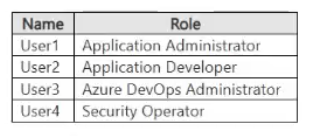
You have a Microsoft Entra tenant named contoso.com that contains the users shown in the following table.
 You add enterprise applications to contoso.com as shown in the following table.
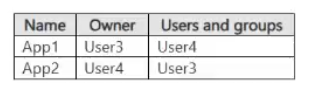 You need to identify which users can grant admin consent for App1 and App2.
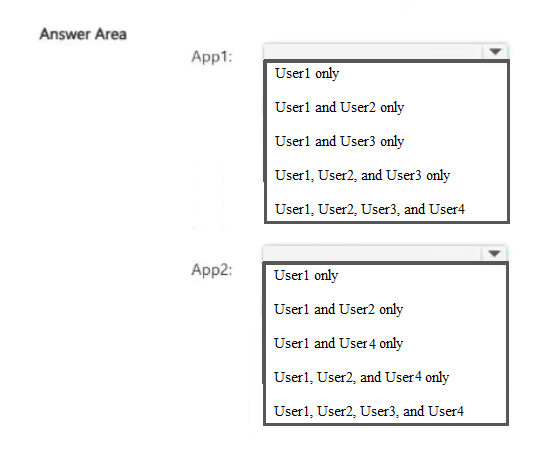
Which users should you identify for each application? To answer, select the appropriate options in the answer area.
NOTE: Each correct selection is worth one point.
You need to identify which users can grant admin consent for App1 and App2.
Which users should you identify for each application? To answer, select the appropriate options in the answer area.
NOTE: Each correct selection is worth one point.
Community Insight
The core concept is identifying specific Entra ID roles that permit granting tenant-wide admin consent, a common trap being confusing app ownership with administrative permissions.
Determines which users can grant admin consent for enterprise applications in Microsoft Entra ID based on assigned privileged roles. Establishes that only Global Administrator, Privileged Role Administrator, Cloud Application Administrator, and Application Administrator have this capability.
Selecting users who own the application or are assigned to it as 'Owner' or 'Member', assuming these roles allow granting admin consent without checking for specific high-privilege Entra ID roles.
Community Discussion (1 comments)
Comments & Corrections
No comments yet — spotted an error or have a note? Share it below.
Expert Analysis
Why the Answer Is Correct
Admin consent allows an administrator to grant permissions on behalf of the entire organization. In Microsoft Entra ID, this action is restricted to users holding specific privileged roles: Global Administrator, Privileged Role Administrator, Cloud Application Administrator, or Application Administrator. Therefore, you must identify users in the provided table who hold one of these four roles to answer correctly for App1 and App2.Why Other Candidate Answers Are Wrong
Users with standard roles like User, Member, or even Owner of the application itself cannot grant tenant-wide admin consent unless they also hold one of the specified privileged roles. Ownership of the app registration does not confer the right to grant admin consent; only the specific Entra ID administrative roles do.Community Comment Notes
As mcdesilva74 noted, granting tenant-wide admin consent requires a privileged Entra role. The comment correctly lists the valid roles: Global Administrator, Privileged Role Administrator, Cloud Application Administrator, and Application Administrator. This aligns with the official Microsoft documentation regarding application consent workflows.Official Reference
Exam Strategy
Memorize the four specific Entra ID roles that can grant admin consent. When analyzing user tables, ignore app ownership and focus solely on whether the user holds one of these four titles.
Frequently Asked Questions
Can an Application Owner grant admin consent?
No, owning the application registration does not allow granting tenant-wide admin consent. Only specific privileged roles like Global Administrator or Application Administrator can perform this action.
What are the roles for granting admin consent in Entra ID?
The roles are Global Administrator, Privileged Role Administrator, Cloud Application Administrator, and Application Administrator.
Related Analysis
Practice All SC-500 Questions
Access 100 questions with complete answers and detailed explanations.
View Full SC-500 Practice Test →