Migrating Default Domain Policy GPO Settings to an Intune Profile

Plan and implement device configuration profiles Implement identity and compliance
Answer Correct answer: C — Use the Device restrictions profile template in Intune, whose Password section carries over the Default Domain Policy password and account-lockout settings.

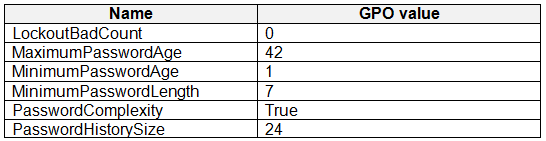
Your network contains an on-premises Active Directory domain and an Azure AD tenant. The Default Domain Policy Group Policy Object (GPO) contains the settings shown in the following table. exhibit You need to migrate the existing Default Domain Policy GPO settings to a device configuration profile. Which device configuration profile type template should you use?
  1. Administrative Templates
  2. Endpoint protection
  3. Device restrictions Correct Answer
  4. Custom

Community Insight

The question tests which Intune profile template mirrors Default Domain Policy password/account-lockout settings; the trap is reflexively picking Administrative Templates simply because the source is a GPO.

When the on-premises Default Domain Policy GPO holds password, lockout and sign-in settings, those map to Intune's Device restrictions device configuration template, whose Password node exposes equivalent Windows settings. This page explains why Device restrictions is the correct template type rather than Administrative Templates, Endpoint protection, or Custom when migrating those specific GPO values.

Most learners pick A, Administrative Templates, assuming that any GPO migration must use the GPO-like template — but the Default Domain Policy carries password, lockout and Kerberos security settings, not ADMX-backed administrative template settings, and Administrative Templates profiles have largely been superseded by the Settings Catalog.

Community Discussion (70 comments)

ThomasE 👍 1 Selected: C
I would agree with C. The scenario asks to migrate the GPO policy SETTINGS, not the GPO itself. All of these can be handled in the Device Restictions.
ChurSkux 👍 1 Selected: A
A is right, the question ask which one to migrate, administrative templates you can use to import it in, so answer is A. C is correct if you are not trying to migrate but setting up from scratch.
ollyijeh 👍 1 Selected: C
Password settings can only be configured within a device restriction policy template
Pablosanchez 👍 1 Selected: C
It's natural to assume that this should be an administrative template because of GPO, but it involves passwords, and this is implemented through device restrictions.
HueCumber 👍 3 Selected: A
✅ MD‑102 memory rule If the goal is to migrate existing Group Policy settings to Intune, use Administrative Templates first.
a5f91f0 👍 1 Selected: C
C. Device restrictions The Rationale In Microsoft Intune, password policy settings (such as length, complexity, age, and history) for Windows devices are natively managed within the Device restrictions profile template.
7a9c653 👍 3 Selected: A
A is the one to migrate a GPO policy.
ModernoDecor 👍 3 Selected: A
Today it is Settings Catalog (Administrative Templates is retired) https://learn.microsoft.com/en-us/intune/intune-service/configuration/group-policy-analytics-migrate
ModernoDecor 👍 1 Selected: D
Today is a Group Policy analytics used, but might be able to do it with Custom
jonker 👍 1 Selected: B
should be Endpoint protection using Security baseline
7a9c653 👍 1
Go to EndPoint Security > Account Protection > Create Policy > Profile is Account Protection > This is only for WHFB
Alaeddine100 👍 2 Selected: A
A Lorsque le terme migration est utilisé, cela implique que vous prenez les paramètres existants d’Active Directory (GPO) et que vous les transférez dans Intune. Pour cela, la méthode appropriée est Administrative Templates (ou aujourd’hui Settings Catalog, car Administrative Templates est retiré pour la création de nouveaux profils).
Robert69 👍 1 Selected: C
Administrative Templates: Used for configuring settings based on traditional ADMX/ADML templates, which often cover general operating system, application, or user interface settings, but not the core domain password policies themselves. Endpoint protection: This option is typically used to manage settings related to antivirus, firewall, encryption (e.g., BitLocker), or Windows Defender features, not the password rules themselves. Device restrictions: This type of configuration profile in Intune (and other device management tools) is specifically designed for setting password policies, access limitations, enforcing device-level encryption, and other fundamental limitations on device security and functionality. Settings like minimum password length and password history are typically found under the password policy section within Device restrictions.
greatsparta 👍 1 Selected: A
device restrictions covers UI and user experience settings like camera, Bluetooth, app store access etc. Not account lockout or password rules.
hvastija 👍 1 Selected: C
Answer C is Correct
theptr 👍 1 Selected: A
Use the Windows 10/11 “Device restrictions” template. That template’s Password section lets you set all of the items that appear in the Default Domain Policy—minimum length, maximum and minimum age, history, complexity, and lock-out values—without having to fall back to custom OMA-URI settings.
Besxp 👍 1 Selected: B
The Endpoint protection profile in Intune includes password policies, account lockout settings, and local device security options. It is designed to replicate security baselines and common GPO security settings like those found in the Default Domain Policy. ❌ Why not the others? A. Administrative Templates -Used for importing GPO settings that exist in ADMX-backed format (e.g., Office or Windows registry-based policies), not password or lockout settings. C. Device restrictions -Used for UI settings (camera, Bluetooth, copy/paste, etc.), not password or account lockout policies. D. Custom -Used for OMA-URI or CSP-based settings not exposed directly in the UI. Not necessary here since built-in options cover the required settings. -Comments saying "Device restrictions" are either outdated or confusing it with mobile device PIN policies. -For your GPO migration with password and lockout policies, the correct and current profile type is: Endpoint protection.
7a9c653 👍 1
Go to EndPoint Security > Account Protection > Create Policy > Profile is Account Protection > This is only for WHFB!! No legacy passwords.
Besxp 👍 1
not supposed to be commented here
cd2cfde 👍 1
Actually you’re wrong. The answer was right then as it is now. It didn’t just magically became the right answer after all of this time.
Besxp 👍 1
Correct: The Endpoint protection profile in Intune includes password policies, account lockout settings, and local device security options. It is designed to replicate security baselines and common GPO security settings like those found in the Default Domain Policy. ❌ Why not the others? A. Administrative Templates -Used for importing GPO settings that exist in ADMX-backed format (e.g., Office or Windows registry-based policies), not password or lockout settings. C. Device restrictions -Used for UI settings (camera, Bluetooth, copy/paste, etc.), not password or account lockout policies. D. Custom -Used for OMA-URI or CSP-based settings not exposed directly in the UI. Not necessary here since built-in options cover the required settings.
8choxo 👍 1
His answer was valid when he submitted it almost 9 months ago broski
AnindaR 👍 1 Selected: D
It should be custome as you get all mentioned options under settings catalog by choosing device lock optioins.
RJTW070 👍 3 Selected: A
Since the Default Domain Policy GPO typically contains Group Policy settings related to security, user experience, and system configurations, the best way to migrate these settings to Microsoft Intune is by using the Administrative Templates profile type. Why Use Administrative Templates? Administrative Templates in Intune mimic Group Policy Objects (GPOs) in Active Directory. They allow you to apply the same settings as traditional GPOs without requiring on-premises Active Directory. Many common GPO settings are already available in Intune Administrative Templates, making migration easier.
hieunm2411 👍 2 Selected: C
Starting with the December 2412 release, you can't create new Administrative Templates policies from the Templates > Administrative Templates profile type in the Intune admin center. https://learn.microsoft.com/en-us/mem/intune/configuration/administrative-templates-windows?tabs=template
wakka9876 👍 2 Selected: C
Answer is C - Device Restrictions Administrative templates has been deprecated by Microsoft and now shows as retired when you create a configuration profile
Grimmgore 👍 1 Selected: A
https://learn.microsoft.com/en-us/mem/intune/configuration/administrative-templates-import-custom#create-a-profile-using-your-imported-files
vfnj 👍 1 Selected: A
https://learn.microsoft.com/en-us/mem/intune/configuration/administrative-templates-windows?tabs=template
Moot2 👍 1 Selected: A
A use admin templates
yaktownboii 👍 1 Selected: A
Answer A is correct. https://learn.microsoft.com/en-us/mem/intune/configuration/administrative-templates-windows?tabs=template
AleFCI1908 👍 2 Selected: A
it's a migration, vote for A
d3a3d8a 👍 1
Password policy settings are not in the Administrative Templates part of Group Policies. they are in the Computer>Windows Settings. only Administrative Templates (which are represented as xml text files) can be "migrated" from GPOs. The correct answer is C. The word "migrate" in the question is there to fool you.
59c6be3_111 👍 1
Exactly. Therefor the answer remains C.
AleFCI1908 👍 1 Selected: A
migrate, so A
Nav90 👍 1 Selected: A
We are migrating GPO here not creating new policy to have same settings.
SSL2 👍 1 Selected: A
The correct answer is A. Administrative Templates. Here's why: Administrative Templates device configuration profile type template is used to configure settings related to user and computer policies, similar to Group Policy Objects (GPOs). The settings in the Default Domain Policy GPO are related to user and computer policies (password complexity, lockout policy, etc.), which aligns with the Administrative Templates template. Endpoint protection is used for configuring antivirus and firewall settings. Device restrictions is used for configuring device-level restrictions, such as blocking specific apps or websites. * Custom is used for creating custom profiles with specific settings not covered by other templates. Therefore, the Administrative Templates template is the most appropriate choice for migrating the Default Domain Policy GPO settings to a device configuration profile.
bigdaddyzaddy 👍 6
Actually you’re wrong. Administrative template has been retired. The answer is c. Funny thing is you spoke so confidently as if you’re the sole authority on this. 😂😂
King_shola 👍 1 Selected: C
C - Over complicating it using A
LionelDerBoven 👍 8 Selected: A
The correct answer is A. Administrative Templates. Explanation: To migrate the existing Default Domain Policy GPO settings (like password policies, lockout settings, etc.) to Intune as a device configuration profile, Administrative Templates is the correct template type to use. Administrative Templates in Intune mirror many Group Policy Object (GPO) settings, making it the right choice for applying these specific configurations (like password length, complexity, and history). The settings shown in the image (such as MaximumPasswordAge, PasswordComplexity, etc.) are commonly found in Group Policies, which can be replicated in Intune via Administrative Templates. Other options such as Device Restrictions, Endpoint Protection, or Custom profiles do not cover the breadth of traditional GPO settings like password policies as well as Administrative Templates do. Thus, Administrative Templates is the correct profile type for this scenario.
Frank9020 👍 2 Selected: A
By using the Administrative Templates profile type, you can more effectively replicate and manage the settings from the Default Domain Policy GPO in Intune.
Vlado123 👍 2
A https://learn.microsoft.com/en-us/mem/intune/configuration/administrative-templates-windows?tabs=template#create-the-template
Maclouis116 👍 2 Selected: A
You migrate your AD GPO's to administraive templates using the ADMX file
CJL324 👍 1
C The "Device restrictions" device configuration profile type template is used to configure settings related to device security, including password policies, BitLocker settings, and other device-level restrictions. Since the settings in the Default Domain Policy GPO include password-related configurations, using the "Device restrictions" profile type template would be appropriate for migrating these settings to a device configuration profile.
Shawn_Chen 👍 3
A is correct because this question is asking "migrate" GPO not creating a new policy
MR_Eliot 👍 2 Selected: C
C is correct. I have done this multiple times.
kaushik07 👍 1
"Device Restrictions" is a Policy Type and Policy Types are available under "Templates". You can figure out the answer now.
vijay0715 👍 1
According to ChatGPT answer is A
Merrybob 👍 1
C. Device Restrictions Ref: https://howtomanagedevices.com/intune/2409/password-policies-using-intune/ I was really tempted into selecting Administrative Templates and I still do believe they have a place however because the specific settings mentioned in the question, it leads me to feel fairly confident that Device Restrictions is the correct answer.
frack 👍 2
actually device lock can be configured as security baseline and minimum password age can be applied to configuration profiles. So admin templates I think
ToutouPapa 👍 2 Selected: D
Device Restrictions has a Password section but it does not contain a setting for lock (has one for wipe instead) and for minimum password age. Custom would be able to set all the required.
iTomi 👍 14 Selected: A
In this question you are MIGRATING the EXISTING GPO settings from AD to Intune, not creating new one. Steps are: Import and analyze your on-premises GPOs using Group Policy analytics in Microsoft Intune https://learn.microsoft.com/en-us/mem/intune/configuration/group-policy-analytics Create a Settings Catalog policy using your imported GPOs in Microsoft Intune (public preview) https://learn.microsoft.com/en-us/mem/intune/configuration/group-policy-analytics-migrate Use Windows 10/11 templates to configure group policy settings in Microsoft Intune https://learn.microsoft.com/en-us/mem/intune/configuration/administrative-templates-windows
NoursBear 👍 1
For password age then it has to be a custom configuration profile, that's not included in the intune GUI under Password
chandravamsi 👍 1 Selected: A
Administrative Template- Option: A
ThePrutser 👍 3
tried this, not possible. Certain settings from the password policy aren't compatible.
mhmyz 👍 3 Selected: D
"Device restrictions" cannot configure MinimumPasswordAge. So,Strict answer is D.Custom. But,I thnk Device restrictions is not so bad answer.
👍 3
The on-premises Active Directory domain GPO has hierarchy over Azure AD tenant thus will not change only with Custom configuration beside the question say “template “, I will go with D: Custom
RabbitB 👍 2 Selected: C
https://learn.microsoft.com/en-us/mem/intune/configuration/device-restrictions-configure
letters1234 👍 2 Selected: C
Custom OMA-URI and ADMX are considered legacy by Microsoft, even if the option did exist, they would expect a Template or Settings Catalog configuration.
vijay0715 👍 1
Password setting usually reflect on accounts know?
JP1900 👍 3
You are correct, C it is.
JP1900 👍 1 Selected: A
https://learn.microsoft.com/en-us/mem/intune/configuration/administrative-templates-windows
JP1900 👍 2
Correct answer is C
volto 👍 1
Where do you see in administrative templates settings regarding password history or number of characters?
volto 👍 32 Selected: C
Answer C is correct https://learn.microsoft.com/en-us/mem/intune/configuration/device-restrictions-windows-10#password
da96534 👍 1
Actually I don't think it is. I read that MS Learn article. It covers almost everything but there is no mention of minimum password age, which is required by the GPO. So A device Restrciton does 5 of the 6 things required by the GPO. But it can't do the min age and thus can't be the correct answer. Unless I missed something?
RomanV 👍 8
You are so wrong. Read between the lines please or don't respond here... Answer is A! The question states: "You need to MIGRATE the existing Default Domain Policy GPO settings to a device configuration profile." So according to Microsoft and myself, as an Intune administrator, after you Import and analyze your on-premises GPOs using Group Policy analytics in Microsoft Intune, you CREATE the template. Which profile type? Administrative Templates!
krzysztofbr 👍 5
You are correct! so many wrong answers again! inside device restrictions, You have password settings. your link shows everything regarding password
Gr8Greet 👍 2 Selected: D
Custom https://danielchronlund.com/2018/11/27/how-to-replace-your-old-gpos-with-intune-configuration-profiles/
NoursBear 👍 1
A custom policy uses OMA-URI to change properties on a device. You don't use OMA-URI for such configuration.
krzysztofbr 👍 1
You dont need custom policy

Comments & Corrections

No comments yet — spotted an error or have a note? Share it below.

Log in to comment, report an error, or add a note about this question.

Submitted for moderation before publishing. Keep it helpful and respectful.

Expert Analysis

Why the Answer Is Correct

The Default Domain Policy is the container for the password policy, account lockout and related sign-in security settings shown in the exhibit, and Intune exposes those same knobs under the Device restrictions profile type on the Password page (minimum password length, complexity, history, lockout threshold and duration, and whether local Windows accounts are affected). Choosing the Device restrictions template therefore reproduces the migrated GPO values with a supported, non-custom profile that Microsoft still maintains. As krzysztofbr pointed out, "inside device restrictions, You have password settings" and the referenced Microsoft device-restrictions documentation lists exactly that Password section. That makes C the defensible answer for these specific Default Domain Policy settings.

Why the Other Options Are Wrong

A, Administrative Templates, is the intuitive but flawed pick: Administrative Templates profiles mirror ADMX-backed computer/user configuration settings (Windows components, explorer, system), while password and account lockout policies are Group Policy security settings that were never ADMX templates, and as ModernoDecor noted, "Today it is Settings Catalog (Administrative Templates is retired)." B, Endpoint protection, targets Defender Firewall, BitLocker, antivirus, Exploit Guard and Windows Hello for Business baselines — it has no general password-length or lockout controls. D, Custom, would require hand-building an OMA-URI payload, which is unnecessary and unsupported when a first-party template already provides the setting; custom profiles are a last resort, not a migration strategy.

Community Comment Notes

Commenters were split, with volto and krzysztofbr insisting on Device restrictions and pointing to the password documentation, while iTomi, LionelDerBoven, RomanV, HueCumber, 7a9c653, ModernoDecor and RJTW070 argued for Administrative Templates on the grounds that GPO migration flows start with Group Policy analytics. iTomi's process note is directionally useful — "Import and analyze your on-premises GPOs using Group Policy analytics" — but the analytics workflow actually produces Settings Catalog items, not the legacy Administrative Templates profile type, so it does not make A correct here. RomanV's emphasis on the word MIGRATE is well taken, yet migration intent does not change the fact that the exhibit's password settings live in the Device restrictions template.

Official Reference

Exam Strategy

Read the exhibit first: if it lists password, lockout or sign-in requirements, the mapping is the Device restrictions profile's Password node, not Administrative Templates. Reserve Administrative Templates for ADMX-backed Windows setting examples, Endpoint protection for security baselines, and Custom for settings no template covers.

Frequently Asked Questions

Why isn't Administrative Templates the right template for migrating the Default Domain Policy GPO?

Administrative Templates profiles mirror ADMX-backed settings, but Default Domain Policy holds password, lockout and Kerberos security settings, which are not ADMX templates — and those profiles have been superseded by the Settings Catalog.

Does the Device restrictions Password page cover account lockout as well as password length?

Yes. The Windows 10/11 Device restrictions template includes a Password node with minimum password length, complexity and history plus lockout threshold, duration and counter reset options.

More MD-102 FAQ →

Related Analysis

Practice All MD-102 Questions

Access 92 questions with complete answers and detailed explanations.

View Full MD-102 Practice Test →

← Back to MD-102 Study Guide