Sequence for Creating a New Base Model in D365 Finance
Short answer
Enter a name and publisher for the model, select the model references including standard objects, and complete the model creation via the wizard.
Question
A company uses Dynamics 365 Finance.
The company requires extended functionality of standard objects.
You need to create a new base model in Visual Studio that includes the standard object extensions.
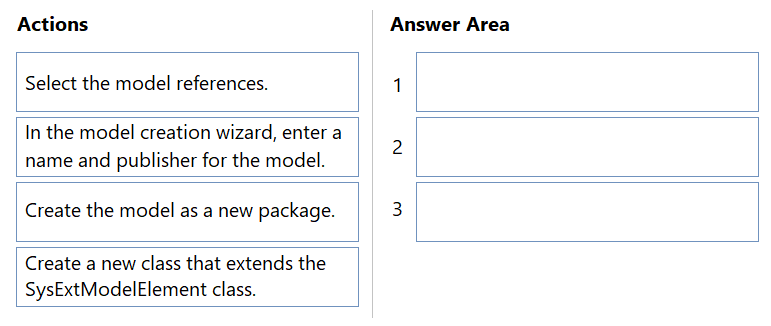
Which three actions should you perform in sequence? To answer, move the appropriate actions from the list of actions to the answer area and arrange them in the correct order.
Key Takeaways
The trap is confusing model creation with class implementation; the question asks for the wizard steps, not code-level inheritance patterns.
Learn the correct order to create a new base model in Dynamics 365 Finance using Visual Studio. The steps involve naming the model, selecting references, and finalizing creation.
Common mistake: Learners often incorrectly choose 'Create a new class that extends SysExtModelElement' as an early step. This fails because it is not a wizard action for model creation and uses a non-standard class for this purpose.
Expert Analysis
Creating a new base model in Dynamics 365 Finance to extend standard objects requires following the specific workflow of the Visual Studio Model Management wizard. The process begins by defining the model's identity and ownership. You must first enter a name and publisher for the model, which establishes its unique identifier within the Application Object Tree (AOT). This step is critical because it creates the foundational package structure.
Next, you must configure the model's dependencies. The correct sequence involves selecting the model references that include the standard objects you intend to extend. In the context of extending standard functionality, this typically means referencing the 'Application Suite' or specific base models provided by Microsoft. Without these references, the extension classes cannot access the parent elements they are meant to modify.
Finally, after setting the name, publisher, and references, the wizard completes the creation of the model package. A common distractor in this scenario is suggesting the creation of a class that extends SysExtModelElement. This is incorrect because SysExtModelElement is not part of the standard model creation workflow; extensions are created as separate classes within the new model that reference the base elements, not through inheritance from a special system element during setup.
The three actions in sequence are: 1. Enter a name and publisher for the model. 2. Select the model references (including standard objects). 3. Complete the model creation (often implied as finishing the wizard steps after configuration). The comments confirm that the wizard pages correspond to these steps: Name/Publisher -> Model References -> Finalize.
Exam Strategy
When facing drag-and-drop questions about wizards, visualize the UI screens. For model management, remember that metadata (name/publisher) always precedes dependency resolution (references). Eliminate options that describe coding actions if the question is about infrastructure setup.
Frequently Asked Questions
Why is SysExtModelElement not used?
What does 'Select Model References' mean?
Discussion 1 contributions
Compiled from public community threads and reader submissions, lightly edited for clarity. Handles and vote tallies are shown as recorded, and comments reflect the views of individual contributors.
From public community threads 1
-
cbef765 👍 1Correct In the model creation wizard, enter a name and publisher for the model. Create the model as a new package. Select the model references. Distractor: “Create a new class that extends the SysExtModelElement class” isn’t used. Why: These three steps match the pages of the Create model wizard, in order. 1. Name and publisher. The wizard opens under Dynamics 365 > Model Management > Create model, and the first page asks for the model’s name, publisher and description. It always comes first. 2. Create a new package. The next page asks which package the model goes in. Microsoft’s training says that to create an extension model, you pick “Create a new package” rather than “Select existing package” on that page. A model in its own package can extend standard objects. A model in an existing package overlays the code instead, which Microsoft no longer recommends. 3. Select references. Because it’s a new package, the wizard then asks which packages to reference. Microsoft says to tick the models you want to reference, meaning the ones whose objects you’ll extend. Without a reference, Create extension appears greyed out for those objects. The ones you’ll most often reference are ApplicationCommon, ApplicationFoundation, ApplicationPlatform, ApplicationSuite and Directory.
Reader comments & corrections
No reader corrections yet — spotted an error or have a note? Share it below.
Related Analysis
Practice All MB-500 Questions
Access 115 questions with complete answers and detailed explanations.
View Full MB-500 Practice Test →