How do you check out and check in D365 elements in Visual Studio?
HOTSPOT
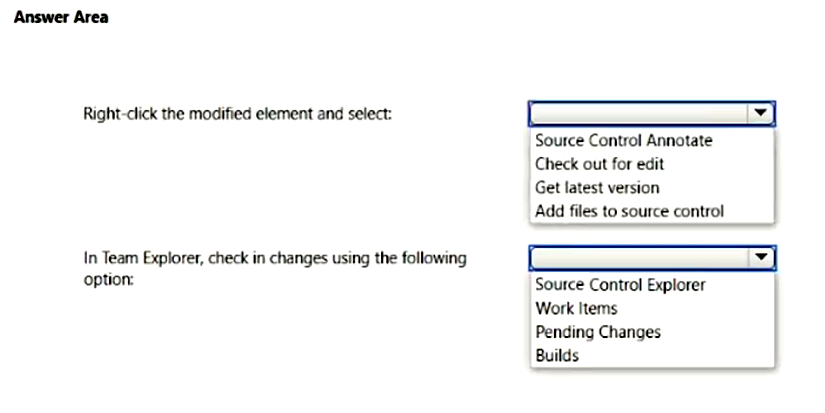
You are a Dynamics 365 finance developer. You check out elements from version control in order to make modifications.
You need to check in the modified elements to version control.
What should you do? To answer, select the appropriate option in the answer area.
NOTE: Each correct selection is worth one point.
Community Insight
This tests the Visual Studio / Team Explorer source-control workflow for D365 elements; the trap is selecting 'Add files to source control', which is only for brand-new files that are not yet under version control.
In Dynamics 365 finance and operations, moving modified elements through version control from Visual Studio involves two distinct actions: checking the element out for edit before you change it, and then committing the result from the Pending Changes window in Team Explorer. The hotspot answer is therefore 'Check out for edit' for the first selection and 'Pending Changes' for the second.
Learners pick 'Add files to source control' for the first step, because it sounds like a commit-style action. It is wrong: that command registers a new, untracked file into the repo, while an element that already exists in version control must be checked out for edit before modification, then committed through Pending Changes.
Community Discussion (4 comments)
Comments & Corrections
No comments yet — spotted an error or have a note? Share it below.
Expert Analysis
Why the Answer Is Correct
The scenario states the elements were obtained from version control and modified, so the checkout step must be the one that marks a controlled element as editable — 'Check out for edit' in the context menu, which creates a server-side lock/edit record for that element. The commit step in the D365 Visual Studio client is performed in the Team Explorer 'Pending Changes' pane, where you review the modified elements, enter a comment, and issue Check In. This two-step sequence (check out for edit → modify → check in from Pending Changes) is the documented Visual Studio workflow for source control in finance and operations apps. Community contributors converge on exactly this pair, and the referenced Microsoft Learn module on version control for finance and operations apps confirms the same flow.Why Other Candidate Answers Are Wrong
'Add files to source control' applies only to newly created elements that have never been placed under version control; since the question says the elements were checked out from version control, they are already tracked and this option does nothing useful for the check-in. Likewise, choosing a checkout-only option for the second step (such as 'Check out for edit' again) would simply re-open the file for editing rather than committing the modification to the repository, leaving the change in the local workspace. A 'Get Latest/Get Specific Version' style option is the opposite operation — it pulls server changes down and does not publish local ones — so it cannot be the check-in answer.Community Comment Notes
Globeearth laid out a specific two-part mapping that ends on 'Pending Changes' in Team Explorer, which matches the correct commit step, but the first step of 'Add files to source control' is not appropriate for an element already under version control. Sohaiby pushed back with "Shouldn't the first one be "Check out for edit?"Official Reference
Exam Strategy
Treat any D365 source-control hotspot as a two-slot ordering problem: the slot that makes an element editable is 'Check out for edit', and the slot that publishes the change is 'Pending Changes' in Team Explorer. Reject any option mentioning 'add to source control' unless the question explicitly describes a newly created file.
Frequently Asked Questions
What is the difference between 'Add files to source control' and 'Check out for edit' in D365 Visual Studio?
'Add files to source control' puts a brand-new, untracked file into the repository. 'Check out for edit' marks an element that is already in version control as editable so your modification can later be checked in.
Where do you commit modified elements to version control in finance and operations apps?
In the Team Explorer window of Visual Studio, open Pending Changes, review the modified elements, add a comment, and select Check In to commit them to Azure DevOps version control.
Related Analysis
Practice All MB-500 Questions
Access 115 questions with complete answers and detailed explanations.
View Full MB-500 Practice Test →