Microsoft 365 Group-Based Licensing with Nested Groups
Short answer
A Only User1 is licensed because they are a direct member of Group1, while users in nested groups like Group2 are excluded from receiving the Microsoft 365 Copilot license assigned to the parent group.
Question
To answer the case study questions, you will need to reference information that is provided in the case. Case studies and associated questions might contain exhibits or other resources that provide more information about the scenario described in the case. Information provided in an individual question does not apply to the other questions in the case study.
A Review Screen will appear at the end of this case study. From the Review Screen, you can review and change your answers before you move to the next exam section. After you leave this case study, you will NOT be able to return to it.
To start the case study
To display the first question in this case study, select the “Next” button. To the left of the question, a menu provides links to information such as business requirements, the existing environment, and problem statements. Please read through all this information before answering any questions. When you are ready to answer a question, select the “Question” button to return to the question.
Contoso, Ltd. is a consulting company that has a main office in San Francisco and a branch office in Dallas.
Existing Environment
Microsoft Entra configuration
Contoso has an Azure subscription.
Contoso has a Microsoft 365 E5 subscription.
Contoso has a Microsoft Entra tenant named contoso.com. The tenant has an administrative unit named AU1 that contains the following membership rule.
(device.deviceTrustType –eq “Workplace”) and (device.deviceOSType –in [“Windows”, “Android”])
The tenant contains the cloud-only users shown in the following table.
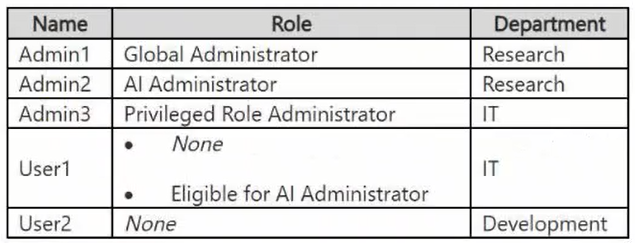
The tenant contains the groups shown in the following table.
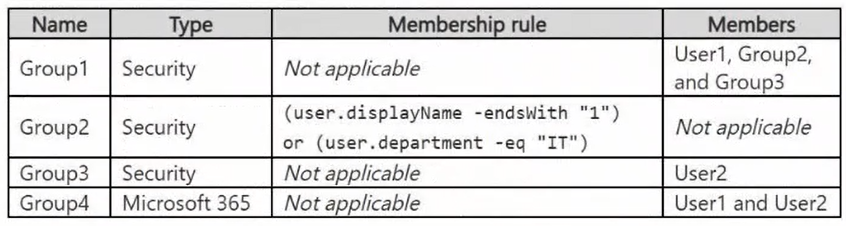
The tenant contains the devices shown in the following table.
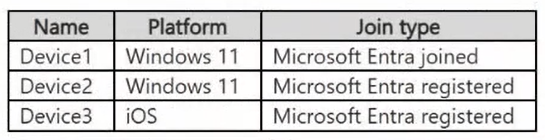
All the devices are managed by using Microsoft Intune.
Microsoft Entra authentication methods
Contoso contains an Authentication methods policy for Microsoft Authenticator that has the following settings:
Include: Group1
Exclude: Group3
Authentication mode: Passwordless
Privileged Identity Management (PIM) configuration
Privileged roles are managed by using Privileged Identity Management (PIM).
The PIM settings for the AI Administrator role are configured as shown in the following table.
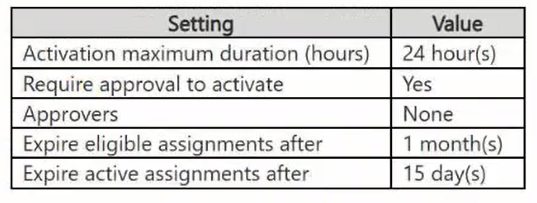
Email configuration
Each user has a Microsoft Exchange mailbox.
Contoso contains an anti-spam outbound policy named Antispam1 that has the following configurations:
Included groups: Group4
Excluded users: User2
Set an external message limit: 3
Set an internal message limit: 5
Set a daily message limit: 13
Restriction placed on users who reach the message limit: Restrict the user from sending mail
Microsoft SharePoint configuration
Contoso has a Microsoft SharePoint site named Site1 that stores the following types of content and various other documents:
Project documents: All the documents have a project code that includes the letters PR, followed by a dash and nine digits (for example PR-123456789).
Proposal documents: All the documents have a customer ID that includes seven to 10 alphanumerical characters. All the customer IDs are recorded in a Microsoft Excel workbook.
Feedback forms: All the documents were created by using the same template.
Microsoft AI services
Contoso implements the following Microsoft AI services:
Microsoft 365 Copilot for selected users
Microsoft Foundry agents, including an agent named Agent1
Requirements
Planned changes
Contoso plans to implement the following changes:
Issue new Android devices to the Group1 users.
Assign Microsoft 365 Copilot licenses to the users in Group1.
Add an additional email address alias for the users in Group4.
Create a Conditional Access policy named CAPolicy1 for Group3.
Disable web search for Microsoft 365 Copilot and Microsoft 365 Copilot Chat.
Create classifiers to identify project documents and proposal documents stored on Site1.
Technical requirements
Contoso identifies the following technical requirements:
The users in Group3 that access Microsoft 365 resources from anonymous IP addresses must complete multifactor authentication (MFA).
Microsoft 365 Copilot responses must NOT use content from the project documents stored on Site1.
Microsoft 365 Copilot responses must use content from only Microsoft 365 locations.
The total costs of Agent1 must be monitored and evaluated monthly.
All the Android devices must be registered in Microsoft Entra.
Administrative effort must be minimized.
Administrative costs must be minimized.
You implement the planned change for Group1.
Which users are licensed for Microsoft 365 Copilot?
Key Takeaways
The main trap is assuming that nesting a group inside another propagates licenses to the inner group's members; it does not.
Only User1 is licensed for Microsoft 365 Copilot. This question tests the limitation of Microsoft Entra group-based licensing regarding nested groups.
Common mistake: B (Admin1 and User1 only) or D (All users) are common wrong answers because candidates assume nested group membership inherits the parent group's license assignment.
Expert Analysis
The licensing of Microsoft 365 Copilot is determined by group membership in the Microsoft Entra admin center. To determine who receives a license, you must trace the membership of Group1, as the scenario states licenses are assigned to users in Group1.
First, analyze the direct members of Group1. The exhibit shows User1 is listed as a direct member. Since User1 is a direct member, they receive the license.
Next, analyze dynamic membership rules. The tenant has an Administrative Unit (AU1) with a rule: (device.deviceTrustType –eq “Workplace”) and (device.deviceOSType –in [“Windows”, “Android”]). This rule applies to devices, not directly to group licensing for users unless those users are associated with those devices. However, the question asks about licensing, which is typically driven by group membership. Let's look at Group2. The exhibit implies Group2 might have dynamic membership or specific users. The comments suggest Admin1 and Admin3 match a rule for Group2. If Group2 is nested inside Group1, does that grant licensing? In Microsoft Entra ID, group-based licensing applies to the members of the target group. It does not automatically include members of nested groups unless the license assignment is configured to include nested groups, which is generally not the default behavior for standard group licenses; it assigns to the group itself, and the group's effective members are calculated. Wait, actually, if Group2 is a member of Group1, the users inside Group2 are not direct members of Group1. Licensing is assigned to the group object. If Group1 has the license, only direct members of Group1 get it? No, Microsoft 365 group licensing assigns licenses to all members of the group. Does "member" include nested group members? In modern Microsoft 365, if a group is nested, the outer group's membership includes the inner group's members for access purposes (like SharePoint), but for licensing, Microsoft explicitly states that licenses are assigned to the direct members of the group. Members of nested groups do not receive the license unless they are also direct members of the outer group.
Let's re-read the comment carefully: "Entra group-based licensing ignores its members." This confirms the key trap: Nested group members are excluded from licensing assignments on the parent group.
Therefore:
- User1: Direct member of Group1 -> Licensed.
- Admin1 & Admin3: Members of Group2. Group2 is nested in Group1. They are NOT direct members of Group1 -> Not licensed.
- User2: The exhibit likely shows User2 is not in Group1 (perhaps in Group3 or no group). Even if User2 were in another group, if they aren't in Group1, they aren't licensed via this method.
Thus, only User1 is licensed.
Exam Strategy
When answering questions about Microsoft 365 licensing assignments via groups, always check if any members are part of nested groups. Remember that licensing is applied to direct members only. Do not assume inheritance of licenses through group nesting, even if access permissions work that way.
Frequently Asked Questions
Do nested groups inherit licenses from their parent group?
How can I ensure users in a nested group get a license?
Community Votes
100% of anonymous learners picked answer A. Votes are pick records left by other test-takers — they are not the verified answer.
Discussion 1 contributions
Compiled from public community threads and reader submissions, lightly edited for clarity. Handles and vote tallies are shown as recorded, and comments reflect the views of individual contributors.
From public community threads 1
-
linux_admin 👍 1 Answered AUser1: Result: Licensed Reason: User1 is explicitly listed as a direct user member of Group1. Admin1 & Admin3: Result: Not licensed Reason: Admin1 (display name ends with "1") and Admin3 (department is "IT") match the dynamic membership rule for Group2. Because Group2 is nested within Group1, Entra group-based licensing ignores its members. User2: Result: Not licensed Reason: User2 is a member of Group3. Since Group3 is nested within Group1, User2 does not inherit the license assigned to Group1.
Reader comments & corrections
No reader corrections yet — spotted an error or have a note? Share it below.