Identifying AI Service Licensing Sources in Microsoft 365
Short answer
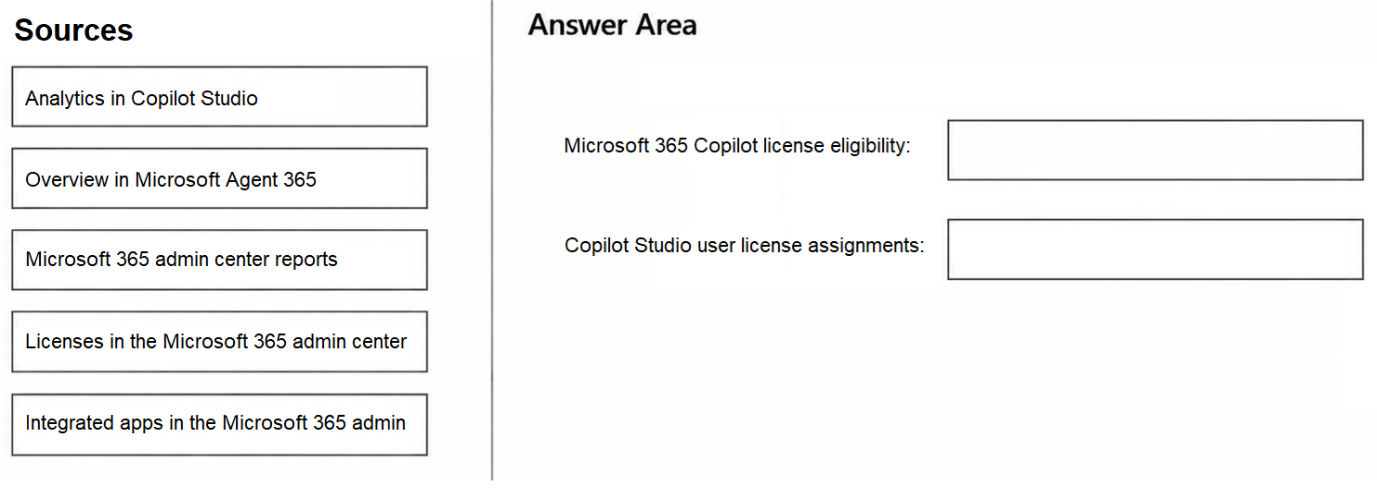
Use the Microsoft 365 admin center reports to identify users eligible for Microsoft 365 Copilot licensing, and use the License assignment portal to review Microsoft Copilot Studio user license assignments.
Question
You have a Microsoft 365 subscription.
You need to identify sources for AI service licensing. The solution must meet the following requirements:
Identify users that are eligible for Microsoft 365 Copilot licensing.
Review Microsoft Copilot Studio user license assignments.
What should you use for each requirement? To answer, drag the appropriate sources to the correct requirements. Each source may be used once, more than once, or not at all. You may need to drag the split bar between panes or scroll to view content.
NOTE: Each correct selection is worth one point.
Key Takeaways
The question tests the distinction between checking license eligibility (via M365 Admin Center reports) versus verifying specific assignments (via the License assignment portal), a common point of confusion in AI service management.
Learn how to use the Microsoft 365 admin center reports for Copilot eligibility and the License assignment portal for Copilot Studio license reviews to satisfy AB-650 requirements.
Common mistake: Learners often confuse the Microsoft 365 Admin Center with the Microsoft Purview compliance portal, assuming that because Purview manages 'governance,' it also handles licensing. However, Purview is strictly for data security and compliance, not license inventory.
Expert Analysis
Microsoft 365 Admin Center Reports for Copilot Eligibility
To identify users eligible for Microsoft 365 Copilot licensing, you must use the Microsoft 365 admin center reports. Specifically, the Copilot readiness report evaluates tenant users against prerequisite base licensing requirements (such as M365 E3/E5 or Business Premium). This report provides a clear list of users who meet the technical and licensing criteria to be assigned Copilot licenses. It is the authoritative source within the M365 ecosystem for determining eligibility before purchasing or assigning additional AI service licenses.
License Assignment Portal for Copilot Studio
For reviewing user license assignments specifically for Microsoft Copilot Studio, the correct source is the License assignment portal (often accessed via the Microsoft Entra admin center or the specific Copilot Studio admin interface depending on the version, but fundamentally tied to the license management infrastructure). This portal allows administrators to view and manage which users have been granted specific product licenses, including standalone or add-on licenses for Copilot Studio bots and agents. While the M365 Admin Center handles the broad Copilot readiness, detailed license assignment verification for studio-specific components often requires navigating to the license management views where entitlements are tracked per user.
Why Other Sources Are Incorrect
Common distractors might include the Microsoft Purview compliance portal or Azure Monitor. The Purview portal is designed for data governance, sensitivity labels, and DLP policies, not for auditing software license eligibility or assignment counts. Azure Monitor is focused on telemetry, logs, and performance metrics for applications and services, not on administrative license inventory. Using these tools would fail to provide the specific licensing status required by the question's constraints.
Exam Strategy
When asked about licensing or eligibility in Microsoft 365 exams, always distinguish between 'readiness/eligibility' checks and 'assignment' tracking. Readiness is typically found in the M365 Admin Center under Reports, while specific assignment details are managed through the License assignment interfaces. Memorize that 'Reports' equals 'Eligibility' and 'License Portal' equals 'Assignment Verification'.
Frequently Asked Questions
Where do I find the Copilot readiness report?
Can I use Azure Monitor to check Copilot license usage?
Discussion 1 contributions
Compiled from public community threads and reader submissions, lightly edited for clarity. Handles and vote tallies are shown as recorded, and comments reflect the views of individual contributors.
From public community threads 1
-
linux_admin 👍 1Microsoft 365 Copilot license eligibility: Microsoft 365 admin center reports Why: The Microsoft 365 Copilot readiness report (located under Reports in the Microsoft 365 admin center) evaluates tenant users against prerequisite base licensing requirements (such as Microsoft 365 E3/E5, Office 365 E3/E5, or Business Premium/Standard) to identify which users are eligible to be assigned Microsoft 365 Copilot licenses. Copilot Studio user license assignments: Licenses in the Microsoft 365 admin center Why: To review, assign, or audit user-level license allocations for Microsoft Copilot Studio across individual users, administrators navigate to Billing > Licenses (Licenses in the Microsoft 365 admin center), which details active user license assignments, available quantities, and assigned services.
Reader comments & corrections
No reader corrections yet — spotted an error or have a note? Share it below.