Configuring Safe Attachments for Teams and Blocking Malicious File Downloads
Short answer
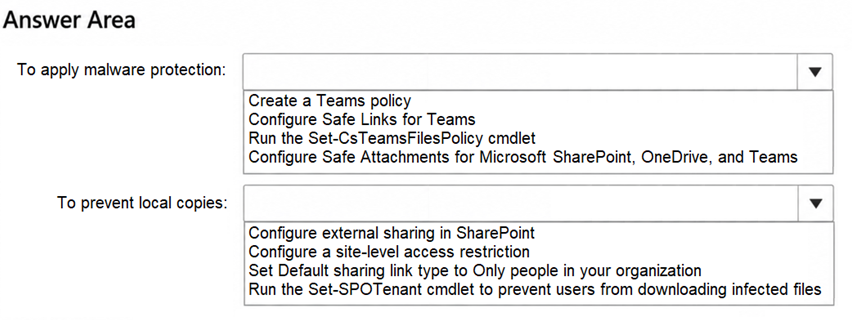
Enable Safe Attachments for Microsoft SharePoint, OneDrive, and Teams, and run Set-SPOTenant to block access to malicious files.
Question
You have a Microsoft 365 subscription that uses Microsoft Defender for Office 365.
Users collaborate on files in Microsoft Teams. Files that are identified as malicious cannot be opened, moved, copied, and shared, but users can still save local copies.
You need to configure file-based protection for the collaboration workloads. The solution must meet the following requirements:
Apply malware protection to the files stored in Teams.
Prevent users from retaining local copies of files identified as malicious.
What should you do? To answer, select the appropriate options in the answer area.
NOTE: Each correct selection is worth one point.
Key Takeaways
The trap is assuming email-only protection; you must explicitly enable Safe Attachments for collaboration services and enforce tenant-level blocking policies.
Learn how to secure Microsoft Teams by enabling Safe Attachments for SharePoint, OneDrive, and Teams and using PowerShell to block malicious file downloads.
Common mistake: Learners often forget to enable Safe Attachments specifically for SharePoint/OneDrive/Teams, leaving collaboration files unprotected despite having email security active.
Expert Analysis
This scenario requires configuring file-based protection in Microsoft Teams to block malicious files and prevent local retention. The solution involves two distinct settings within Microsoft Defender for Office 365.
Enable Safe Attachments for Collaboration Services The first requirement is to apply malware protection to files stored in Teams. By default, Defender for Office 365 scans email attachments. To extend this scanning to collaboration workloads like SharePoint, OneDrive, and Teams, you must enable Safe Attachments for Microsoft SharePoint, OneDrive, and Teams. This ensures that files uploaded or shared in these environments are scanned for malware before they can be accessed.
Prevent Local Copies via Tenant Settings
The second requirement is to stop users from saving local copies of identified malicious files. Even with Safe Attachments enabled, the default behavior might allow downloads if not explicitly restricted. You must configure the SharePoint Online tenant setting Set-SPOTenant -BlockAccessToMaliciousFiles $true (or similar policy enforcement) to ensure that once a file is flagged as malicious, access is blocked entirely, including the ability to download or save it locally. This prevents the "save local copy" loophole mentioned in the problem statement.
The key insight here is distinguishing between general email attachment protection and the specific extension of Safe Attachments to collaboration platforms, combined with the administrative control over file access rights.
Official Reference
This link opens the official vendor documentation in a new tab.
Exam Strategy
When asked about protecting collaboration workloads, always check if 'Safe Attachments' needs to be explicitly enabled for those specific services. Remember that email protection does not automatically cover Teams or SharePoint uploads without this configuration step.
Frequently Asked Questions
Does Safe Attachments scan files already in Teams?
How do I prevent users from downloading infected files?
Discussion 1 contributions
Compiled from public community threads and reader submissions, lightly edited for clarity. Handles and vote tallies are shown as recorded, and comments reflect the views of individual contributors.
From public community threads 1
-
linux_admin 👍 2Configure Safe Attachments for Microsoft SharePoint, OneDrive, and Teams | Run the Set-SPOTenant cmdlet to prevent users from downloading infected files. Explanation: First Selection: Turning on Safe Attachments for SharePoint, OneDrive, and Teams extends Defender scanning to collaboration files, blocking malicious files from being opened, moved, copied, or shared. Second Selection: By default, Safe Attachments still allows users to download local copies of blocked files. Running Set-SPOTenant -DisallowInfectedFileDownload $true via PowerShell explicitly prevents users from downloading local copies of infected files.
Reader comments & corrections
No reader corrections yet — spotted an error or have a note? Share it below.