Conditional Access Configuration for Anonymous IP Authentication
Short answer
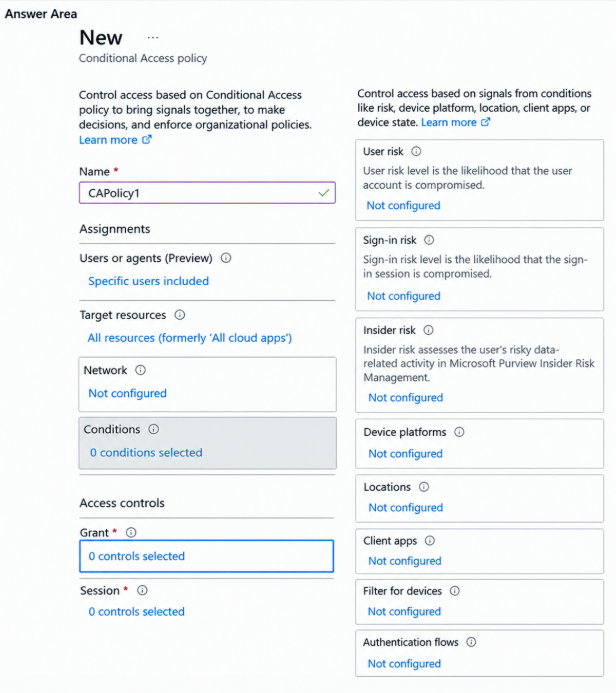
Under Conditions, configure Sign-in risk. Under Grant, configure Require multifactor authentication.
Question
This is a case study. Case studies are not timed separately from other exam sections. You can use as much exam time as you would like to complete each case study. However, there might be additional case studies or other exam sections. Manage your time to ensure that you can complete all the exam sections in the time provided. Pay attention to the Exam Progress at the top of the screen so you have sufficient time to complete any exam sections that follow this case study.
To answer the case study questions, you will need to reference information that is provided in the case. Case studies and associated questions might contain exhibits or other resources that provide more information about the scenario described in the case. Information provided in an individual question does not apply to the other questions in the case study.
A Review Screen will appear at the end of this case study. From the Review Screen, you can review and change your answers before you move to the next exam section. After you leave this case study, you will NOT be able to return to it.
To start the case study
To display the first question in this case study, select the “Next” button. To the left of the question, a menu provides links to information such as business requirements, the existing environment, and problem statements. Please read through all this information before answering any questions. When you are ready to answer a question, select the “Question” button to return to the question.
Contoso, Ltd. is a consulting company that has a main office in San Francisco and a branch office in Dallas.
Existing Environment
Microsoft Entra configuration
Contoso has an Azure subscription.
Contoso has a Microsoft 365 E5 subscription.
Contoso has a Microsoft Entra tenant named contoso.com. The tenant has an administrative unit named AU1 that contains the following membership rule.
(device.deviceTrustType –eq “Workplace”) and (device.deviceOSType –in [“Windows”, “Android”])
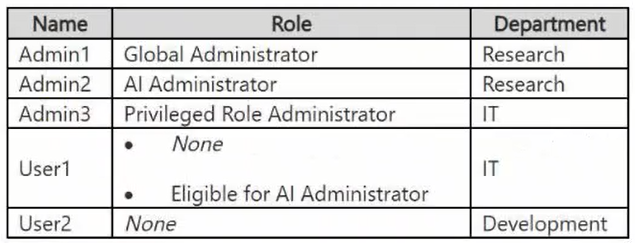
The tenant contains the cloud-only users shown in the following table.
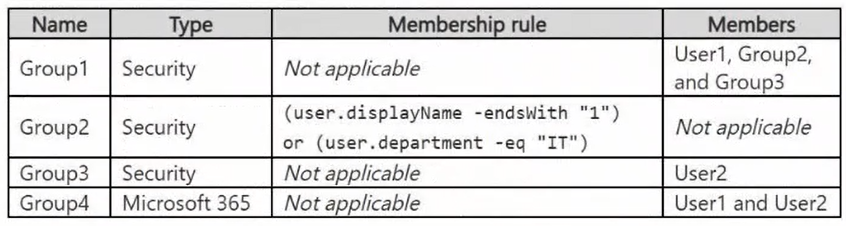
The tenant contains the groups shown in the following table.
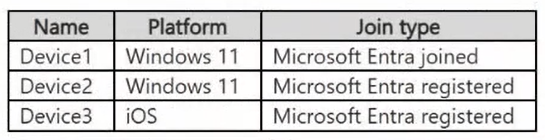
The tenant contains the devices shown in the following table.
All the devices are managed by using Microsoft Intune.
Microsoft Entra authentication methods
Contoso contains an Authentication methods policy for Microsoft Authenticator that has the following settings:
Include: Group1
Exclude: Group3
Authentication mode: Passwordless
Privileged Identity Management (PIM) configuration
Privileged roles are managed by using Privileged Identity Management (PIM).
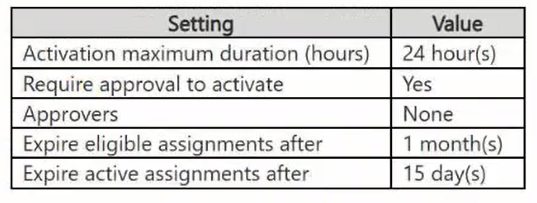
The PIM settings for the AI Administrator role are configured as shown in the following table.
Email configuration
Each user has a Microsoft Exchange mailbox.
Contoso contains an anti-spam outbound policy named Antispam1 that has the following configurations:
Included groups: Group4
Excluded users: User2
Set an external message limit: 3
Set an internal message limit: 5
Set a daily message limit: 13
Restriction placed on users who reach the message limit: Restrict the user from sending mail
Microsoft SharePoint configuration
Contoso has a Microsoft SharePoint site named Site1 that stores the following types of content and various other documents:
Project documents: All the documents have a project code that includes the letters PR, followed by a dash and nine digits (for example PR-123456789).
Proposal documents: All the documents have a customer ID that includes seven to 10 alphanumerical characters. All the customer IDs are recorded in a Microsoft Excel workbook.
Feedback forms: All the documents were created by using the same template.
Microsoft AI services
Contoso implements the following Microsoft AI services:
Microsoft 365 Copilot for selected users
Microsoft Foundry agents, including an agent named Agent1
Requirements
Planned changes
Contoso plans to implement the following changes:
Issue new Android devices to the Group1 users.
Assign Microsoft 365 Copilot licenses to the users in Group1.
Add an additional email address alias for the users in Group4.
Create a Conditional Access policy named CAPolicy1 for Group3.
Disable web search for Microsoft 365 Copilot and Microsoft 365 Copilot Chat.
Create classifiers to identify project documents and proposal documents stored on Site1.
Technical requirements
Contoso identifies the following technical requirements:
The users in Group3 that access Microsoft 365 resources from anonymous IP addresses must complete multifactor authentication (MFA).
Microsoft 365 Copilot responses must NOT use content from the project documents stored on Site1.
Microsoft 365 Copilot responses must use content from only Microsoft 365 locations.
The total costs of Agent1 must be monitored and evaluated monthly.
All the Android devices must be registered in Microsoft Entra.
Administrative effort must be minimized.
Administrative costs must be minimized.
You need to implement CAPolicy1. The solution must meet the technical requirements.
Which two Conditional Access settings should you configure? To answer, select the appropriate settings in the answer area.
NOTE: Each correct selection is worth one point.
Key Takeaways
Anonymous IP detection is a dynamic risk signal managed by Entra ID Protection, so you must use the Sign-in risk condition rather than static Location settings.
Implement CAPolicy1 by selecting Sign-in risk in Conditions and Require multifactor authentication in Grant controls to secure Group3 against anonymous IP access.
Common mistake: Learners often select 'Locations' in the Conditions blade, assuming they can define anonymous networks there. This fails because anonymous proxies are numerous and changing; only Sign-in risk can dynamically identify them without constant manual updates.
Expert Analysis
The scenario requires enforcing multifactor authentication (MFA) for users in Group3 when they sign in from anonymous IP addresses. In Microsoft Entra ID, the detection of 'anonymous' or high-risk locations is handled by Microsoft Entra ID Protection, not by static network conditions like location lists.
The critical distinction lies in the Conditional Access Conditions blade. You must select Sign-in risk. This condition leverages Identity Protection to evaluate real-time risk levels, including those assigned to anonymous proxy IPs. Selecting 'Locations' would require manually maintaining a list of every anonymous IP range, which contradicts the requirement to minimize administrative effort and fails to dynamically catch all anonymous threats.
Once the risk condition is set, you must configure the Grant control under Access controls. To satisfy the MFA requirement, you should select Require multifactor authentication. While other options exist, such as requiring specific device compliance or approved client apps, MFA is the direct solution for identity verification in this context. The combination of Sign-in Risk (as the trigger) and Require MFA (as the enforcement) correctly implements the security policy.
Official Reference
This link opens the official vendor documentation in a new tab.
Exam Strategy
When a requirement mentions 'anonymous', 'tor', 'high-risk', or 'compromised' credentials, always look for the Sign-in risk condition. Do not default to Locations unless the question specifies known static IP ranges. Pair Sign-in risk with Require MFA for immediate identity verification.
Frequently Asked Questions
Why not use the Locations condition for anonymous IPs?
What does the Sign-in risk condition do?
Discussion 1 contributions
Compiled from public community threads and reader submissions, lightly edited for clarity. Handles and vote tallies are shown as recorded, and comments reflect the views of individual contributors.
From public community threads 1
-
linux_admin 👍 1Sign-in risk under Conditions Grant under Access controls. Explanation: To satisfy the technical requirement that users in Group3 accessing Microsoft 365 resources from anonymous IP addresses must complete multifactor authentication, you must configure two settings in CAPolicy1. First, under Conditions, select Sign-in risk. Microsoft Entra ID Protection detects sign-in attempts from anonymous IP addresses as a real-time sign-in risk. Configuring the Sign-in risk condition targets these specific risk events. Second, under Access controls, select Grant. Within the Grant settings, select the option to require multifactor authentication. This enforces multifactor authentication whenever Group3 users attempt to access Microsoft 365 resources from anonymous IP addresses.
Reader comments & corrections
No reader corrections yet — spotted an error or have a note? Share it below.