Enabling Application Insights Monitoring for Copilot Studio Agents
Short answer
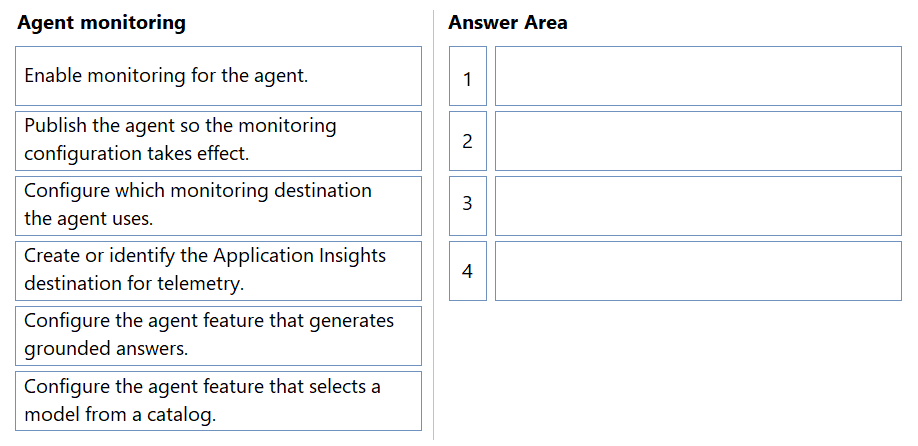
Create or identify the Application Insights destination for telemetry, enable monitoring for the agent, configure which monitoring destination the agent uses, and publish the agent so the monitoring configuration takes effect.
Question
A company uses an agent in Copilot Studio in production and requires centralized monitoring for operational visibility and troubleshooting.
The team decides to use Application Insights as the monitoring solution.
An agent activity is not included in the monitoring data.
You need to enable monitoring the agent by using Application Insights.
Which four actions should you perform in sequence? To answer, move the appropriate actions from the list of actions to the answer area and arrange them in the correct order.
Key Takeaways
The main trap is forgetting that monitoring changes require a final 'Publish' step to take effect in production, and that the destination must be configured after monitoring is enabled but before publishing.
This page details the four-step sequence to enable Application Insights monitoring for a Copilot Studio agent: identify the destination, enable monitoring, configure the destination, and publish the agent.
Common mistake: Learners often attempt to configure the destination before enabling monitoring, or forget to publish the agent, resulting in no telemetry appearing in Application Insights despite correct settings.
Expert Analysis
The scenario requires enabling centralized monitoring for a Copilot Studio agent using Application Insights. The core concept tested is the configuration sequence for agent telemetry, specifically the boundary between defining the destination and activating it within the agent's lifecycle.
The correct logical flow relies on Microsoft’s documentation for monitoring agents in Copilot Studio:
- Create or identify the Application Insights destination for telemetry: Before an agent can send data, there must be an existing Application Insights resource (the destination) to receive the telemetry. This is the foundational step.
- Enable monitoring for the agent: In the Copilot Studio admin center or settings, you must toggle the general monitoring capability for the specific agent instance. This action activates the agent’s ability to generate telemetry events.
- Configure which monitoring destination the agent uses: Once monitoring is enabled, you must explicitly link the agent to the specific Application Insights resource identified in Step 1. This ensures the telemetry flows to the correct centralized location rather than defaulting or failing.
- Publish the agent so the monitoring configuration takes effect: Agent configurations are not live until published. Changes to monitoring settings (especially destination bindings) require a new version to be published to production for the changes to take effect.
A common trap is reversing steps 2 and 3. You cannot configure the destination if monitoring is not first enabled for the agent. Similarly, publishing last is critical; attempting to monitor an unpublished draft agent yields no operational visibility in production.
The comments provided align with this sequence: Identify Destination → Enable Monitoring → Configure Destination → Publish. This order ensures infrastructure exists, the feature is turned on, the path is defined, and the change is deployed.
Official Reference
https://learn.microsoft.com/en-us/copilot-studio/monitor-agents
This link opens the official vendor documentation in a new tab.
Exam Strategy
When asked about sequencing configuration steps in Microsoft cloud services, always check if the feature requires a 'Publish' or 'Deploy' action to become active. For agents, monitoring is a setting that only applies to published versions. Start by identifying the target resource (Application Insights), then activate the feature (Enable), then define the connection (Configure), and finally deploy (Publish).
Frequently Asked Questions
Why do I need to create the Application Insights resource first?
Can I see monitoring data in Application Insights immediately after enabling it?
Discussion 2 contributions
Compiled from public community threads and reader submissions, lightly edited for clarity. Handles and vote tallies are shown as recorded, and comments reflect the views of individual contributors.
From public community threads 2
-
Snoopy70 👍 1Correct sequence Create or identify the Application Insights destination for telemetry Configure which monitoring destination the agent uses Enable monitoring for the agent Publish the agent so the monitoring configuration takes effect
-
massnonn 👍 11-Create or identify the Application Insights destination for telemetry. 2-Enable monitoring for the agent. 3-Configure which monitoring destination the agent uses. 4-Publish the agent so the monitoring configuration takes effect.
Reader comments & corrections
No reader corrections yet — spotted an error or have a note? Share it below.