How Do You Run a KQL Query as a Sentinel Search Job?
DRAG DROP
You have a Microsoft Sentinel workspace named Workspace.
You need to run a KQL query as a search job.
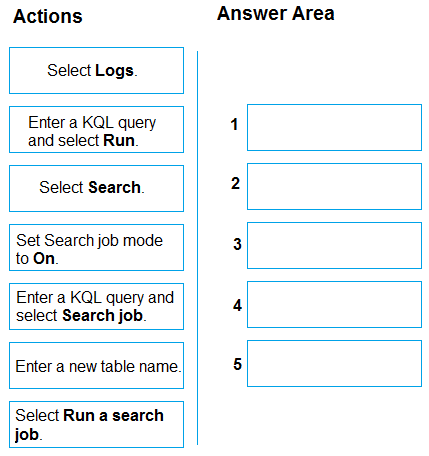
Which five actions should you perform in Workspace1 in sequence? To answer, move the appropriate actions from the list of actions to the answer area and arrange them in the correct order.
Community Insight
This tests the exact Microsoft Sentinel Logs search-job workflow; the common trap is confusing the initial Search-mode setup with the final job confirmation.
Running a KQL query as a Microsoft Sentinel search job stores results in a new destination table; the five-step portal sequence starts with Search and ends with Run a search job.
Learners often treat a search job like a normal Logs query and stop after selecting Run, or they try to enter the destination table name before enabling Search job mode.
Community Discussion (3 comments)
Comments & Corrections
No comments yet — spotted an error or have a note? Share it below.
Expert Analysis
Why the Answer Is Correct
The Microsoft Sentinel Logs experience runs search jobs through a specific Search-mode path rather than by simply pressing Run on an ordinary query. You first select Search, enter the KQL query and select Run to validate it, then set Search job mode to On so the query is treated as a long-running search job. After that you provide the destination table name, and the final action is selecting Run a search job to submit the job. This sequence matches the action labels in the exhibit and the Microsoft Learn search-jobs workflow.Why Other Candidate Answers Are Wrong
Sequences that place Enter a new table name before setting Search job mode to On miss that the destination table field is part of the search-job configuration. Stopping at Enter a KQL query and select Run only executes a normal Logs query and does not create a search job. Swapping in a generic Save or Run action fails because the job must be explicitly submitted with Run a search job. The order must also keep Select Search first, since that opens the search-job path in the workspace.Community Comment Notes
Staim's proposed order aligns with the documented five actions, including the step "Set Search job mode to On" before naming the destination table. NerdAlert cautions that the question is confusing because the UI exposes both "Run As Search Job" and "Run Search Job", and calls the item "this question is poorly written" for not matching an alternate Logs path exactly. The practical takeaway from the thread is to follow the Sentinel search-job mode sequence rather than the generic Log Analytics ellipsis-menu path, then confirm with Run a search job.Official Reference
Exam Strategy
Memorize the order as Search, run query, enable Search job mode, name the destination table, then Run a search job. Exam drag-drop items often include near-duplicate UI labels, so focus on which action opens the mode and which action submits the job.
Frequently Asked Questions
Does a Microsoft Sentinel search job require a new destination table name?
Yes. The search job writes results to a table, so in the Run a search job pane you specify the new table name before starting the job.
What is the difference between enabling Search job mode and selecting Run a search job?
Enabling Search job mode configures the query for long-running search-job behavior, while selecting Run a search job submits the configured job after the table name is entered.
Related Analysis
Practice All SC-200 Questions
Access 80 questions with complete answers and detailed explanations.
View Full SC-200 Practice Test →