Apply Production Changes to Development in Managed Solutions
Short answer
Export the solution from development as managed, Remove the unmanaged layer from the model-driven app in production, Import the solution as an upgrade.
Question
You are making changes to a solution in a development environment. The solution is deployed as managed to the production environment.
You observe that changes were made directly in the production environment, which is not in line with the software development lifecycle.
You apply the changes made in the production environment to your development environment and delete a table column that is no longer required. You add several views to the model-driven app.
You need to apply all changes in production to mirror development without impacting users.
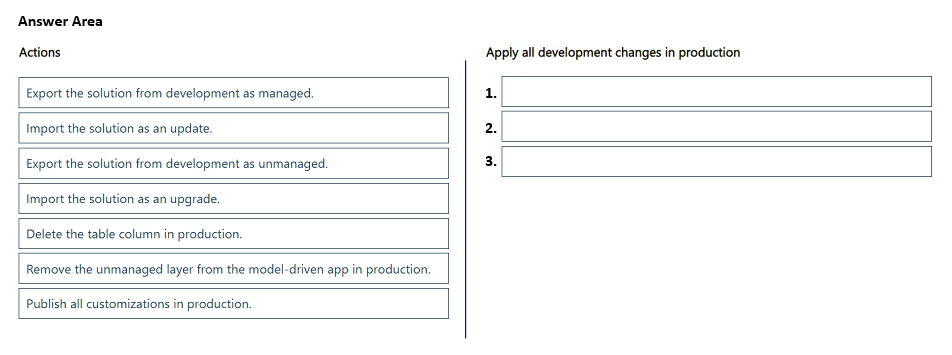
Which three actions should you perform in sequence? To answer, move the appropriate actions from the list of actions to the answer area and arrange them in the correct order.
Key Takeaways
The core concept is maintaining SDLC integrity by converting unmanaged production changes into a managed solution format before upgrading.
This question addresses the proper sequence for migrating direct production customizations back into a managed solution lifecycle. It establishes that you must first export, then clean up the unmanaged layer, and finally import as an upgrade.
Common mistake: Candidates often attempt to import changes directly or fail to remove the unmanaged layer, leading to conflicts or loss of customization history.
Expert Analysis
Why the Answer Is Correct
The correct sequence is: 1) Export the solution from development as managed; 2) Remove the unmanaged layer from the model-driven app in production; 3) Import the solution as an upgrade. First, you must capture the current state of development (including the new views and deleted column) into a managed solution package. Second, because users made direct changes in production, an unmanaged layer exists on top of the managed solution; this layer must be removed to prevent conflicts and ensure the base solution is clean. Third, importing the newly created managed solution as an 'upgrade' applies the development changes (new views, schema changes) to production, effectively mirroring development while preserving user data.
Why the Other Options Are Wrong
Any option suggesting importing without removing the unmanaged layer is incorrect because it causes customization conflicts. Exporting as unmanaged is not suitable here because the target is a managed environment where controlled deployments are required. Directly editing production is explicitly stated as non-compliant with the SDLC.
Community Comment Notes
Community consensus supports the three-step process. As one commenter noted, "Because the problem statement says: 'changes were made directly in production … not in line with SDLC'... That means there’s an unmanaged layer sitting on top." Another user confirmed the order: "1 Export as managed... 2 Remove the unmanaged layer... 3 Import as an upgrade." The key insight shared is that the unmanaged layer must be cleared before the upgrade can successfully apply the new schema and view changes.
Exam Strategy
Always check if an unmanaged layer exists when dealing with managed solutions in production. If direct changes were made, you must address the unmanaged layer before performing any solution upgrades to avoid deployment failures.
Frequently Asked Questions
Why must I remove the unmanaged layer before importing?
Can I import changes directly without exporting from dev?
Discussion 2 contributions
Compiled from public community threads and reader submissions, lightly edited for clarity. Handles and vote tallies are shown as recorded, and comments reflect the views of individual contributors.
From public community threads 2
-
6f7e42a 👍 51) Export the solution from development as managed 2) Import the solution as an upgrade 3) Remove the unmanaged layer from the model-driven app in production Because the problem statement says: “changes were made directly in production … not in line with SDLC” “apply all changes in production to mirror development without impacting users” That means there’s an unmanaged layer sitting on top of your managed solution in Production (people edited the app directly in prod). If you simply import your new managed solution, those unmanaged customizations can still override parts of what you deployed, or leave “extra” stuff hanging around.
-
Cristinedda 👍 11 Export as managed: Production uses managed solutions to maintain controlled deployments. 2 Remove the unmanaged layer: Direct production customizations create an unmanaged layer that can override changes delivered through managed solutions. 3 Import as an upgrade: A solution upgrade adds the new views and removes the deleted table column, ensuring production matches development.
Reader comments & corrections
No reader corrections yet — spotted an error or have a note? Share it below.
Related Analysis
Practice All PL-400 Questions
Access 85 questions with complete answers and detailed explanations.
View Full PL-400 Practice Test →