PowerShell Remoting from Workgroup via IP Address
Short answer
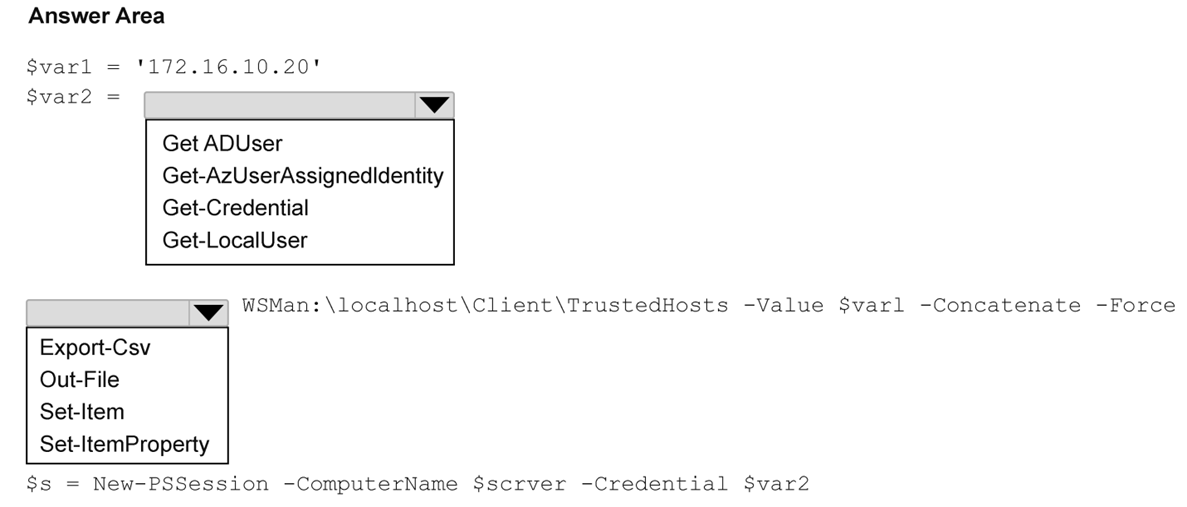
Use New-PSSession -ComputerName 172.16.10.20 -Credential (Get-Credential). Use Set-Item WSMan:\localhost\Client\TrustedHosts -Value '172.16.10.20' -Concatenate -Force.
Question
You have an administrative workstation named AdminPC in a workgroup.
AdminPC has existing entries in the WSMan TrustedHosts list.
You have a server named Server1 that has PowerShell remoting enabled and is reachable at an IP address of 172.16.10.20.
You need to create a remote PowerShell session from AdminPC to Server1. The solution must meet the following requirements:
Preserve the existing TrustedHosts entries on AdminPC.
Use the IP address of Server1 for the remote session.
How should you complete the script? To answer, select the appropriate options in the answer area.
NOTE: Each correct selection is worth one point.
Key Takeaways
The main trap is assuming domain-joined defaults apply; in workgroups, you must manually handle credentials and use Concatenate to update TrustedHosts.
This page explains how to create a remote PowerShell session from a workgroup workstation to a server using an IP address while preserving existing TrustedHosts entries using Get-Credential and Set-Item.
Common mistake: Learners often try to use implicit domain authentication or overwrite the TrustedHosts list entirely, failing to preserve existing entries or provide necessary credentials for non-domain connections.
Expert Analysis
The scenario involves establishing a PowerShell remoting session from a workgroup client (AdminPC) to a server (Server1) using an IP address. Because AdminPC is not domain-joined, Kerberos authentication is unavailable; the connection must rely on NTLM or Basic authentication, which requires explicit user credentials. The New-PSSession cmdlet accepts these via the -Credential parameter.
Regarding network trust, Windows Remote Management (WinRM) restricts connections to trusted hosts by default. When connecting via an IP address from a workgroup, the client must explicitly add that IP to its TrustedHosts list. To preserve existing entries as required by the question, the Set-Item cmdlet should be used on the WSMan provider path (WSMan:\localhost\Client\TrustedHosts) with the -Concatenate switch and the -Force parameter. This appends the new IP without overwriting previous configurations.
Official Reference
https://learn.microsoft.com/en-us/powershell/module/microsoft.powershell.core/new-pssession
This link opens the official vendor documentation in a new tab.
Exam Strategy
When troubleshooting or configuring WinRM for hybrid or workgroup scenarios, always verify the authentication protocol (NTLM vs Kerberos). If Kerberos is impossible due to lack of domain membership, ensure you account for credential prompts and explicit host trust configuration using concatenation rather than replacement.
Frequently Asked Questions
Why can't I use Kerberos for this connection?
What does the -Concatenate switch do in Set-Item?
Discussion 1 contributions
Compiled from public community threads and reader submissions, lightly edited for clarity. Handles and vote tallies are shown as recorded, and comments reflect the views of individual contributors.
From public community threads 1
-
fabiomartinsnet 👍 1Provided answer is OK! Because AdminPC is in a workgroup and connects via IP address rather than Kerberos, New-PSSession requires explicit credentials captured as a PSCredential object using Get-Credential. Additionally, to trust the target IP while preserving existing configurations, the WSMan provider path WSMan:\localhost\Client\TrustedHosts must be updated using Set-Item with the -Concatenate parameter, as follow: $var1 = '172.16.10.20' $var2 = Get-Credential Set-Item WSMan:\localhost\Client\TrustedHosts -Value $var1 -Concatenate -Force $s = New-PSSession -ComputerName $var1 -Credential $var2
Reader comments & corrections
No reader corrections yet — spotted an error or have a note? Share it below.
Related Analysis
Practice All AZ-802 Questions
Access 125 questions with complete answers and detailed explanations.
View Full AZ-802 Practice Test →