Manage Windows Server VMs in Azure via Windows Admin Center
Short answer
Install the Windows Admin Center extension on VM1 and assign the Windows Admin Center Administrator Login role to the user in Access control (IAM).
Question
You have an Azure subscription. The subscription contains a virtual network named VNet1. VNet1 contains two virtual machines named VM1 and VM2 that run Windows Server.
You need to ensure that when you sign in to the Azure portal from VM2, you can manage the operating system of VM1. The solution must minimize costs.
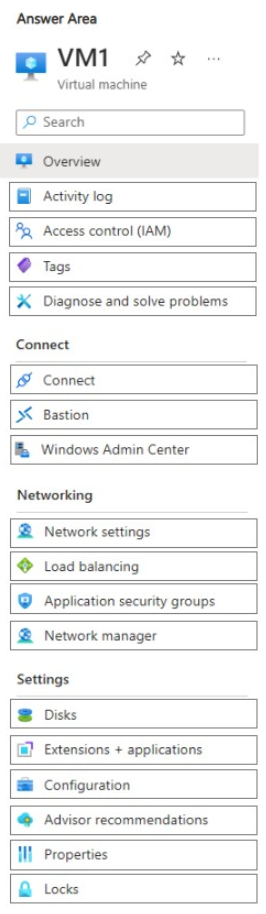
Which two settings should you configure for VM1? To answer, select the appropriate settings in the answer area.
NOTE: Each correct answer is worth one point.
Key Takeaways
The main trap is assuming network connectivity is sufficient; the actual requirement is enabling the specific management extension and granting explicit RBAC permissions in Azure IAM.
Learn how to configure VM1 to allow OS management from VM2 using the Azure portal by installing the Windows Admin Center extension and assigning the correct IAM role.
Common mistake: Students often try to configure Network Security Groups (NSGs) or Remote Desktop Services instead. These fail because they do not provide the browser-based management interface required by the Azure portal's Windows Admin Center integration.
Expert Analysis
To manage the operating system of VM1 remotely from VM2 via the Azure portal, you must enable the Windows Admin Center gateway extension on the target machine. This feature allows administrators to interact with the server's OS through a browser-based interface hosted within Azure.
The solution requires two specific configurations on VM1:
First, under Extensions, the Windows Admin Center extension must be installed and configured. This installs the necessary agent that bridges the VM's management plane with the Azure portal. Without this extension, the portal has no mechanism to render the management console for that specific VM.
Second, under Access control (IAM), the user attempting to connect must have the appropriate permissions. The comment highlights a critical security detail: managing the OS via this method is governed by Azure control-plane authentication. Therefore, the user must be assigned the Windows Admin Center Administrator Login role (or at least User Login) in the IAM settings of VM1. Even if network connectivity exists, lacking this explicit RBAC assignment will result in an 'Access Denied' error when trying to launch the management session.
This scenario centers on the distinction between network-level access and application-level authorization. Getting it wrong—by only configuring network rules or firewall settings—fails because the Azure portal itself acts as the client, and its ability to display the management UI is strictly controlled by IAM roles on the resource. Minimizing costs implies using the built-in Azure portal integration rather than deploying third-party remote desktop gateways or purchasing additional licenses for external management suites.
Official Reference
This link opens the official vendor documentation in a new tab.
Exam Strategy
When a question asks about managing a VM via the Azure portal, immediately look for 'Extensions' and 'IAM'. The Azure portal manages resources through its own control plane, so always check if the specific management extension is installed and if the user has the corresponding RBAC role assigned. Do not default to network troubleshooting unless explicitly asked about connectivity issues.
Frequently Asked Questions
Why isn't Remote Desktop enough?
Does VM2 need any configuration?
Discussion 1 contributions
Compiled from public community threads and reader submissions, lightly edited for clarity. Handles and vote tallies are shown as recorded, and comments reflect the views of individual contributors.
From public community threads 1
-
fabiomartinsnet 👍 1Provided answer is correct! Because managing the operating system via Windows Admin Center in the Azure portal is governed by Azure control plane authentication, the user must explicitly be assigned the Windows Admin Center Administrator Login (or User Login) role under Access control (IAM) on the target virtual machine resource, regardless of where the connection originates or network connectivity. Furthermore, navigating to the dedicated Windows Admin Center blade under the VM settings enables the extension and provisions OS-level management tools through the browser at no additional licensing cost, satisfying the requirement to minimize expenses.
Reader comments & corrections
No reader corrections yet — spotted an error or have a note? Share it below.
Related Analysis
Practice All AZ-802 Questions
Access 125 questions with complete answers and detailed explanations.
View Full AZ-802 Practice Test →