Moving an Azure Files share backup from Vault1 to Vault2
Short answer
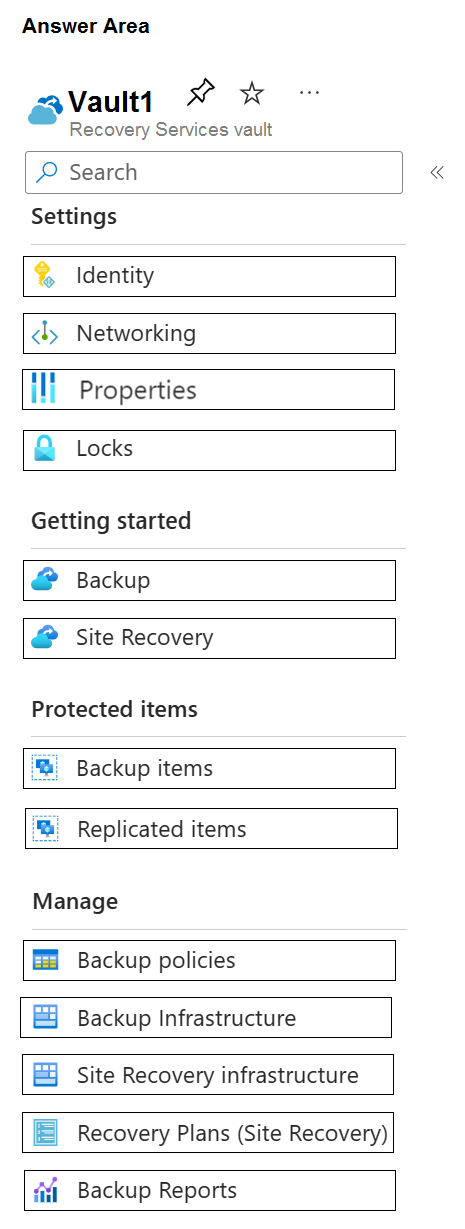
In Vault1, select Backup Items > Azure Storage (Azure Files) > share1, stop backup and delete backup data; then select Backup Infrastructure > Storage Accounts > the storage account hosting share1 and unregister it.
Question
You have an Azure subscription that contains the resources shown in the following table.

share1 stores FSLogix profile containers and is backed up daily to Vault1.
You need to change the backup location of share1 to Vault2.
Which two settings should you modify for Vault1 to prepare for the change? To answer, select the appropriate settings in the answer area.
NOTE: Each correct selection is worth one point.
Key Takeaways
The exam tests whether you know that vault migration requires removing the protected Azure Files item and unregistering its storage account, not merely changing or deleting a backup policy.
This AZ-140 hotspot tests changing an Azure Files backup location for an FSLogix profile share from Vault1 to Vault2. The answer requires clearing the protected item in Backup Items and unregistering the storage account in Backup Infrastructure.
Common mistake: A common wrong choice is to modify or delete the backup policy because the schedule lives there; however, policy changes neither remove existing recovery points nor release the storage account from Vault1.
Expert Analysis
What must be changed in Vault1 For an Azure Files share protected by a Recovery Services vault, changing the backup location is not a vault property edit. The share’s protection and the storage account’s registration are what bind it to Vault1. In Vault1, open Backup Items > Azure Storage (Azure Files), select share1, choose Stop backup, and select Delete backup data. Then open Backup Infrastructure > Storage Accounts, select the storage account containing share1, and choose Unregister. The two settings/areas to modify are therefore Backup Items and Backup Infrastructure.
Why policy changes do not prepare the move The backup policy only defines schedule and retention for protected items. It does not own the existing recovery points and does not maintain the storage account registration. Deleting or editing a policy does not remove share1’s protected item from Vault1, so registration in Vault2 would still fail because the storage account remains registered to Vault1. This is the trap: a comment notes that a backup policy “does not own existing backup data,” and another states that Backup Policies is wrong. Stopping backup with retained data is also insufficient; the backup item and registration must be cleared.
Adjacent decision and scenario flip If the requirement were only to change the daily schedule, retention, or the policy used for share1, the answer would be Backup Policies instead. The answer flips to stop/delete plus unregister whenever the storage account must be registered to a different vault. If the question asked about retaining old recovery points, you would need to verify restore requirements before deleting data, because unregistering cannot proceed while those items remain.
Operational consequence Skipping either step leaves share1 tied to Vault1: Vault2 cannot register the storage account, and the intended backup location is never changed. Deleting the data without confirming FSLogix recovery needs is also risky because share1 holds profile containers, and those recovery points may be the only clean restore source. Do the cleanup in order: stop/delete in Backup Items, unregister in Backup Infrastructure, then register the storage account with Vault2.
Official Reference
https://learn.microsoft.com/en-us/azure/backup/backup-azure-files
This link opens the official vendor documentation in a new tab.
Exam Strategy
For Azure Backup migration questions, separate data cleanup from vault registration. Look for the two portal areas: Backup Items, where you stop protection and delete data, and Backup Infrastructure, where you unregister the storage account. Do not choose Backup Policies just because a schedule exists—policy deletion is neither required nor sufficient while items remain protected. If the scenario asks only about schedule or retention changes, that is when Backup Policies becomes the relevant area.
Frequently Asked Questions
Can I move share1 to Vault2 by just changing the backup policy in Vault1?
Why must I delete backup data before unregistering the storage account from Vault1?
Will deleting share1’s backup data affect the live FSLogix profile share?
Discussion 3 contributions
Compiled from public community threads and reader submissions, lightly edited for clarity. Handles and vote tallies are shown as recorded, and comments reflect the views of individual contributors.
From public community threads 3
-
Ruslan23 👍 5Backup items > Azure Storage (Azure Files) > share1 > Stop backup > Delete backup data Backup Infrastructure > Storage Accounts > storage1 > Unregister Backup policy does not own existing backup data, so you cannot delete it to prepare for new Vault
-
hwoccurrence 👍 1Correct. Backup policies: Ensures Share1 is no longer governed by Vault1’s backup schedules. Backup Infrastructure: Removes Share1’s registration from Vault1, allowing it to be re-registered in Vault2. Why not other options? Site Recovery/Recovery Plans: Irrelevant for Azure Files backup. Networking/Properties/Locks: Do not control backup registration or policies.
-
Ivanvazovv 👍 1Backup Policies is wrong. Backup Items to Stop Backup and Backup Infrastructure > Azure Storage Accounts > Storage Accounts > Unregister to unregister the storage account.
Reader comments & corrections
No reader corrections yet — spotted an error or have a note? Share it below.
Related Analysis
Practice All AZ-140 Questions
Access 64 questions with complete answers and detailed explanations.
View Full AZ-140 Practice Test →