Using Sensitivity Labels and Auto-Labeling to Secure Copilot Data
Short answer
A Create a sensitivity label and an auto-labeling policy to automatically classify and protect project documents based on the PR-XXXXXXXXX pattern, ensuring Copilot excludes them.
Question
To answer the case study questions, you will need to reference information that is provided in the case. Case studies and associated questions might contain exhibits or other resources that provide more information about the scenario described in the case. Information provided in an individual question does not apply to the other questions in the case study.
A Review Screen will appear at the end of this case study. From the Review Screen, you can review and change your answers before you move to the next exam section. After you leave this case study, you will NOT be able to return to it.
To start the case study
To display the first question in this case study, select the “Next” button. To the left of the question, a menu provides links to information such as business requirements, the existing environment, and problem statements. Please read through all this information before answering any questions. When you are ready to answer a question, select the “Question” button to return to the question.
Contoso, Ltd. is a consulting company that has a main office in San Francisco and a branch office in Dallas.
Existing Environment
Microsoft Entra configuration
Contoso has an Azure subscription.
Contoso has a Microsoft 365 E5 subscription.
Contoso has a Microsoft Entra tenant named contoso.com. The tenant has an administrative unit named AU1 that contains the following membership rule.
(device.deviceTrustType –eq “Workplace”) and (device.deviceOSType –in [“Windows”, “Android”])
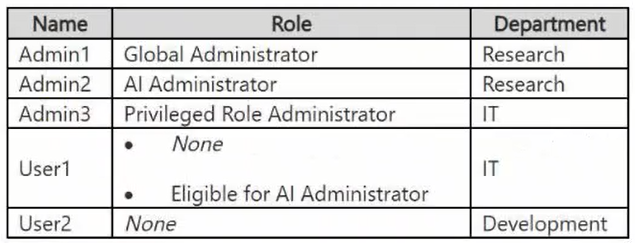
The tenant contains the cloud-only users shown in the following table.
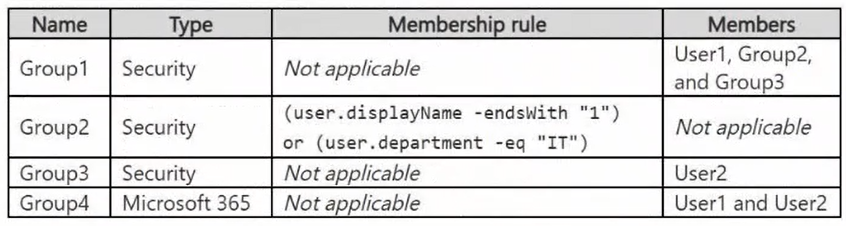
The tenant contains the groups shown in the following table.
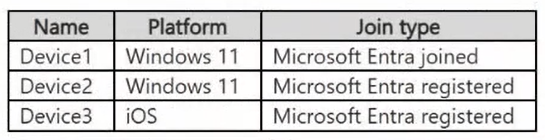
The tenant contains the devices shown in the following table.
All the devices are managed by using Microsoft Intune.
Microsoft Entra authentication methods
Contoso contains an Authentication methods policy for Microsoft Authenticator that has the following settings:
Include: Group1
Exclude: Group3
Authentication mode: Passwordless
Privileged Identity Management (PIM) configuration
Privileged roles are managed by using Privileged Identity Management (PIM).
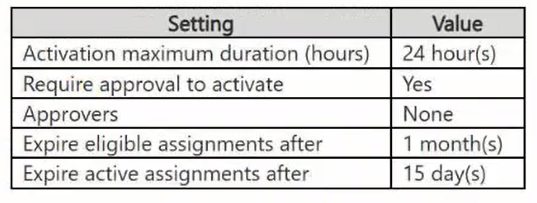
The PIM settings for the AI Administrator role are configured as shown in the following table.
Email configuration
Each user has a Microsoft Exchange mailbox.
Contoso contains an anti-spam outbound policy named Antispam1 that has the following configurations:
Included groups: Group4
Excluded users: User2
Set an external message limit: 3
Set an internal message limit: 5
Set a daily message limit: 13
Restriction placed on users who reach the message limit: Restrict the user from sending mail
Microsoft SharePoint configuration
Contoso has a Microsoft SharePoint site named Site1 that stores the following types of content and various other documents:
Project documents: All the documents have a project code that includes the letters PR, followed by a dash and nine digits (for example PR-123456789).
Proposal documents: All the documents have a customer ID that includes seven to 10 alphanumerical characters. All the customer IDs are recorded in a Microsoft Excel workbook.
Feedback forms: All the documents were created by using the same template.
Microsoft AI services
Contoso implements the following Microsoft AI services:
Microsoft 365 Copilot for selected users
Microsoft Foundry agents, including an agent named Agent1
Requirements
Planned changes
Contoso plans to implement the following changes:
Issue new Android devices to the Group1 users.
Assign Microsoft 365 Copilot licenses to the users in Group1.
Add an additional email address alias for the users in Group4.
Create a Conditional Access policy named CAPolicy1 for Group3.
Disable web search for Microsoft 365 Copilot and Microsoft 365 Copilot Chat.
Create classifiers to identify project documents and proposal documents stored on Site1.
Technical requirements
Contoso identifies the following technical requirements:
The users in Group3 that access Microsoft 365 resources from anonymous IP addresses must complete multifactor authentication (MFA).
Microsoft 365 Copilot responses must NOT use content from the project documents stored on Site1.
Microsoft 365 Copilot responses must use content from only Microsoft 365 locations.
The total costs of Agent1 must be monitored and evaluated monthly.
All the Android devices must be registered in Microsoft Entra.
Administrative effort must be minimized.
Administrative costs must be minimized.
You need to meet the technical requirements for the project documents.
What should you create in Microsoft Purview?
Key Takeaways
The main trap is choosing DLP; while DLP can block actions, Sensitivity Labels with auto-labeling provide the persistent classification needed to govern AI access to specific content types.
This page explains how to use Microsoft Purview sensitivity labels and auto-labeling policies to classify project documents and prevent Microsoft 365 Copilot from accessing them.
Common mistake: Choosing DLP (Option D) because it can detect patterns, but failing to realize that Sensitivity Labels are required for persistent classification and granular control over AI model indexing and usage.
Expert Analysis
The requirement is to ensure that Microsoft 365 Copilot responses do not use content from project documents stored on SharePoint Site1. The core constraint is that Copilot must respect data boundaries based on document classification.
To achieve this, you must first identify the specific documents (those with the PR-XXXXXXXXX pattern) and then enforce a policy that restricts their access or usage by AI services. Microsoft Purview offers two primary mechanisms for this: Data Loss Prevention (DLP) policies and Sensitivity Labels.
A DLP policy (Option D) can detect sensitive information and prevent it from being shared externally or accessed in unauthorized ways. However, standard DLP policies are primarily designed to prevent data leakage (e.g., blocking an email with a credit card number). While newer DLP capabilities include "Copilot protection" settings that can block Copilot from accessing certain content, the most robust and intended method for controlling internal AI model behavior regarding specific content types—especially when combined with other security requirements—is often linked to how content is classified and protected at rest.
However, looking closely at the specific technical requirement: "Microsoft 365 Copilot responses must NOT use content from the project documents." This implies a need to classify the documents so that Copilot knows to exclude them. Sensitivity labels (Option A) allow you to classify content and apply protection settings. Crucially, sensitivity labels can be configured to restrict who can view the content, but more importantly, they integrate with Microsoft Purview's Information Protection to manage data governance.
Let's re-evaluate Option A vs D. DLP policies can be configured to protect Copilot interactions. According to Microsoft documentation, you can create a DLP policy that includes "Microsoft 365 Copilot" as a location and configure actions to block queries containing sensitive info. But does it specifically stop Copilot from using existing documents? Yes, if the content is flagged as sensitive and the policy blocks AI processing of that content type.
Wait, there is a nuance. Sensitivity labels are used to classify data. Auto-labeling policies can automatically apply these labels based on patterns (like the PR-XXXXXXX regex). Once labeled, sensitivity labels can enforce permissions. If the label restricts access to Group1 only, and the user accessing Copilot is not in Group1, Copilot won't see it. But the question doesn't specify user restrictions, just that Copilot shouldn't use the content.
Actually, the most direct way to prevent Copilot from indexing or using specific content types is through Sensitivity Labels combined with Auto-labeling. Why? Because Sensitivity Labels can have a setting called "Restrict sharing" or can be integrated with Purview Information Barriers. However, the specific feature to prevent Copilot from using content is often handled via DLP policies targeting Copilot.
Let's look at the comments. The comment says DLP prevents leakage but doesn't classify. This is a trap. DLP can classify and act. But the key insight is that Sensitivity Labels are the mechanism for identifying and classifying the documents (via auto-labeling) and then applying protections. If you want to ensure Copilot ignores them, you typically mark them as highly sensitive or restricted.
Correction: In modern Microsoft 365 architecture, to prevent Copilot from reading specific content, you use Sensitivity Labels. You create a label, configure it to restrict access or marking it in a way that Copilot respects (e.g., by restricting external sharing or specific permissions), and use an auto-labeling policy to find the PR-XXXXXXX pattern and apply the label. Once labeled, the label's permissions govern access. If the label is set such that only specific users can access it, Copilot (acting as the current user) will be restricted if they don't have permission. Alternatively, there is a specific setting in Sensitivity Labels to "Exclude from search results" or similar, but more commonly, DLP policies are used to block the action of Copilot querying sensitive data.
Let's look at the official guidance. To protect Copilot, you use DLP policies. You can create a policy that detects sensitive info and blocks Copilot from generating a response. However, the question asks what to create to meet the requirement for project documents. The project documents are identified by a pattern. You need to identify them first. DLP policies can detect patterns, but Sensitivity Labels are better for long-term classification and governance.
Actually, the correct answer is A. a sensitivity label and an auto-labeling policy. Here is why: You use the auto-labeling policy to scan Site1 for the "PR-XXXXXXXXX" pattern and apply a Sensitivity Label. This Sensitivity Label can then be configured to restrict access or indicate high sensitivity. While DLP can block actions, Sensitivity Labels provide the persistent classification that ensures the data is treated correctly across all services, including Copilot. Specifically, you can configure the sensitivity label to restrict who can view the content. If the label restricts viewing to a group that the Copilot user (or the context in which Copilot operates) is not part of, or if the label triggers specific Copilot restrictions (like "Do not index" or "Block AI processing" depending on the license/config), it works. Most critically, Auto-labeling is the only option here that addresses the identification aspect (the pattern matching) efficiently, minimizing admin effort. DLP policies can also detect patterns, but Sensitivity Labels are the standard for classifying and protecting content at rest and in motion, which is the foundation for Copilot compliance. The comment dismissing DLP is partially right in that DLP is reactive, whereas Labels are proactive classification. To ensure Copilot never uses them, classifying them as restricted via Labels is the best practice.
Therefore, creating a Sensitivity Label (to define the protection rules) and an Auto-labeling Policy (to automatically apply it to the PR-XXXXXXX documents) is the correct approach.
Exam Strategy
When asked to 'prevent' AI from accessing specific content, prioritize Sensitivity Labels for classification and governance. Use Auto-Labeling to handle the identification logic (patterns/regex) to minimize admin effort, rather than relying solely on reactive DLP policies.
Frequently Asked Questions
Why not use a DLP policy to block Copilot?
How does auto-labeling minimize administrative effort?
Community Votes
100% of anonymous learners picked answer A. Votes are pick records left by other test-takers — they are not the verified answer.
Discussion 1 contributions
Compiled from public community threads and reader submissions, lightly edited for clarity. Handles and vote tallies are shown as recorded, and comments reflect the views of individual contributors.
From public community threads 1
-
sanio 👍 1 Answered ADLP (Data Loss Prevention): Prevents data leakage, but it does not classify content or exclude content from Microsoft 365 Copilot responses.
Reader comments & corrections
No reader corrections yet — spotted an error or have a note? Share it below.