Auto-closing Waiting and Wrap-Up Chat Conversations
Short answer
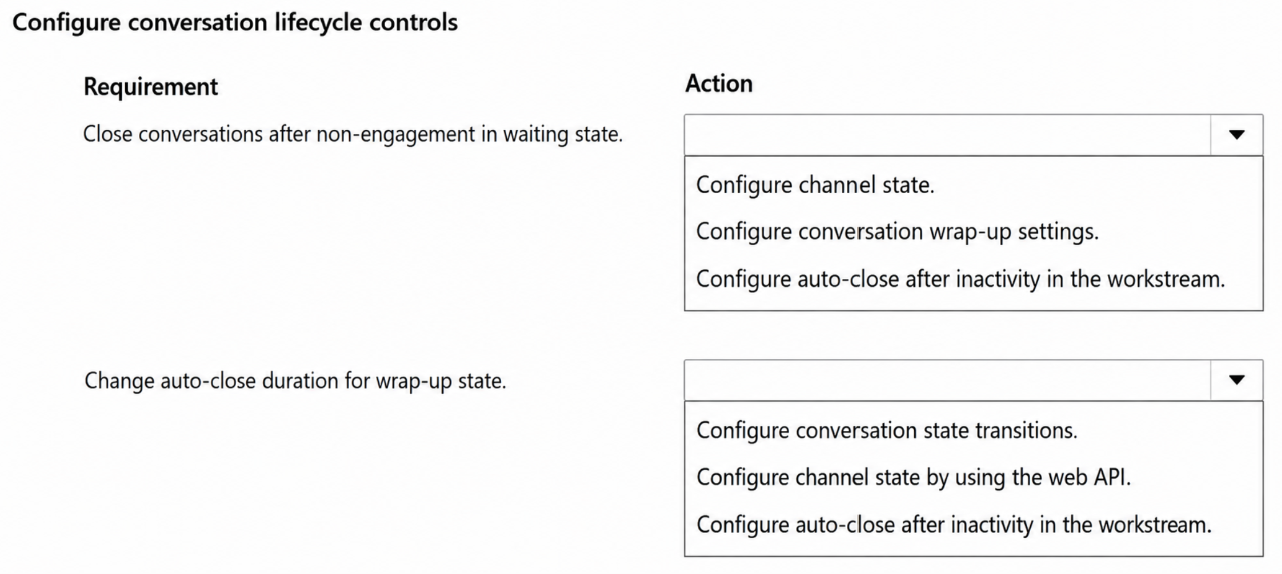
For conversations waiting with no customer engagement, set Auto-close after inactivity on the chat workstream with the defined period. For chat conversations in wrap-up, set the wrap-up time limit on the same workstream so they auto-close after the business-defined custom limit.
Question
A company uses persistent chat and messaging channels in a contact center.
The company requires tighter conversation lifecycle control to keep queues clean and customer service representative workloads current.
The company has the following requirements:
• Conversations that remain in a waiting status without customer engagement must automatically close after a defined period.
• Chat conversations that move to wrap-up must automatically close after a business-defined custom time limit.
You need to configure the channels to meet the requirements.
Which action should you perform for each requirement? To answer, select the appropriate options in the answer area.
NOTE: Each correct selection is worth one point.
Key Takeaways
The trap is placing these timers at the queue or routing level; both lifecycle controls are workstream settings, and wrap-up uses a fixed custom timer rather than an inactivity timeout.
This hotspot tests where conversation lifecycle timers are configured in Dynamics 365 Contact Center. Both the inactivity auto-close for waiting conversations and the wrap-up time limit are set on the chat workstream, not on queues or routing.
Common mistake: Configuring the waiting-conversation timeout on the queue or via unified routing, which abandons or reclassifies work items instead of closing the conversation, and which cannot address a wrap-up timer at all.
Expert Analysis
The attractive wrong answer: queue-level timeouts
It is tempting to handle "conversations stuck in waiting" at the queue, because queues are where waiting conversations sit and where workloads are counted. A queue work-item timeout or a routing rule, however, only abandons or reclassifies the work item — it does not end the conversation itself, and it has no bearing on a chat conversation that has already been accepted and moved into wrap-up. Unified routing settings such as work classification and overflow likewise act before a conversation is engaged, so they satisfy neither requirement cleanly.
Where both requirements are actually met
Both lifecycle controls live on the chat workstream in Dynamics 365 Contact Center, not on the queue, the channel configuration, or the session template. On the workstream's chat channel settings you configure:
- Auto-close after inactivity — this closes conversations that sit in a waiting status with no customer engagement once the defined period elapses. The learner note in the discussion confirms this: it "allows conversations to close automatically when customers do not respond within a specified period" and is "configured at the workstream level."
- Wrap-up time limit — this closes a chat conversation automatically after the business-defined custom limit once the representative has moved it to wrap-up.
So the correct mapping is: waiting/inactive requirement → auto-close after inactivity on the workstream; wrap-up requirement → wrap-up time limit on the same workstream. The single point where the queue-based approach fails is that neither control is a queue property, and the wrap-up requirement cannot be expressed as inactivity at all, since the conversation is already engaged and merely awaiting disposition.
Why the setting names matter
Read the requirement wording carefully: "without customer engagement" maps to inactivity, while "move to wrap-up" maps to a fixed custom timer. Match each phrase to its named setting on the workstream and both hotspots resolve to workstream-level configuration.
Exam Strategy
When a question gives two lifecycle requirements, map each phrase to a named setting before choosing where it lives: "no customer engagement" signals an inactivity timer, while "wrap-up plus custom limit" signals a fixed wrap-up timer. Then check the configuration surface — if the control ends the conversation itself rather than moving or reassigning work, it belongs to the channel/workstream, not the queue or routing rules. Applying that two-step filter eliminates queue timeouts and unified routing options on similar hotspot items.
Frequently Asked Questions
Where is Auto-close after inactivity configured for chat conversations?
Can I auto-close a chat conversation after it enters wrap-up?
Why not use a queue timeout to close waiting conversations?
Discussion 1 contributions
Compiled from public community threads and reader submissions, lightly edited for clarity. Handles and vote tallies are shown as recorded, and comments reflect the views of individual contributors.
From public community threads 1
-
Dim1973 👍 1Correct answer: Configure auto-close after inactivity in the workstream. Explanation: In Dynamics 365 Contact Center, the Auto-close after inactivity setting allows conversations to close automatically when customers do not respond within a specified period. This setting is configured at the workstream level and helps prevent inactive conversations from remaining in queues unnecessarily. Correct answer: Configure channel state by using the web API. Explanation: The wrap-up state is used when a customer service representative (CSR) has finished interacting with a customer but is still completing post-conversation activities. To customize the automatic closure duration for conversations in the wrap-up state, administrators can modify the channel state configuration through the Dataverse Web API. This provides more control over how long conversations remain in wrap-up before automatically closing.
Reader comments & corrections
No reader corrections yet — spotted an error or have a note? Share it below.
Related Analysis
Practice All AB-250 Questions
Access 106 questions with complete answers and detailed explanations.
View Full AB-250 Practice Test →